CCNA Routing and Switching Essentials
Networking Fundamentals
The Building Blocks of a Network
At its heart, a computer network is just a collection of devices that can talk to each other. Think of it like a small town. You have houses (end devices like your computer or phone), roads connecting them (network media like cables), and intersections with traffic lights (intermediary devices like switches and routers).
End devices are where we, as users, interact with the network. Your laptop, smartphone, server, and even a smart TV are all end devices. They are the originators or the final destination of any data transfer.
Intermediary devices connect the end devices. The two most common ones you'll encounter are switches and routers. A switch operates within a single neighborhood, or what we call a Local Area Network (LAN). It lets all the devices in that specific area talk to each other efficiently. A router is like the highway exit that connects your neighborhood to other towns, allowing communication between different networks.
LAN
noun
A Local Area Network (LAN) is a collection of devices connected together in one physical location, such as a building, office, or home.
Finally, network media is the physical path over which the data travels. This is most often a physical Ethernet cable, but it can also be fiber optic cable or even radio waves for Wi-Fi.
Internet and IP Addresses
So, how does your small town network connect to the global city that is the Internet? The Internet is simply a massive, worldwide network of networks. Routers are the key players here, forwarding data packets between all these different networks to get them to their final destination.
To make this work, every device needs a unique address, just like a mailing address for a house. In networking, this is called an IP address (Internet Protocol address). It's a logical address that identifies a device on a network.
A standard IP version 4 (IPv4) address looks like this: 192.168.1.10. It's made of four numbers, each ranging from 0 to 255, separated by dots.
An IP address has two parts: the network portion and the host portion. The network portion identifies which network the device is on (the street name), and the host portion identifies the specific device on that network (the house number).
How does a device know which part is which? That's the job of the subnet mask. A subnet mask, like 255.255.255.0, 'masks' the network portion of the IP address, leaving the host portion visible. In this example, the first three numbers (192.168.1) represent the network, and the last number (10) is the host.
| Component | Example | Analogy |
|---|---|---|
| IP Address | 192.168.1.10 | Full street address |
| Network Portion | 192.168.1 | Street name |
| Host Portion | 10 | House number |
| Subnet Mask | 255.255.255.0 | Defines where the street name ends and the house number begins |
Ethernet and Local Communication
While IP addresses are great for getting data across different networks, devices on the same local network use a different kind of address for direct communication. This is called a MAC address (Media Access Control address).
A MAC address is a unique, physical hardware address burned into every network card by its manufacturer. It looks like this: 00:0A:95:9D:68:16. When your computer wants to send data to your printer on your home LAN, it sends it to the printer's MAC address, not its IP address.
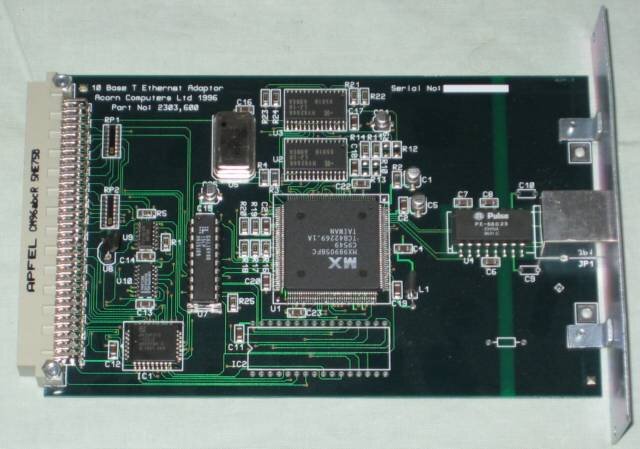
This whole process of local communication is governed by a set of rules, or protocols, called Ethernet. Ethernet defines how devices format data and transmit it over the local network so they don't talk over each other. A switch is an Ethernet device; it's very smart about MAC addresses. It learns which MAC address is connected to which of its physical ports, and it forwards data only to the port where the destination device is located. This creates an efficient, collision-free local network.
Basic Device Configuration
Now let's put this theory into practice. When you connect to a Cisco router or switch for the first time, you'll use a command-line interface (CLI). Here are a few fundamental commands to get you started.
Theory alone is insufficient for mastering Cisco routing and switching; practical application is essential.
First, you need to enter the privileged EXEC mode, which allows you to view settings. Then, you'll move to global configuration mode to make changes.
Switch> enable
Switch# configure terminal
Enter configuration commands, one per line.  End with CNTL/Z.
Switch(config)#
From here, you can perform basic tasks. A good first step is to give your device a unique name.
Switch(config)# hostname S1
S1(config)#
On a router, a critical step is to configure an IP address on its interfaces. This allows it to participate in the network and route traffic. You select an interface, assign an IP address and subnet mask, and then activate it.
Router(config)# interface GigabitEthernet0/0/0
Router(config-if)# ip address 192.168.1.1 255.255.255.0
Router(config-if)# no shutdown
Router(config-if)# exit
The no shutdown command brings the interface online. With these simple commands, you've started to build and manage your own network.
Ready to check your understanding? Let's review what we've covered.
What is the primary role of a router in a computer network?
Your computer, smartphone, and a web server are all examples of which type of network component?
Understanding these core components and concepts provides the foundation for everything else you'll learn in routing and switching.