CBSE Class 10 HTML Mastery
Advanced Text Formatting
Finer Control Over Text
You already know how to structure text with paragraphs and apply basic emphasis. Now, let's go deeper. For specific situations, especially in older codebases or certain exam scenarios, you might need to format text without using CSS. For this, we turn to some classic HTML tags and their attributes.
The <font> tag is a powerful tool for controlling the look of your text directly. While modern web design relies on CSS for styling, understanding the <font> tag is crucial for understanding HTML's history and for contexts where CSS isn't an option.
<font face="Arial" size="5" color="blue">
  This text will be in Arial, size 5, and blue.
</font>
The tag works using attributes. Let's break down the three main ones you'll use: face, size, and color.
Face, Size, and Colour
The face attribute specifies the font family. You can list multiple fonts separated by commas. The browser will try the first font, and if it's not available, it will move to the next one in the list.
<p>This is the default font.</p>
<p><font face="Verdana, Geneva, sans-serif">This text uses Verdana if possible.</font></p>
The size attribute sets the font size. It accepts a number from 1 (smallest) to 7 (largest). The default size is 3. You can also specify relative sizes, like size="+1" to make the text one size larger than the base font size.
<p><font size="1">This is tiny text.</font></p>
<p><font size="7">This is very large text.</font></p>
<p>The base font size is 3. <font size="+2">This is two sizes bigger.</font></p>
Finally, the color attribute changes the text colour. You can use simple color names like "red" or "green". For more precise control, you can use hex codes, which represent millions of different colours.
<p><font color="red">This text is red.</font></p>
<p><font color="#0000FF">This text is blue, defined by a hex code.</font></p>
Special Positions and Alignment
Sometimes you need to place text slightly above or below the normal line. This is common in science and maths. HTML has specific tags for this.
The <sub> tag creates subscript text, which appears smaller and lower. It's perfect for chemical formulas.
The chemical formula for water is H2O.
The <sup> tag creates superscript text, which is smaller and higher. Use it for mathematical exponents or footnotes.
The Pythagorean theorem is a2 + b2 = c2.
For centering blocks of text or other elements, the <center> tag is a straightforward, though now deprecated, solution. Everything between its opening and closing tags will be horizontally centered on the page.
<center>
  <h1>This heading is centered.</h1>
  <p>This paragraph is also centered.</p>
</center>
Structuring with Rules and Headers
You've seen heading tags <h1> through <h6> before. Remember, their primary purpose is to create a logical structure for your content. <h1> is the most important heading, followed by <h2>, and so on. Browsers display them at different sizes by default to create a visual hierarchy.
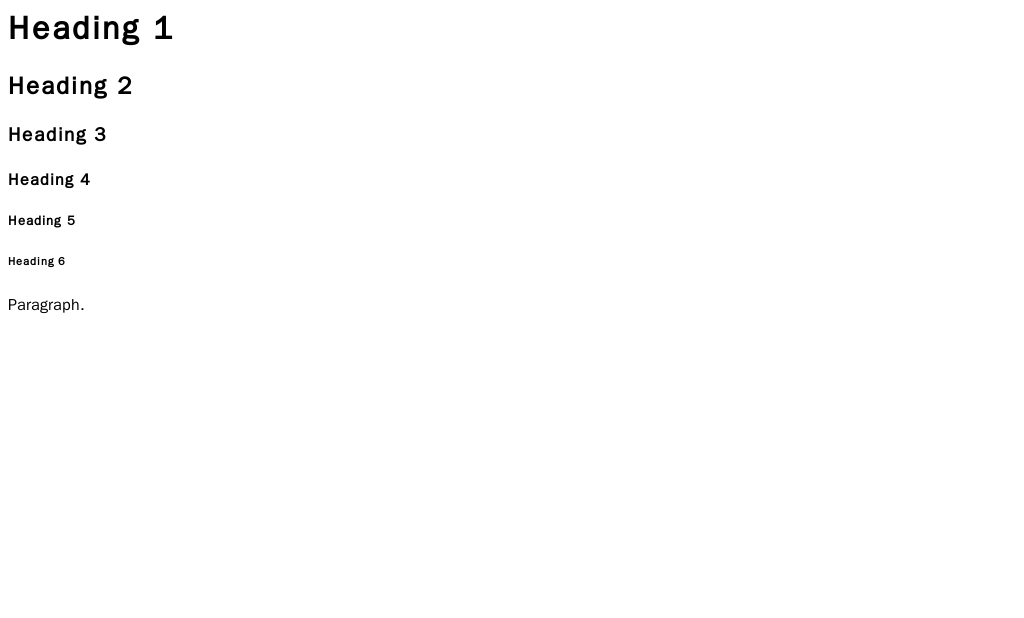
To create a visual separation between sections of your content, you can use the horizontal rule tag, <hr>. By default, it's a thin, grey line that spans the full width of its container. But you can customise it.
The <hr> tag has attributes to control its appearance. The size attribute sets the thickness in pixels, width sets the length (either in pixels or as a percentage of the container's width), and color sets the colour.
<!-- A simple horizontal rule -->
<hr>

<!-- A customised rule -->
<hr size="5" width="50%" color="navy">
Now, let's test your understanding of these formatting tools.
Which attribute of the <font> tag is used to specify the typeface, like Arial or Times New Roman?
How would you write the mathematical expression for 'x squared', x², in HTML?
Mastering these tags gives you precise control over your text's appearance, a key skill for building well-formatted and readable web pages, especially when modern styling methods aren't available.