CapCut Video Effects Mastery
Getting Started
Starting Your First Project
First, you need to get CapCut on your phone. It's a free application available for both iOS and Android devices. Head to the App Store if you have an iPhone, or the Google Play Store if you're on Android, and search for "CapCut." Once you find it, download and install it just like any other app.
With CapCut installed, open it up. The first thing you'll see is the home screen. To begin, you'll want to start a new project.
Tap the large "New project" button at the top of the screen. This will open your phone's photo gallery, allowing you to select the video clips or images you want to edit.
Select one or more clips and tap "Add." This action imports your media into the editor, creating your project. Now, let's get familiar with the layout.
Navigating the Workspace
When your project opens, you'll see three main areas. Understanding what each one does is key to editing efficiently.
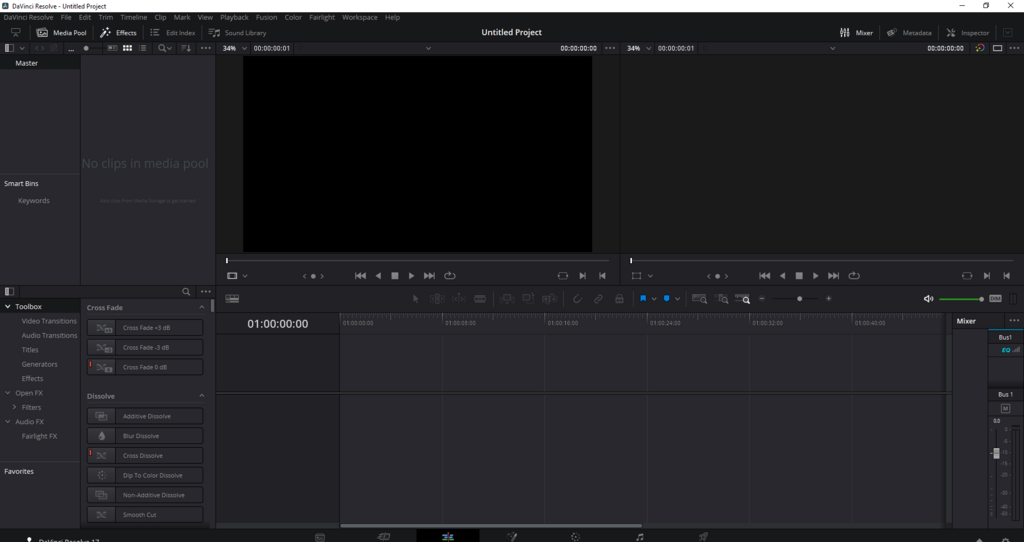
These core components are standard in most video editing software, including CapCut.
1. The Preview Window This is the large screen at the top. It shows you what your video looks like as you edit. When you play your sequence, add an effect, or make a cut, you'll see the result here in real-time. It’s your visual guide to the final product.
2. The Timeline Located at the bottom, the timeline is where the magic happens. It displays your video and audio clips laid out in sequence, from left to right. This is where you will arrange clips, trim their length, and add other elements like text or music. You can scroll through your project by swiping left or right on the timeline.
3. The Toolbar
Just above the timeline is the toolbar. This is your set of editing tools. When you first open a project, you'll see primary options like Edit, Audio, Text, and Effects. Tapping on a clip in the timeline will reveal a different set of tools in this bar, such as Split, Speed, and Animation. This context-sensitive bar gives you the controls you need, right when you need them.
The timeline in CapCut is a powerful tool for editing and arranging your clips.
Spend a moment tapping around these three areas. Play your video, select a clip, and see how the toolbar changes. Getting comfortable with this basic layout is the first step to creating great videos.
In the CapCut editor, the area at the bottom that displays your video and audio clips in sequence is called the ______.
What is the primary function of the Preview Window in CapCut?