Canva Design Fundamentals
Getting Started
Welcome to Canva
Canva is a design tool that makes creating professional graphics simple and fun. Think of it as a digital art box filled with everything you need. You don't need to be a professional designer to make something that looks great. Whether it's a social media post, a presentation, or a simple invitation, Canva provides the building blocks.
Canva is an incredibly versatile tool that allows even beginners to quickly and easily create great graphics, social media posts, presentations, and much more–without having to be a graphic design expert.
Creating Your Account
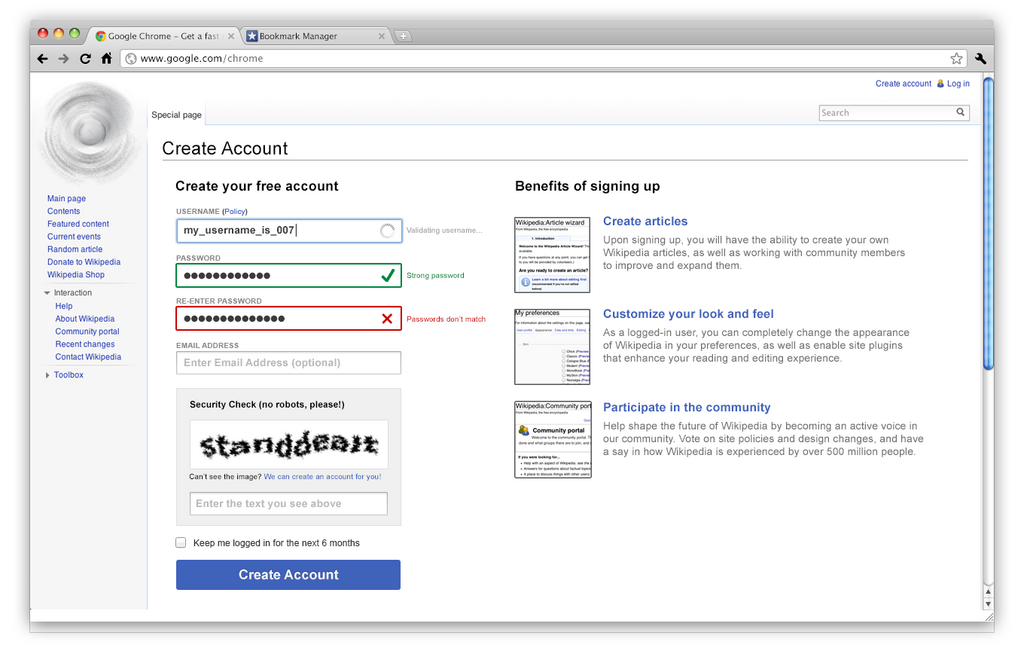
Getting started is straightforward. When you visit the Canva website, you'll see an option to sign up. You can create an account using your Google profile, Facebook account, or just a standard email address. The process takes only a minute or two.
Once you've registered, you'll land on your personal dashboard. This is your mission control for all future design projects.
Your Creative Dashboard
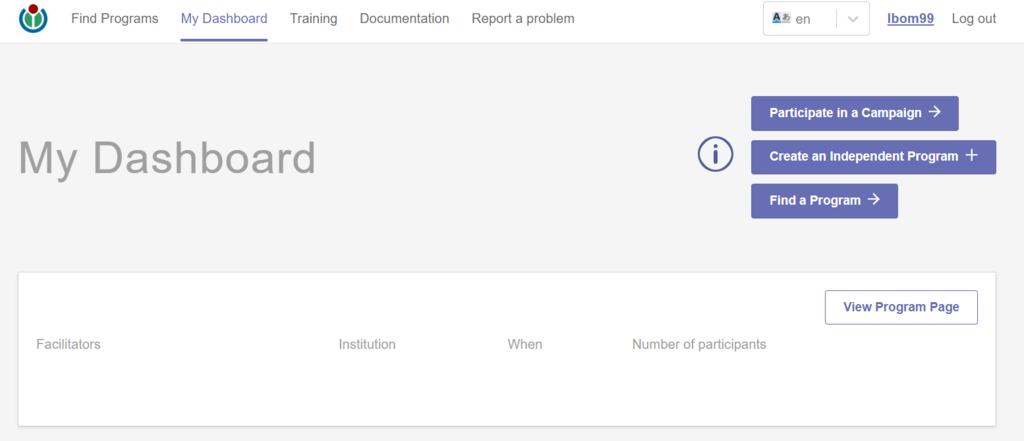
The Canva dashboard is your home base. It might look like there's a lot going on, but it’s organized to help you find what you need quickly. At the top, you'll see a big search bar and a button that says "Create a design." This is where you'll start most projects.
The search bar is powerful. You can type in almost anything, from "Instagram story" to "business presentation," and Canva will suggest perfectly sized templates for you. On the side, you'll find a navigation menu to access your past projects, brand kits, and other tools.
The Magic of Drag-and-Drop
The real power of Canva lies in its editor. When you start a new design, you'll see a blank canvas on the right and a library of elements on the left. This library contains everything you might want to add: photos, graphics, text styles, shapes, and more.
Simply find an element you like, click it, and drag it onto your design. It's that easy.
This drag-and-drop system means you can build your design visually. You can resize elements by pulling their corners, change colors with a click, and move things around until they look just right. You don't need to know any complex commands or have technical skills.
Templates are the best way to get started. Instead of starting with a blank page, you can choose from thousands of pre-made designs created by professionals. You can find templates for almost any occasion. Once you pick one, every part of it is customizable. You can swap out the photos, change the text, and adjust the colors to match your vision.
Think of templates as a helpful starting point, not a final product. They save you time and provide inspiration.
To access templates, you can either search for them on the main dashboard or select the "Templates" tab in the editor's side panel. From there, you can browse by category or use keywords to find exactly what you're looking for.
What is the primary purpose of Canva?
On the Canva dashboard, what is the most direct way to start a new project for a specific format, like an 'Instagram story'?
Now you have a solid foundation for using Canva. The best way to learn is by doing, so try creating a simple design for yourself.