Canon EOS 6D Mark II for Sports and Family
Camera Overview
Meet the Canon EOS 6D Mark II
The Canon EOS 6D Mark II is a full-frame DSLR that packs professional features into a body that's approachable for enthusiasts. At its heart is a 26.2-megapixel CMOS sensor. This large, full-frame sensor is key to capturing images with rich detail, beautiful background blur, and excellent performance in low light.
Paired with the sensor is the DIGIC 7 image processor. Think of this as the camera's brain. It quickly processes all the data from the sensor to create your final image, helping to reduce noise and improve color accuracy. This combination of sensor and processor gives you clean, sharp photos right out of the camera.
One of the most user-friendly features is its vari-angle touchscreen LCD. You can flip it out and tilt it to almost any angle, which is incredibly useful for shooting from high or low perspectives without straining.
Getting a Grip
When you first pick up the 6D Mark II, you'll notice its comfortable, ergonomic grip. It's designed to feel balanced in your hands, even with a larger lens attached. Let's walk through the essential controls you'll use most often.
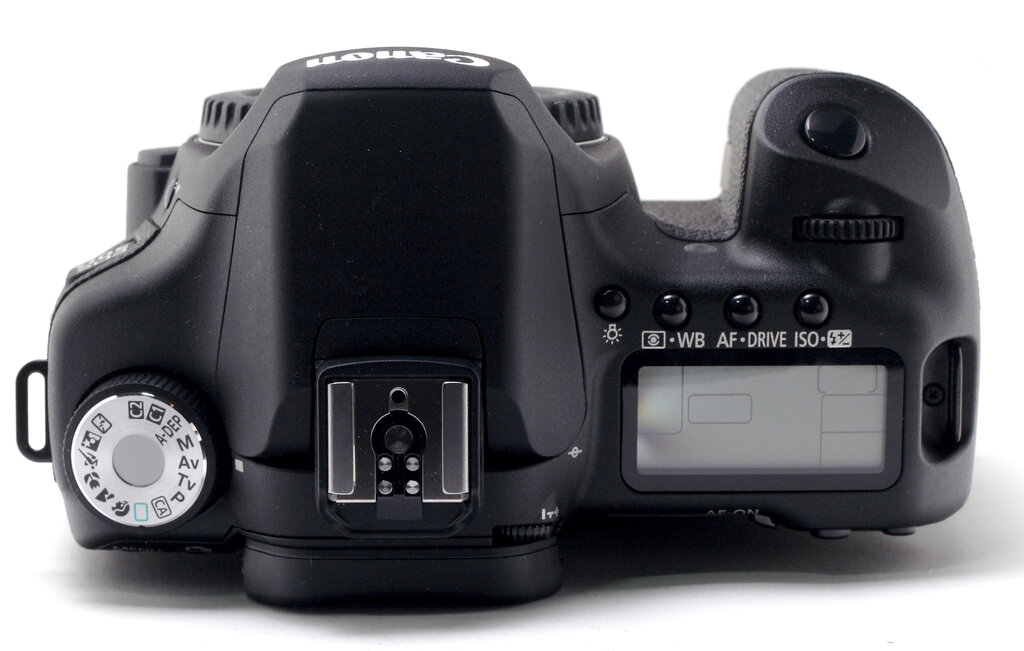
On the top right, you'll find the shutter button, a main dial for changing settings like aperture, and an LCD panel that shows your current settings at a glance. Next to it are buttons for autofocus (AF), drive mode (single shot, continuous, timer), ISO, and metering mode. On the top left is the mode dial, where you can switch between automatic modes, scene modes, and the creative modes like Program (P), Shutter Priority (Tv), Aperture Priority (Av), and Manual (M).
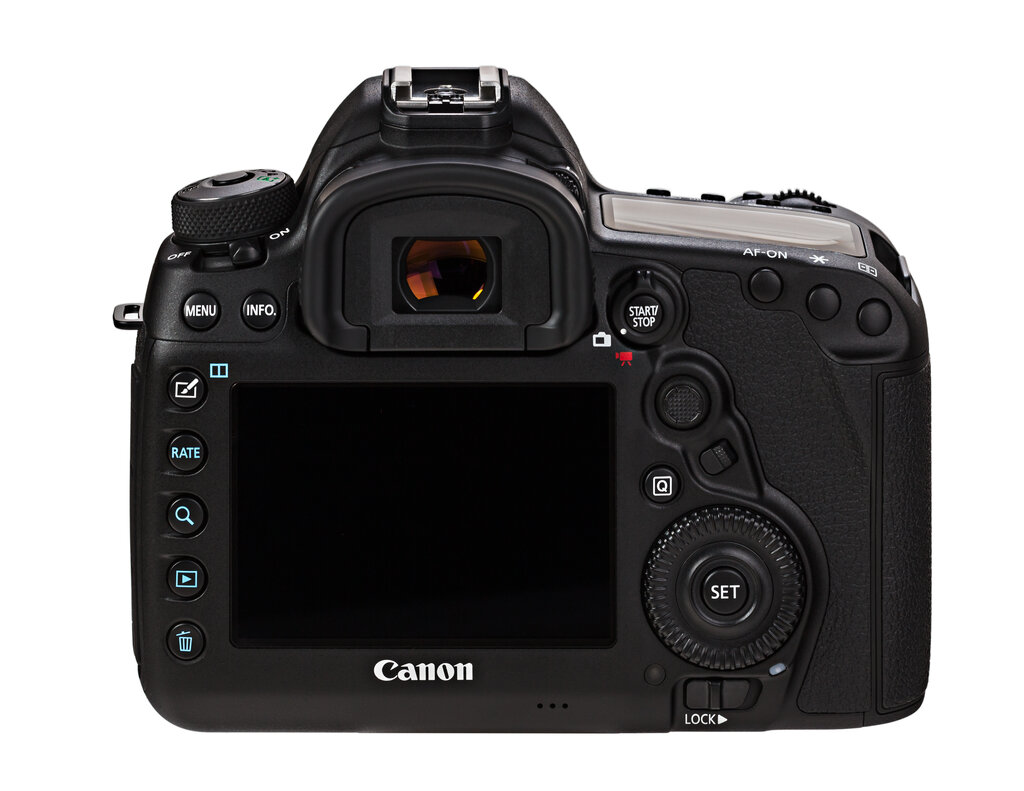
The back of the camera is dominated by the large LCD screen. To the right of it is a multi-controller, a joystick-like button for moving your focus point, and a quick control dial for navigating menus and adjusting settings. You'll also find buttons for playback, deleting images, and accessing the menu.
Navigating the Menus
Pressing the MENU button brings up the camera's main settings, organized into several color-coded tabs. You can navigate these using the dials and multi-controller, but the touchscreen makes it even faster. Just tap to select an option.
Master camera operations and settings for various photography situations
The tabs are generally grouped by function:
- Shooting (Red): This is where you'll find settings related to image quality (RAW, JPEG), white balance, and color space.
- Playback (Blue): These options control how you view your images, such as creating slideshows or rotating photos.
- Setup (Yellow/Wrench): Here you can format your memory card, adjust screen brightness, set the date and time, and update firmware.
- Custom Functions (Orange): This tab lets you tweak the camera's behavior to suit your shooting style.
- My Menu (Green): You can create a personalized tab with your most frequently used settings for quick access.
Take some time to tap through the different menus. Familiarizing yourself with the layout is the first step toward taking full control of your camera.
What is the primary role of the DIGIC 7 image processor in the Canon EOS 6D Mark II?
If you wanted to format your camera's memory card, under which color-coded menu tab would you find this option?