C# Programming Fundamentals
Introduction to C#
What is C#?
C# (pronounced “C sharp”) is a popular and versatile programming language created by Microsoft. Think of it as a powerful tool that can build almost anything digital: websites, desktop applications, mobile apps, and even video games using the popular Unity engine.
C# doesn’t work alone. It operates within the .NET ecosystem. If C# is the set of blueprints for building a house, .NET is the construction company with all the tools, machinery, and materials needed to actually build it. .NET provides a massive library of pre-written code and a runtime environment that manages your program as it executes. Originally tied to Windows, .NET is now open-source and cross-platform, meaning you can write C# code on a Mac and run it on a Linux server without any changes.
Setting Up Your Workspace
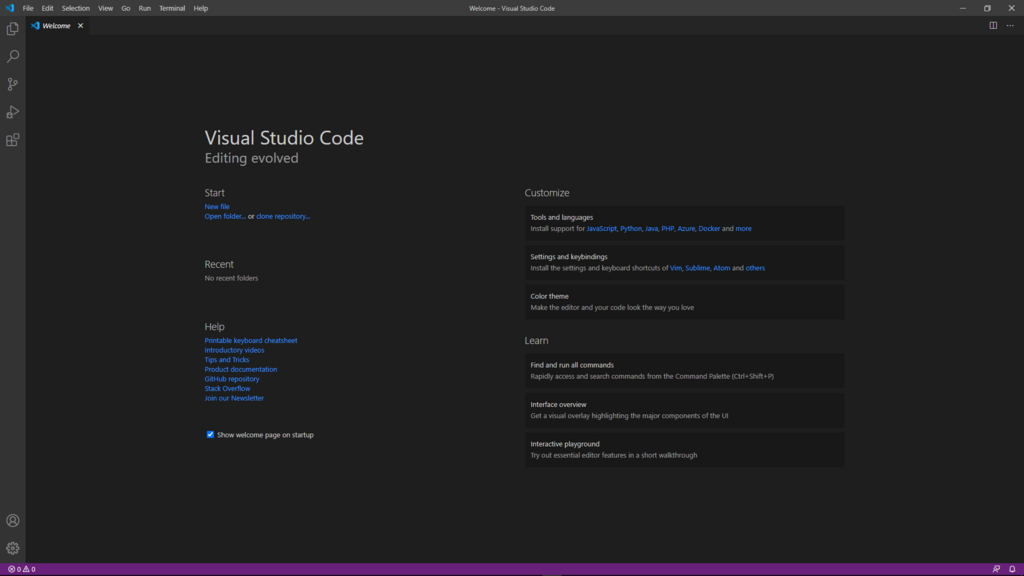
To start writing C#, you need a code editor and the .NET tools. We’ll use Visual Studio Code (VS Code), a free and powerful editor from Microsoft. You'll also need the .NET Software Development Kit (SDK), which contains the compiler and everything else needed to build and run C# programs.
Here’s how to get set up:
- Install Visual Studio Code: Download and install it from the official VS Code website.
- Install the .NET SDK: Go to the official .NET website and download the latest SDK for your operating system.
- Install the C# Dev Kit extension: Open VS Code, go to the Extensions view (the icon with four squares), search for “C# Dev Kit,” and click Install. This will give you code highlighting, debugging, and other helpful features.
Your First C# Program
With your environment ready, let’s write your first program. It’s a tradition in programming to start with a simple program that just prints “Hello, World!” to the screen. First, we need a project to hold our code.
Open the terminal in VS Code (you can find it in the View menu or use the shortcut Ctrl+`` ). Now, type these commands one by one and press Enter after each.
Create a new folder for your project and move into it:
mkdir HelloWorldcd HelloWorldCreate a new console application project:
dotnet new console
This dotnet new console command creates a few files. The most important one is Program.cs. The .cs extension stands for C Sharp. Open this file in VS Code. It should already contain some basic code.
Replace the contents of Program.cs with the following code.
// This is a comment. The computer ignores it.

// The 'using' statement imports functionality from a library.
using System;

// This is where our program's execution begins.
Console.WriteLine("Hello, World!");
Let’s break this down:
using System;: This line tells our program that we want to use code from theSystemlibrary, which contains fundamental tools. TheConsoletool we use next lives inside it.Console.WriteLine("Hello, World!");: This is the action.Consoleis an object that represents the terminal window.WriteLineis a method (a command) that tells the console to write a line of text. The text we want to write goes inside the parentheses and quotes.
To run your program, go back to your terminal (which should still be inside the HelloWorld folder) and type:
dotnet run
The .NET SDK will compile and run your code. You should see Hello, World! printed in your terminal. Congratulations, you’ve just written and executed your first C# program.
Now's a good time to test your knowledge.
What is the primary relationship between C# and the .NET ecosystem?
Which command-line tool is used to create a new C# console project?
You've taken the first step into a much larger world. You now know what C# is, how it fits into the .NET ecosystem, and how to write and run a simple program.