C# Programming Fundamentals
Introduction to C#
What is C#?
C# (pronounced “C sharp”) is a programming language created by Microsoft around the year 2000. It was designed to be a modern, powerful, and flexible language for building a wide range of applications. Think of it as a tool that can be used to create everything from desktop software and web services to video games.
One of the main goals of C# was to combine the power of languages like C++ with the simplicity of languages like Visual Basic. The result is a language that is relatively easy to learn but also robust enough for complex, large-scale projects. It's one of the most popular languages for building applications on the Windows platform, and it’s the primary language used in the Unity game engine, which powers thousands of popular games.
The .NET Framework Connection
You can't talk about C# without mentioning the .NET framework. The two are deeply connected. If C# is the language you use to write instructions, .NET is the environment where those instructions are executed.
Think of .NET as a massive library of pre-written code combined with an engine that runs your program. This library, called the Framework Class Library (FCL), gives you ready-to-use tools for tasks like reading files, connecting to the internet, or working with data. This means you don't have to write everything from scratch.
The engine part is called the Common Language Runtime (CLR). It's responsible for managing your application as it runs. The CLR handles memory, security, and other low-level details, allowing you to focus on the logic of your application.
Setting Up Your Workspace
To start writing C#, you'll need an Integrated Development Environment, or IDE. An IDE is like a word processor for code. It provides a text editor, tools for running and testing your code (a debugger), and other helpful features that make programming much easier.
The most common IDE for C# development is Visual Studio, which is also made by Microsoft. There are several versions, but the Community edition is free for students, open-source contributors, and individual developers.
To get started, simply download Visual Studio Community from the official Microsoft website. During installation, you'll be asked to choose which 'workloads' you want. For now, just make sure to select the '.NET desktop development' workload. This will install everything you need to build simple C# applications.
Your First Program
It's a tradition for new programmers to start with a "Hello, World!" program. It's a simple application that just prints that phrase to the screen. Let's create one in Visual Studio.
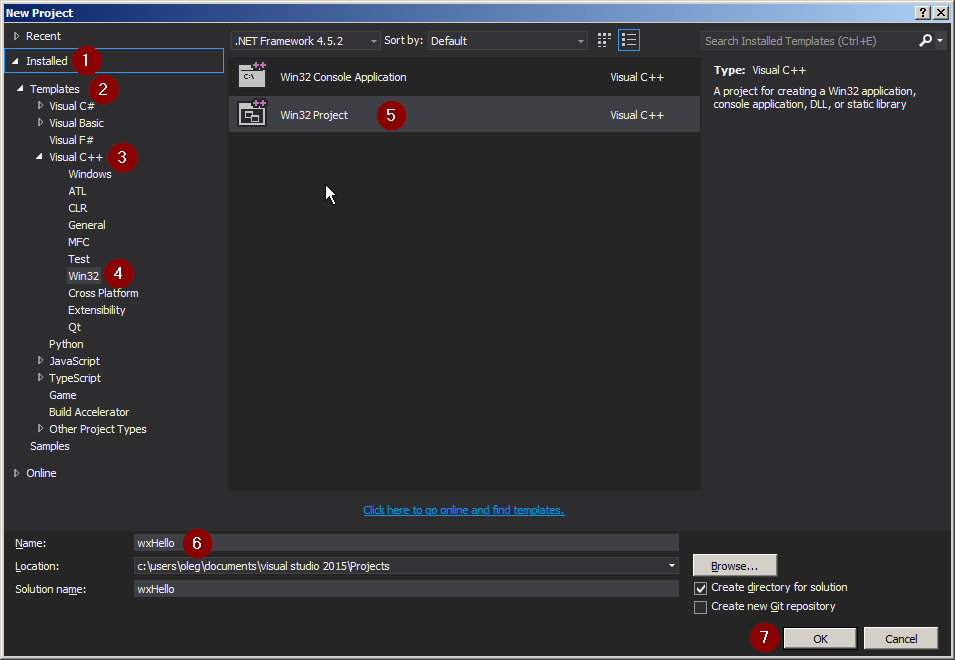
- Open Visual Studio and select 'Create a new project'.
- In the project templates list, find and select 'Console App'. Make sure it's the C# version.
- Give your project a name, like "HelloWorld", and click 'Create'.
Visual Studio will generate some starting code for you. It should look something like this:
// This line tells the program to use the 'System' namespace.
using System;

// A namespace is a way to organize code.
namespace HelloWorld
{
    // A class is a container for methods and variables.
    class Program
    {
        // The Main method is the entry point of the application.
        static void Main(string[] args)
        {
            // This command writes a line of text to the console.
            Console.WriteLine("Hello, World!");
        }
    }
}
Let's break down the key parts:
using System;This line includes a built-in .NET library calledSystem, which contains fundamental tools, including theConsoleclass we need for printing text.class ProgramIn C#, all code lives inside a class. A class is a container for your program's logic.static void Main(string[] args)This is the main entry point of your program. When you run your application, the CLR looks for this specific method and starts executing the code inside it.Console.WriteLine("Hello, World!");This is the instruction that does the work. It calls theWriteLinemethod from theConsoleclass to display the text "Hello, World!" in a terminal window. The semicolon at the end marks the end of the statement.
To run your program, press the green 'Start' button (it looks like a play button) at the top of Visual Studio. A console window will pop up briefly, display "Hello, World!", and then close.
Now that you've got the basics down, let's test your knowledge.
What is the primary role of the .NET framework in relation to C#?
In a C# application, what is the significance of the static void Main(string[] args) method?
Congratulations on writing your first C# program! You've taken the first step into a powerful and versatile programming language.