Build Business Apps with Power Apps
Introduction to Power Apps
What is Power Apps?
Think of a problem at work that a simple app on your phone could solve. Maybe it's a better way to track inventory, manage customer visits, or approve expense reports. In the past, creating that app would require professional developers and a lot of time. Power Apps changes that.
Microsoft Power Apps is a low-code development platform that lets businesses create customized applications that can be used for a variety of scenarios.
It’s a low-code platform, which means you can build powerful, custom business applications with minimal coding. Instead of writing code from scratch, you use a visual, drag-and-drop interface. It’s like building with digital LEGO blocks. This approach makes app development faster and more accessible to everyone, not just programmers.
The Power Platform Ecosystem
Power Apps doesn't stand alone. It's a key part of the Microsoft Power Platform, a suite of tools designed to work together to help you analyze data, build solutions, automate processes, and create virtual agents.
While each component is powerful on its own, their real strength comes from their integration. For example, you could build an app in Power Apps that triggers an automated workflow in Power Automate, which then visualizes the results in a Power BI dashboard. This seamless connection is what makes the Power Platform a comprehensive tool for business innovation.
Exploring the Interface
When you first open Power Apps, you'll find a user-friendly interface designed to get you started quickly. Let's look at the main areas you'll interact with.
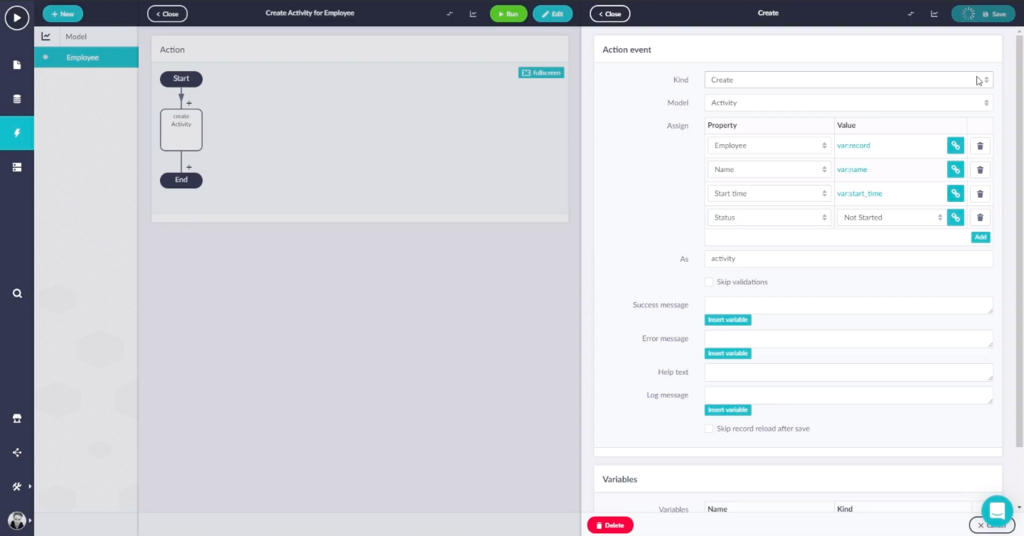
The interface is generally divided into a few key sections:
- Left Navigation Pane: This is your main menu. From here, you can create new apps, view existing ones, manage data connections, and access other parts of the Power Platform.
- Main Content Area: This central space is where you'll see your options for creating a new app or a list of your existing projects. When you're building an app, this area becomes your canvas.
- Top Bar: Here you'll find your account information, environment switcher, and settings. An environment is like a container for your apps, data, and flows, allowing you to separate projects for different departments or stages of development (like test vs. production).
Don't worry about mastering every button right away. The key is to understand the layout: navigation on the left, your work in the center, and settings at the top.
This structure is designed to be intuitive. If you've ever used other Microsoft products like PowerPoint or Excel, you'll notice a similar feel, which helps shorten the learning curve.
Now that you have a basic understanding of what Power Apps is and how it fits into the broader Microsoft ecosystem, you're ready to explore its potential.
What is the primary purpose of Microsoft Power Apps?
In the Power Apps interface, what is the main function of an 'environment'?
With this foundation, you can start thinking about the specific business challenges you could solve by building your own custom apps.