Build Apps with Supabase
Introduction to Supabase
What is Supabase?
Building an application usually requires a frontend (what the user sees) and a backend (the server, database, and logic working behind the scenes). Managing a backend can be complex. This is where a "Backend-as-a-Service" or BaaS comes in. It handles the complicated server-side work so you can focus on building your app's features.
Supabase is an open-source Firebase alternative providing PostgreSQL database, authentication, storage, real-time subscriptions, and edge functions.
Essentially, Supabase gives you a powerful, ready-to-use backend built on top of trusted, open-source tools. At its heart is PostgreSQL, one of the world's most popular and robust databases. On top of that, Supabase provides a suite of tools to handle common app development needs:
- Database: A full PostgreSQL database for your application's data.
- Authentication: A complete system for user sign-ups, logins, and management.
- Storage: A place to store large files like images and videos.
- Realtime: The ability to listen for changes in your database instantly.
- Edge Functions: Code that runs close to your users for faster performance.
Creating Your First Project
Let's get started by creating a Supabase account and setting up your first project. The process is straightforward.
First, head over to the Supabase website and sign up for a new account. You can typically sign up using GitHub, Google, or an email and password.
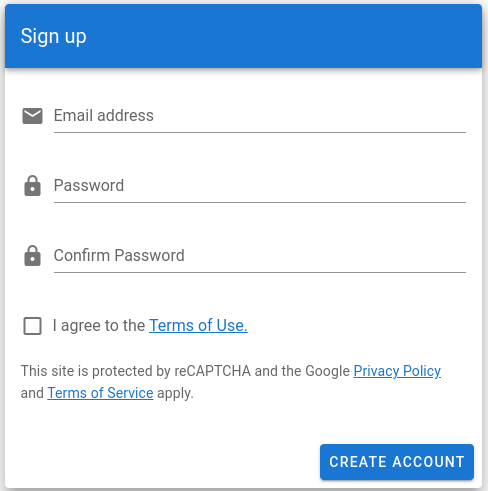
Once you've created your account and signed in, you'll land on the main dashboard. From here, you can create a new project.
Click the "New project" button. You'll need to provide a few details:
- Name: A simple name for your project.
- Database Password: A strong, unique password for your database. Be sure to save this somewhere safe, as Supabase doesn't store it for you.
- Region: The physical location where your database will be hosted. Choose the one closest to your users for the best performance.
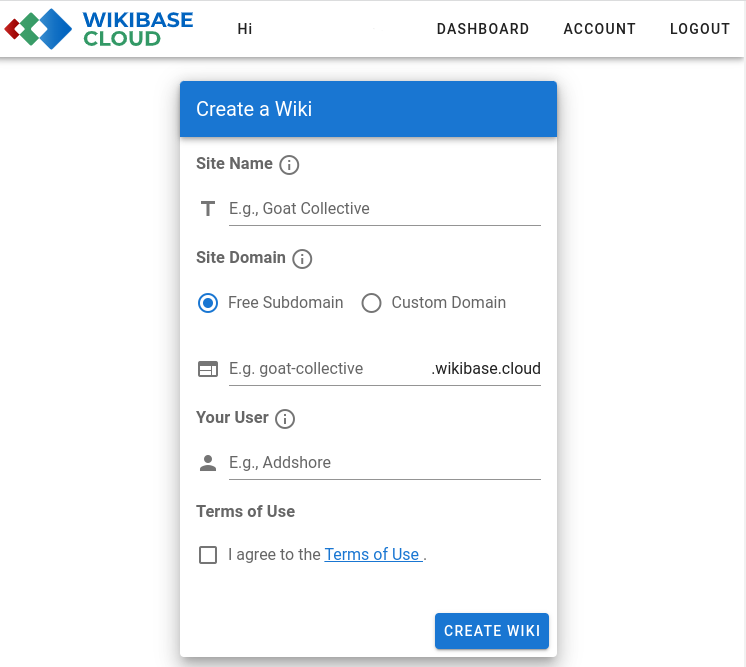
After you fill out the form and create the project, Supabase will take a few minutes to set everything up. When it's ready, you'll be taken to your project's dashboard.
Navigating the Dashboard
The project dashboard is your command center. On the left side, you'll see a navigation bar with icons for all of Supabase's main features.
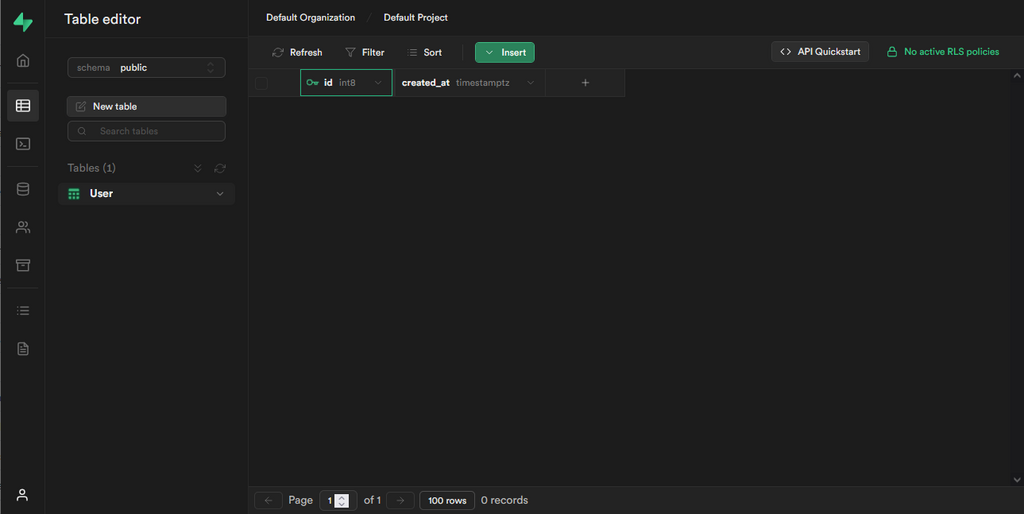
Here are a few key areas to explore:
- Table Editor: This is where you can view and manage your database tables, similar to a spreadsheet.
- SQL Editor: A place to write and run custom SQL queries directly on your database.
- Authentication: Here you can manage users, configure sign-in methods (like Google or email), and set up security rules.
- Storage: Manage your file buckets and upload or delete files.
Take some time to click around and familiarize yourself with the layout. This dashboard is where you'll manage all aspects of your app's backend.
What is Supabase best described as?
Which of the following is NOT a core feature of Supabase?
Now you have a solid foundation for what Supabase is and how to get a project up and running. In the next sections, we'll start putting these tools to use.