Build an MCP Server for MATLAB Medical Image Labeler
MATLAB Basics
Getting Around in MATLAB
Opening MATLAB for the first time reveals a powerful, interactive environment. It’s designed for engineers and scientists, but its layout is straightforward. You'll primarily work with a few key windows.
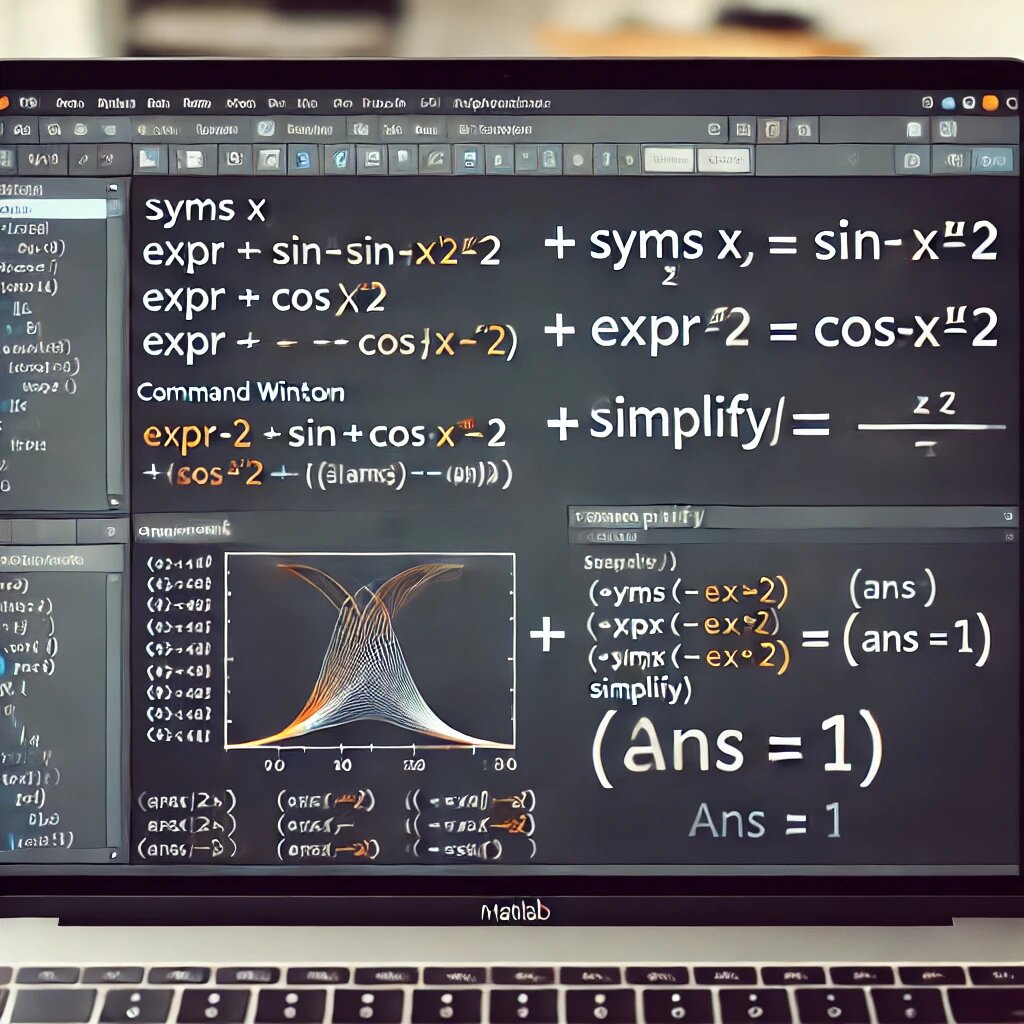
Here's a quick tour:
- Command Window: This is where you can type commands and see immediate results. Think of it as a super-powered calculator. It's great for quick tests and exploring data.
- Workspace: This panel shows all the variables you've created during your session. You can see their names, values, and data types at a glance.
- Current Folder: This browser shows the files and folders on your computer, just like a file explorer. It's how you'll navigate to your project files.
- Editor: When you open a file (like a script or function), it appears here. The editor is a text editor with features tailored for writing MATLAB code, like syntax highlighting and debugging tools.
Variables and Data
In MATLAB, everything is treated as a matrix or an array. This is its core strength. A single number is just a 1x1 matrix. You don't need to declare a variable's type before using it; MATLAB figures it out for you. Creating a variable is as simple as naming it and giving it a value.
% Create a numeric variable (a 1x1 double-precision matrix)
myNumber = 10.5;
The semicolon at the end of the line suppresses the output. If you leave it off, MATLAB will display the result in the Command Window, which is useful for checking your work. Besides numbers, MATLAB handles other common data types.
| Data Type | Description | Example Code |
|---|---|---|
double | The default for numbers; supports decimals. | x = 3.14; |
char | A single character. | initial = 'A'; |
string | A sequence of characters. Use double quotes. | greeting = "Hello, World!"; |
logical | Represents true or false. | isReady = true; |
You can create vectors and matrices just as easily.
% A row vector
rowVec = [1, 2, 3, 4];

% A column vector
colVec = [1; 2; 3; 4];

% A 2x3 matrix
myMatrix = [1, 2, 3; 4, 5, 6];
Making Decisions and Repeating Tasks
Programming isn't just about running commands in sequence. You need your code to make decisions and perform repetitive tasks. MATLAB uses control structures for this, similar to other programming languages.
Conditional statements use
if,elseif, andelseto execute different blocks of code depending on whether a condition is true or false.
temperature = 25;

if temperature > 30
    disp('It\'s hot outside.');
elseif temperature < 10
    disp('It\'s cold outside.');
else
    disp('It\'s a pleasant day.');
end
When you need to repeat a block of code, you use loops. The two main types are for loops and while loops.
A for loop repeats a task a specific number of times.
% This loop runs 5 times, with i taking values 1, 2, 3, 4, 5
for i = 1:5
    disp(['Iteration number: ', num2str(i)]);
end
A while loop continues as long as a certain condition remains true.
count = 1;

while count <= 5
    disp(['Current count: ', num2str(count)]);
    count = count + 1; % Don't forget to update the counter!
end
Scripts and Functions
For anything more than a few lines, you'll want to save your code in files. MATLAB uses two main file types: scripts and functions.
A script is a simple list of commands that are executed in order, just as if you typed them into the Command Window. They share the main workspace, meaning any variables they create or modify will be visible after the script runs.
% simple_script.m
% This script calculates the area of a rectangle

length = 10;
width = 5;
area = length * width;
disp(['The area is: ', num2str(area)]);
A function is a more powerful, reusable block of code. Functions have their own private workspace, so they don't interfere with your main variables. They take specific inputs (arguments) and return specific outputs. This makes your code more organized and easier to debug.
Functions must be saved in a file with the same name as the function itself. The file must start with the function keyword.
% calculateArea.m
function a = calculateArea(len, wid)
    % This function calculates the area of a rectangle
    % Inputs: len (length), wid (width)
    % Output: a (area)
    a = len * wid;
end
To use this function, you would call it from the Command Window or another script:
>> rectangleArea = calculateArea(10, 5);
>> disp(rectangleArea)
    50
Finding and Fixing Errors
No one writes perfect code on the first try. Debugging, the process of finding and fixing errors, is a normal part of programming.
MATLAB's Editor has a built-in debugger. The most common tool you'll use is the breakpoint. A breakpoint is a marker you place on a line of code that tells MATLAB to pause execution at that point. You can set a breakpoint by clicking in the gray margin next to the line number.
When the code is paused, you can:
- Examine the values of variables in the Workspace or by hovering your mouse over them.
- Step through your code line by line using the debugger controls (
Step,Step In,Step Out). - Type commands in the Command Window to check things or even change variable values to see how it affects the code.
This lets you see exactly what your code is doing at each step, making it much easier to spot where things go wrong.
A common mistake for beginners is an infinite loop, especially with
whilestatements. If your program seems stuck, pressCtrl+Cin the Command Window to stop it.
These fundamentals are the building blocks for creating powerful applications in MATLAB. With these tools, you can start exploring and solving problems.