Build an E-commerce Site with Laravel
Laravel Installation
Setting Up Your Workspace
Before you can build a house, you need to lay the foundation and set up your tools. In web development, this is called setting up your local development environment. It's a private workspace on your computer where you can build and test your project without affecting anyone else.
For our e-commerce site, we'll use Laravel, a popular PHP framework. A framework gives you a head start by providing pre-built components and a clear structure for your code. It handles many of the tedious, repetitive tasks, letting you focus on creating the unique features of your website.
Laravel is a popular PHP framework that follows the MVC (Model-View-Controller) architecture, a design pattern that separates the application logic into three components: models, views, and controllers.
To install Laravel, we'll use Composer. Think of Composer as a manager for all the code libraries (or "packages") your PHP project needs. It reads a list of required packages and automatically downloads and manages them for you. It's an essential tool for modern PHP development.
Installing Laravel
With Composer installed on your system, you can create a new Laravel project with a single command. Open your terminal or command prompt, navigate to the directory where you want to store your projects, and run the following command.
composer create-project laravel/laravel your-project-name
Replace your-project-name with the name you want for your project's folder, like ecommerce-store. This command tells Composer to create a new project using the latest version of Laravel. It will download the framework and all its dependencies into a new directory with the name you specified. This might take a few minutes.
Configuration and Verification
Once the installation is complete, navigate into your new project directory:
cd your-project-name
Inside, you'll find a file named .env.example. This is a template for your environment configuration file. This file, .env, is where you'll store important settings like database credentials and application keys. It's kept separate from your main code because these values will be different on your local machine versus a live server.
First, copy the example file to create your own configuration file.
cp .env.example .env
Next, you need to generate a unique application key. Laravel uses this key to encrypt user sessions and other sensitive data. Laravel's command-line tool, called Artisan, makes this easy.
php artisan key:generate
Your environment is now configured. To verify that everything is working, you can start Laravel's local development server.
php artisan serve
This command will start a server, typically at http://127.0.0.1:8000. Open this address in your web browser. If you see a welcome page, your installation was successful.
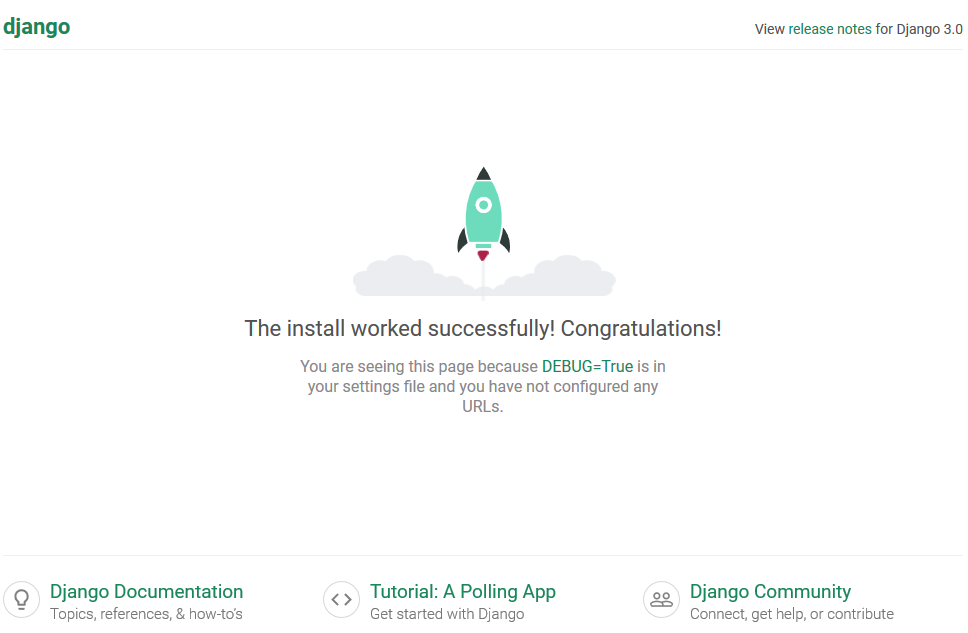
Your development environment is now set up and ready. You have a solid foundation to start building your e-commerce website.