Build AI Agents with VSCode and GitHub Copilot
Setting Up VSCode and GitHub Copilot
Your Development Environment
Before you can build an AI agent, you need a place to write and manage your code. This is your development environment. For this journey, we'll use two key tools: Visual Studio Code, a powerful and popular code editor, and GitHub Copilot, an AI assistant that helps you write code faster.
Think of VSCode as your workshop and Copilot as your smart assistant, ready to hand you the right tool or suggest a better way to build something. Let's get them set up.
Installing VSCode
Visual Studio Code, or VSCode for short, is a free code editor made by Microsoft. It's lightweight, runs on all major operating systems (Windows, macOS, and Linux), and has a massive library of extensions that let you customize it for any task.
To get started:
- Go to the official VSCode download page.
- Download the correct version for your operating system.
- Run the installer and follow the on-screen instructions. The default settings are fine for now.
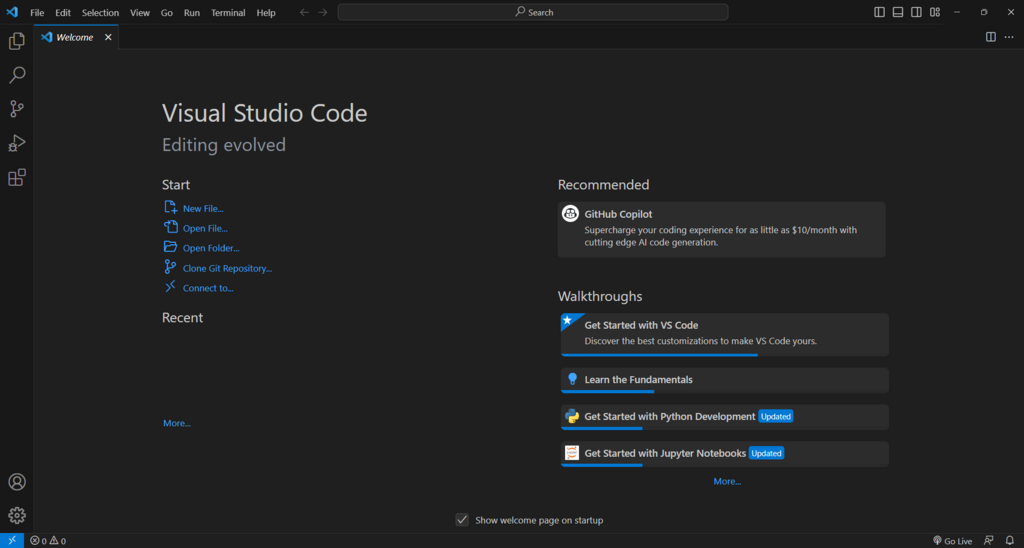
Once it's installed, open the application. You now have your digital workshop ready. The next step is to invite your AI assistant.
Setting Up GitHub Copilot
GitHub Copilot is what's known as an "AI pair programmer." It watches as you type and suggests entire lines or even whole functions of code. It’s an incredibly powerful tool for speeding up development and learning new patterns.
GitHub Copilot is an AI coding assistant that helps you write code faster and with less effort, allowing you to focus more energy on problem solving and collaboration.
Copilot lives inside VSCode as an extension. Installing it is simple. First, you need a GitHub account, as Copilot is a service offered by GitHub. If you don't have one, you can sign up for free on their website.
After clicking install, VSCode will prompt you to sign in to GitHub to authorize the extension. A browser window will open, asking for your permission. Once you grant it, you'll be redirected back to VSCode.
You might see a small Copilot icon in the bottom status bar of VSCode. If you see it, that means your AI assistant is ready to go.
That's it. Your environment is now fully configured for AI development. You have a professional code editor and a powerful AI partner to help you along the way.