Build a Simple CRM with Apple Notes and Shortcuts
Apple Notes Basics
Your Digital Notebook
Apple Notes is probably already on your iPhone, iPad, and Mac. It’s a simple tool that’s surprisingly powerful. Think of it as a digital notebook that can hold everything from quick thoughts to detailed project plans. It’s perfect for jotting down ideas, managing tasks, and even keeping track of client information.
The real magic of Apple Notes is how it stays in sync. Thanks to iCloud, any note you create or edit on your phone will instantly appear on your laptop and tablet. This means your information is always with you, updated and ready whenever you need it. There’s no need to manually save or transfer files; it all happens automatically in the background.
Getting Organized with Folders
A good note-taking system starts with organization. Without it, you'll end up with a messy pile of digital scraps. Folders are the key to keeping your notes tidy and easy to find. You can create folders for different parts of your life, like 'Work,' 'Personal,' or 'Projects.'
For building a simple CRM, you could create a main folder called 'Clients.' Inside that folder, you can create a subfolder for each client. This keeps all the related information—meeting notes, contact details, project tasks—neatly contained in one place.
Creating folders is straightforward. In the Notes app, just look for the 'New Folder' button, usually in the bottom corner of your folder list. Give it a name, and you're ready to start adding notes.
More Than Just Text
Notes can be much more than plain text. You can add checklists, photos, and even hand-drawn sketches to make your notes more dynamic and useful.
Checklists are perfect for tracking tasks. To create one, tap the checklist button (it looks like a circle with a checkmark) and start listing your to-dos. As you complete each item, you can tap the circle to mark it as done.
You can also add images directly from your photo library or take a new picture with your camera. This is incredibly helpful for saving visual information, like a photo of a whiteboard after a meeting or a snapshot of a business card. To add an image, look for the camera icon in the toolbar above the keyboard.
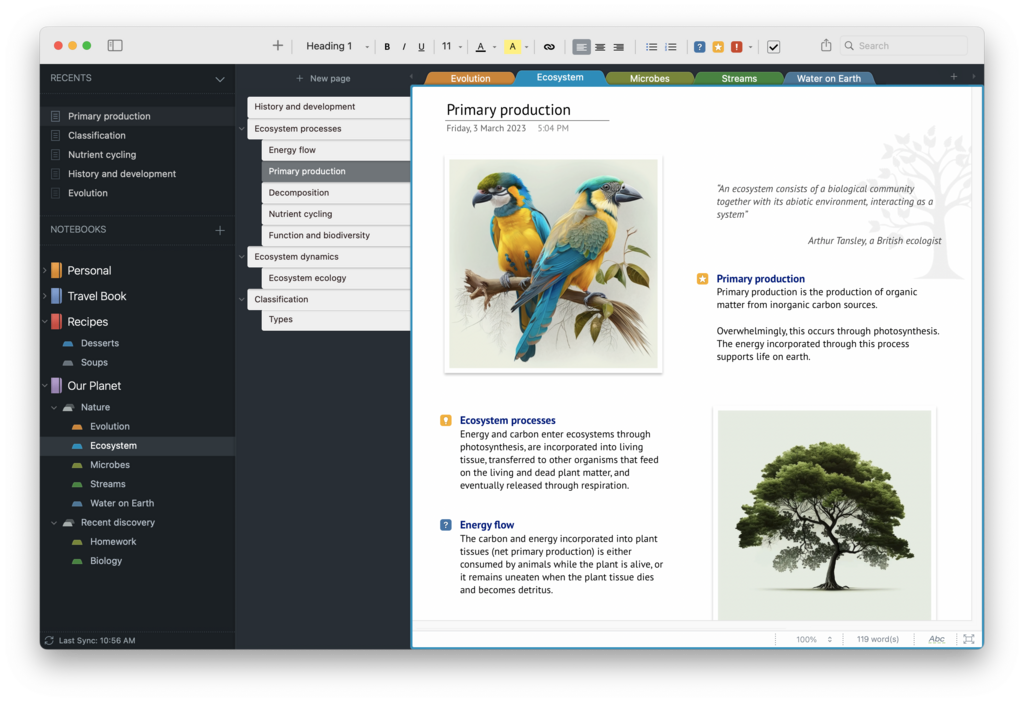
If you prefer to write or draw by hand, Apple Notes has you covered. The sketching tool lets you add drawings, diagrams, or handwritten notes. Just tap the markup icon (it looks like a pen tip) to open a set of drawing tools. It's a great way to capture ideas that are hard to type out.
With these features, a simple note can become a comprehensive record for a client or project.
What is the primary mechanism that keeps Apple Notes synchronized across your iPhone, iPad, and Mac?
According to the text, what is a recommended way to organize information for several different clients?
Now you have the fundamentals for using Apple Notes to get organized. By creating folders and enriching your notes with different types of media, you can build a system that works for you.