Build a Basic Squarespace Website
Getting Started
Creating Your Account
First things first, you need to create a Squarespace account. Head over to the Squarespace website and look for a button that says “Get Started.” This will take you to the sign-up page.
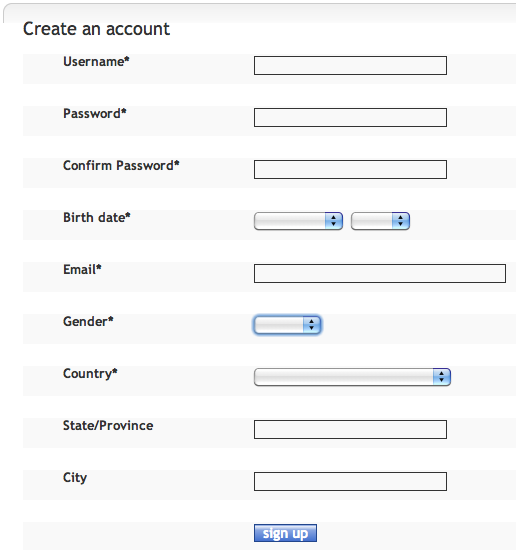
You'll be prompted to enter your name, email address, and create a password. Some services also let you sign up using your Google or Apple account, which can speed things up. Once you've filled everything out, you’ll be ready for the next step: choosing how your site will look.
Choosing a Template
After creating your account, Squarespace will ask you to pick a template. A template is a pre-designed website layout that gives you a starting point. It handles the structure, like where your logo, navigation menu, and content will go. Think of it as the blueprint for your website.
Don't stress too much about this choice. Focus on finding a layout that fits your needs. You can change all the colors, fonts, and images later.
Squarespace organizes its templates by category, such as Portfolio, Blog, Online Store, or Services. You can filter by these categories to narrow down the options. Click on any template to preview a live demo. When you find one you like, just click “Start With This Design” to select it.
Navigating the Interface
Once you've selected a template, you'll land on the main Squarespace editor. This is where you'll build and manage your site. The interface is split into two main sections.
On the left is the Navigation Panel. This is your control center. Here you'll find links to manage different parts of your site:
- Pages: Add, delete, and organize the pages of your website.
- Design: Change your site's fonts, colors, and other style elements.
- Commerce: If you're running a store, this is where you'll manage products and orders.
- Marketing: Access tools for SEO, email campaigns, and social media.
- Settings: Control your site's basic information, permissions, and billing.
To the right is the Site Preview. This is a live, interactive preview of what your website looks like. As you make changes in the navigation panel, you'll see them reflected here instantly. Clicking directly on elements in the preview will often open up the relevant editing tools.
Take some time to click through each section in the navigation panel. You don't need to change anything yet, just get a feel for where everything is located.
You've now created an account, chosen a starting template, and familiarized yourself with the main workspace. You're all set to begin building out your site.