Browser Extensions Explained
Introduction to Browser Extensions
Your Browser, Your Rules
Think of browser extensions as mini-programs you can add to your web browser. Much like apps on your smartphone, they add new features and capabilities that aren't built in by default. Their main job is to let you customize your browsing experience, making it more productive, secure, or just more enjoyable.
An extension can be as simple as a button that saves an article to read later, or as complex as a tool that completely changes the layout of a website. They work in the background, quietly enhancing what you do online.
A Quick History
In the early days of the internet, web browsers were straightforward tools for viewing web pages. They didn't offer much in the way of customization. As the web grew, so did the desire for more personalized control. The first attempts were often clunky toolbars that cluttered the screen and sometimes even slowed things down.
The real shift came with browsers like Mozilla Firefox, which was designed from the ground up to be customizable with add-ons. This idea caught on. When Google Chrome arrived, it built upon this concept with a robust extension platform, making it easier than ever for developers to create powerful tools and for users to install them. This evolution turned the browser from a simple viewer into a versatile platform tailored to individual needs.
What Can They Do?
Browser extensions can perform an incredible range of tasks. They interact with the web pages you visit to add features or modify content. Some work quietly in the background, while others add a button or a small interface to your browser's toolbar.
Common examples include:
- Ad Blockers: These prevent advertisements from appearing on web pages, which can speed up loading times and create a cleaner reading experience.
- Password Managers: They securely store your passwords and automatically fill them in on login pages, saving you from having to remember dozens of different credentials.
- Grammar and Spelling Checkers: These tools analyze the text you type in your browser—from emails to social media posts—and suggest corrections.
- Shopping Assistants: Extensions can automatically find and apply coupon codes at checkout or compare prices for a product across different websites.
- Productivity Tools: From taking quick notes to managing a to-do list, these extensions help you stay organized without leaving your browser.
Ultimately, extensions are about giving you more control over your digital environment. They let you fix annoyances, streamline your work, and add features that website creators never thought of.
A Note on Security
Because extensions can interact with the websites you visit, it's important to be mindful of security. When you install an extension, your browser will show you a list of permissions it needs to function. This is similar to how a phone app might ask for access to your camera or contacts.
A common permission is the ability to "read and change all your data on the websites you visit." This sounds alarming, but it's often necessary for the extension to do its job. For example, a grammar checker needs to read the text you're writing to find errors, and a password manager needs to change the data in a login form to fill it in for you. The key is to make sure the permissions match the extension's purpose.
Request minimal permissions: Use the principle of least privilege—ask only for the permissions absolutely necessary for the extension’s functionality.
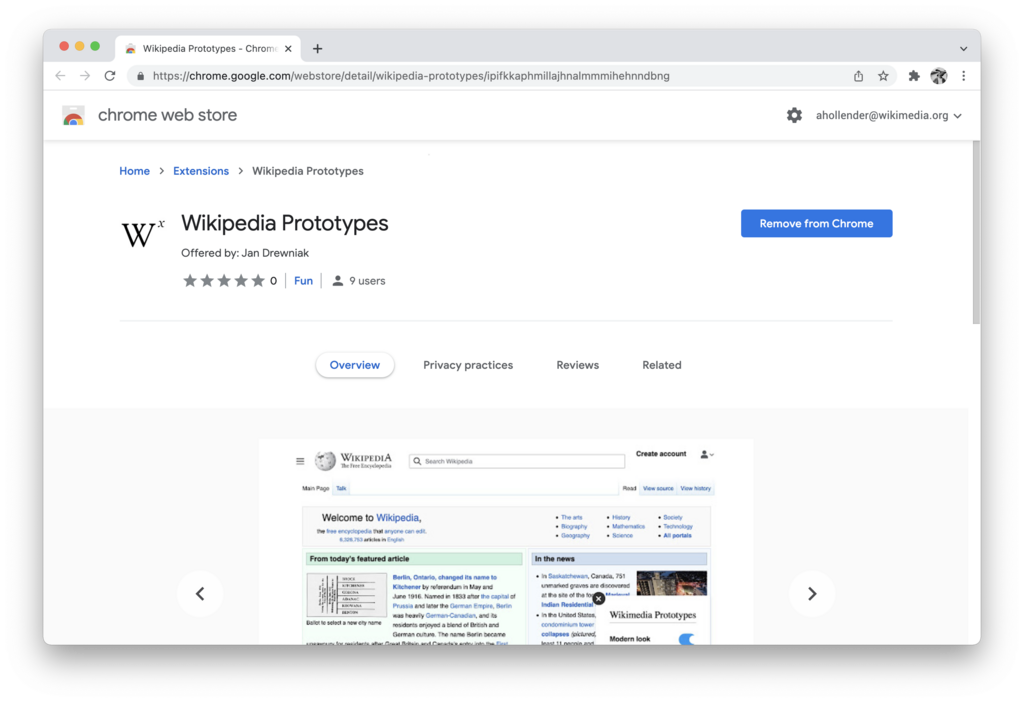
To stay safe, it's best to install extensions only from your browser's official store, like the Chrome Web Store or Firefox Browser Add-ons. Before installing, check the user reviews and the number of downloads. If a simple notepad extension asks for permission to access your location and browsing history, it's wise to question why and look for an alternative.
With a bit of care, extensions are a safe and powerful way to make the web work better for you.