Bash Scripting Fundamentals
Introduction to Bash
Meet the Shell
Think of a shell as a translator. You know what you want the computer to do, but you don't speak its core language. The shell is a program that takes your typed commands and passes them on to the operating system to execute.
Bash
noun
A command-line interpreter and scripting language for Unix-like operating systems. It is the default shell for most Linux distributions.
The most common shell on Linux systems is called Bash. It gives you direct, powerful control over your computer. Instead of clicking on icons to open a folder, you type a command. It’s a different way of working, but it’s fast, efficient, and essential for many tasks in programming and system administration.
Your First Terminal
You interact with Bash through an application called a terminal or console. When you open it, you’ll see a blinking cursor next to something called a command prompt.
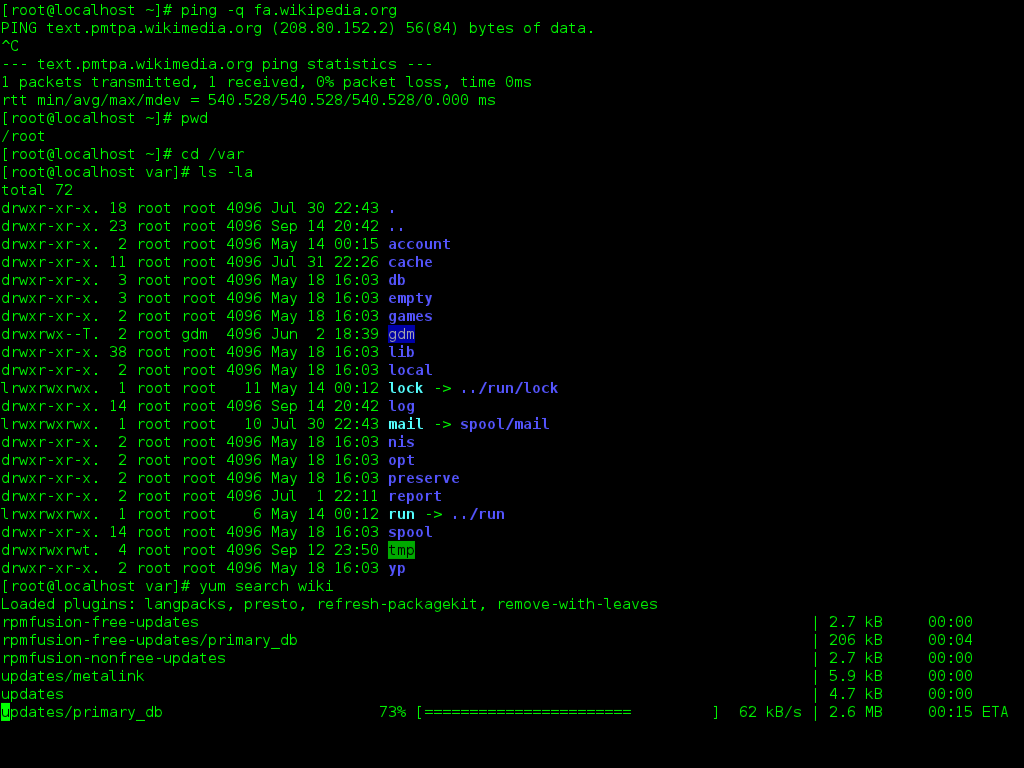
The prompt gives you some useful information and tells you the shell is ready for your command. It usually looks something like this:
user@hostname:~$
Here’s what that means:
user: Your username.hostname: The name of your computer.~: Your current location in the file system. The tilde~is a shortcut for your home directory.$: This symbol indicates that the shell is waiting for a command from a regular user. If it were a#, it would mean you are logged in as the superuser, or 'root'.
The basic syntax for any command is
command [options] [arguments]. The command is the program you want to run, options modify its behavior, and arguments are what the command acts on.
Let's try a simple command. echo just prints back whatever text you give it. Type this and press Enter:
echo "Hello, world!"
The terminal will display Hello, world! on the next line. You’ve just executed your first command.
Finding Your Way Around
Navigating the file system is one of the most common things you'll do in the terminal. The file system is organized as a tree of directories (folders).
To figure out where you are, use the pwd command, which stands for "print working directory."
pwd
/home/user
To see the contents of your current directory, use ls, which means "list."
ls
Documents  Downloads  Music  Pictures  Videos
The most important navigation command is cd, or "change directory." To move into the Documents directory, you would type:
cd Documents
Your prompt will update to show your new location: user@hostname:~/Documents$. To go back up one level, use two dots .. as the destination:
cd ..
| Command | Description |
|---|---|
pwd | Print your current directory |
ls | List files and directories here |
cd [directory] | Change to a specific directory |
cd .. | Move up one directory level |
cd ~ or cd | Return to your home directory |
Experiment with these three commands. They are the foundation for working in the shell.
A Few More Essentials
Here are a few other commands that are helpful to know from the start.
Getting Help: If you're unsure how a command works, you can often ask for help with a
--helpflag, or read its manual page withman. For example,ls --helpwill list all the options for thelscommand.
Viewing Files: The cat command (short for concatenate) displays the contents of a file directly in the terminal.
# First, create a new empty file
touch my_shopping_list.txt

# Then, view its (empty) contents
cat my_shopping_list.txt
Clearing the Screen: If your terminal gets cluttered, you can tidy it up with the clear command. This simply scrolls the screen down so you have a fresh prompt at the top.
What is the primary role of a shell like Bash?
In a command prompt that looks like alex@server:~$, what does the $ symbol indicate?
That's a quick tour of the Bash shell. Getting comfortable takes practice, but mastering these basic commands is the first step toward unlocking the full power of the command line.