Bash Scripting Fundamentals
Introduction to Bash
Meet the Shell
At the heart of Linux is the command line, a powerful text-based interface for controlling your computer. The program you interact with there is called a shell. Think of it as a translator. You type in commands, and the shell translates them into instructions the operating system can understand and execute.
The most common shell on Linux systems is called Bash, which stands for "Bourne Again Shell." It's an improved version of an older shell, the Bourne Shell (sh), created by Stephen Bourne. Bash is what you'll typically see when you open a terminal window.
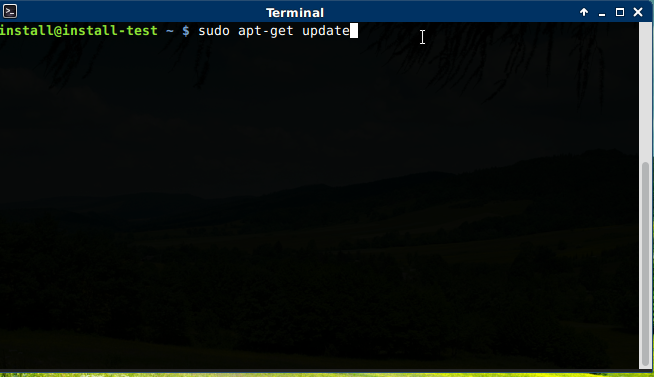
Why use a command line instead of a graphical interface? Speed, control, and automation. With Bash, you can perform complex tasks with a single line of text and, more importantly, write scripts to automate repetitive jobs. This ability to automate is what makes Bash an essential tool for developers, scientists, and system administrators.
Bash scripting provides a powerful tool for automating tasks on a Linux system.
Basic Commands and Syntax
When you open a terminal, you'll see a prompt. It usually looks something like this:
user@hostname:~$
This prompt tells you who you are (user), what machine you're on (hostname), and where you are (~, which is shorthand for your home directory). The $ indicates that the shell is ready for your command.
The basic structure of a command is simple: command [options] [arguments]. Let's try one. The echo command simply prints back whatever you give it.
# This command will print the text to the screen.
echo "Hello, Bash!"
After you press Enter, the terminal will display Hello, Bash!. Here, echo is the command and "Hello, Bash!" is the argument.
Finding Your Way Around
The Linux file system is a tree-like hierarchy of directories (folders). Everything starts from the root directory, represented by a single slash (/).
To navigate this system, you use a few key commands. First, to find out where you currently are, use pwd, which stands for "print working directory."
pwd
/home/user
To see what's inside your current directory, use ls, for "list."
ls
Desktop  Documents  Downloads  Music  Pictures  Videos
The most important navigation command is cd, which means "change directory." You can tell cd where to go in a couple of ways.
- Absolute path: A path from the root directory. For example,
cd /home/user/Documents. - Relative path: A path from your current location. If you are in
/home/userand want to go toDocuments, you can just typecd Documents.
There are also a few useful shortcuts:
| Command | Action |
|---|---|
cd .. | Go up one directory level. |
cd ~ | Go to your home directory. |
cd | Go to your home directory (same as cd ~). |
Let's put it all together. Here's a short session moving around the file system:
# Check our starting location
pwd
/home/user

# Go into the Documents directory
cd Documents

# Check the new location
pwd
/home/user/Documents

# Go back up to the home directory
cd ..

# Confirm we're back
pwd
/home/user
Now that you can find your way around, let's test your knowledge.
What is the primary function of a shell like Bash in a Linux system?
In the command echo "Welcome Home", what is the argument?
Mastering these simple navigation commands is the first step toward unlocking the full power of Bash.