Bash Scripting for Linux Command Mastery
Introduction to Bash
What is Bash?
Think of your computer's operating system, like Linux or macOS, as a powerful engine. You need a way to control it. The graphical user interface, with its windows and icons, is one way. The shell is another. A shell is a program that takes your typed commands and tells the operating system what to do. It’s a direct conversation with your computer.
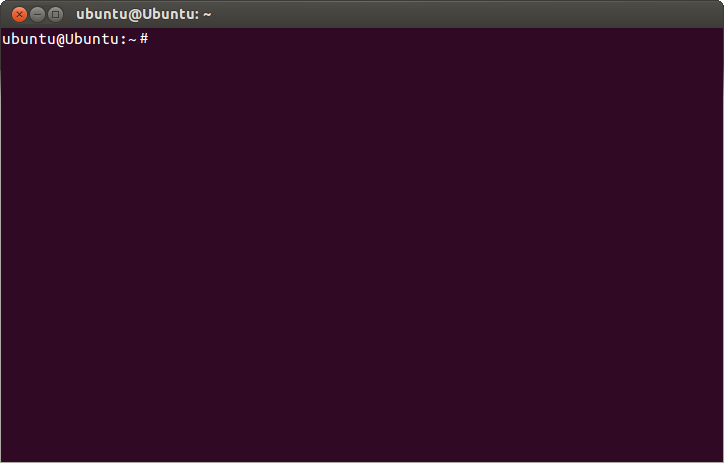
Bash, or the Bourne Again Shell, is one of the most common shells. It was created in 1989 as a free replacement for the original Bourne shell (sh), which dates back to the late 1970s. Because it's the default shell in most Linux distributions and in macOS, learning Bash is a fundamental skill for anyone working with these systems.
Bash acts as a translator, converting human-readable commands into instructions the operating system can understand and execute.
Your First Commands
When you open a terminal, you'll see a prompt. This is Bash waiting for your input. It usually looks something like user@hostname:~$. Let's try a few simple commands. The most basic is echo, which just prints back whatever you give it.
# This command will print "Hello, world!" to the screen.
echo "Hello, world!"
The command line is all about navigating your computer's file system. To find out where you are, use pwd (print working directory).
# Shows your current location in the file system.
pwd
To see what's in your current directory, use ls (list).
# Lists all files and folders in the current directory.
ls
And to move to a different directory, you use cd (change directory), followed by the name of the directory you want to go to.
# Move into a directory named 'Documents'.
cd Documents
Setting Up Your Environment
One of the best things about Bash is that you can customize it. You do this by editing a special file in your home directory called .bashrc or .bash_profile. This file is a script that runs every time you open a new terminal session. Any settings you put here will be loaded automatically.
A common customization is creating an alias. An alias is a shortcut, a nickname for a longer command. For example, the command ls -la lists files in a detailed format. Typing that can get repetitive. You can create a shorter alias for it.
# Add this line to your .bashrc file.
# Now, typing 'll' will run 'ls -la'.
alias ll='ls -la'
After you save the file, you'll need to either open a new terminal or run the command source ~/.bashrc to apply the changes to your current session. This is just a glimpse into how you can make the shell work for you, paving the way for more complex automation later on.
Time to check your understanding.
What is the primary function of a shell like Bash?
Which command would you use to find out your current location (directory) in the file system?
With these basics, you're ready to start exploring the command line. The more you use it, the more you'll see how powerful and efficient it can be.