Bash Scripting Essentials
Introduction to Bash
What is Bash?
Your computer has a graphical user interface, or GUI. It's the world of windows, icons, and cursors you click and drag. But there’s another way to interact with your computer: a command-line interface (CLI). Think of it as having a direct conversation with the operating system.
The program that lets you have this conversation is called a shell. Bash, which stands for Bourne Again SHell, is one of the most common shells. It's the default on most Linux systems and on macOS. When you open a terminal window, you're usually talking to Bash.
The shell's job is simple: it reads the command you type, figures out what you want to do, and tells the operating system to do it.
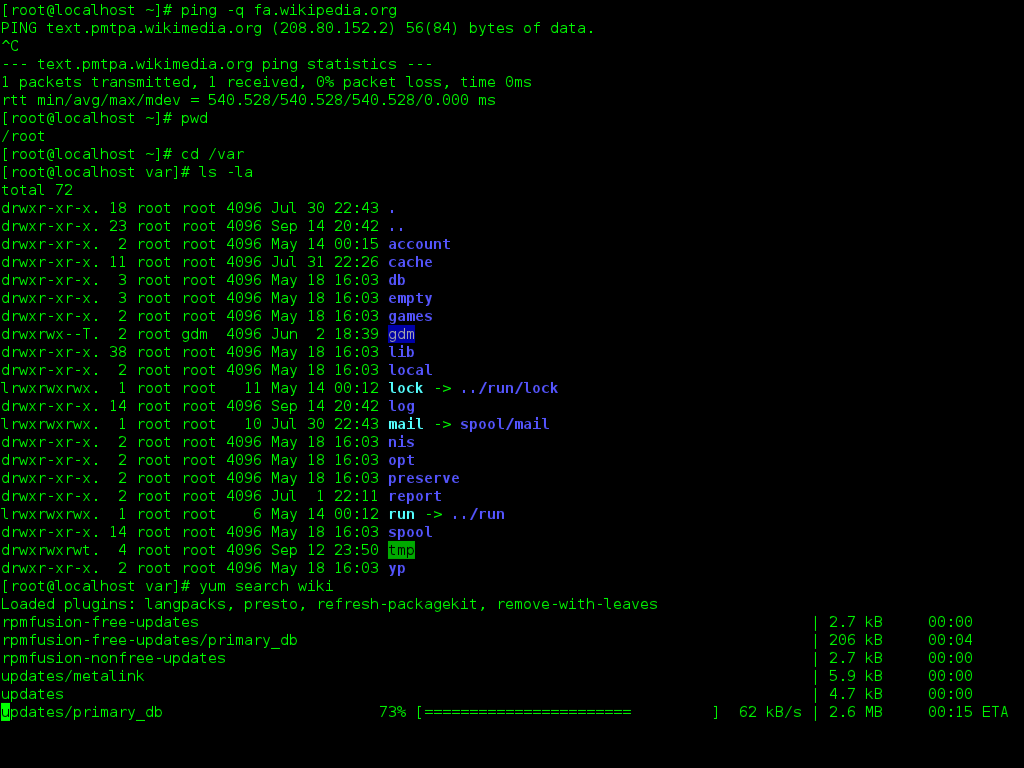
Navigating Your Files
Your computer organizes everything in a filesystem, which is like a giant filing cabinet with folders inside of folders. In the command-line world, we call folders directories.
When you open a terminal, you start in a specific directory, usually your personal "home" directory. To find out exactly where you are, use the pwd command, which stands for "print working directory."
pwd
The output might be something like /home/username. This is your current location.
To see what's inside your current directory, use the ls command, short for "list."
ls
This shows you all the files and subdirectories in your location. To move into one of those subdirectories, use cd, which means "change directory." Let's say you see a directory named Documents.
cd Documents
Now, if you run pwd again, you'll see your location has changed to /home/username/Documents. To go back up to the parent directory, you can use two dots (..) as a shortcut.
cd ..
This takes you from Documents right back to your home directory.
Managing Files
Besides just looking around, you can also manage your files directly from the command line. Let's cover three essential commands: cp (copy), mv (move), and rm (remove).
These commands usually take two pieces of information, called arguments: a source and a destination.
To copy a file, you tell cp what to copy and where to put the copy.
cp original.txt copy.txt
This creates a new file, copy.txt, with the same contents as original.txt.
The mv command works similarly, but instead of copying, it moves or renames a file. If you move it to a new location with the same name, it's a move. If you use a new name in the same location, it's a rename.
# Renaming a file
mv old_name.txt new_name.txt

# Moving a file into a directory
mv new_name.txt Documents/
Finally, to delete a file, use rm. Be careful with this one, as files removed this way are typically gone for good and don't go to a trash can.
rm copy.txt
Writing a Simple Script
The real power of Bash comes from scripting, which is just putting a series of commands into a file to be run together. Even the simplest script needs one special ingredient at the very top: the shebang.
A shebang is a sequence of characters at the beginning of a script (
#!) followed by the path to the program that should run the script.
For Bash scripts, this line is almost always:
#!/bin/bash
This tells the system, "Hey, use the Bash program to interpret the commands in this file." It ensures your script runs correctly, no matter which shell you're currently using.
Now you know the basics of interacting with your computer through Bash, from navigating folders to managing files and setting up your first script.