Automating Workflows with Claude Code
Setup Basics
Preparing Your Workspace
Claude Code is an AI assistant from Anthropic that works directly within your computer's command-line interface. Instead of a graphical interface with buttons and windows, you'll interact with it by typing commands in a text-based environment. This is known as a , or Command-Line Interface. It's a powerful way to work, allowing for automation and direct control over your system.
Claude Code is a terminal-based assistant that can plan features, write code, debug errors, search your codebase, and run shell commands.
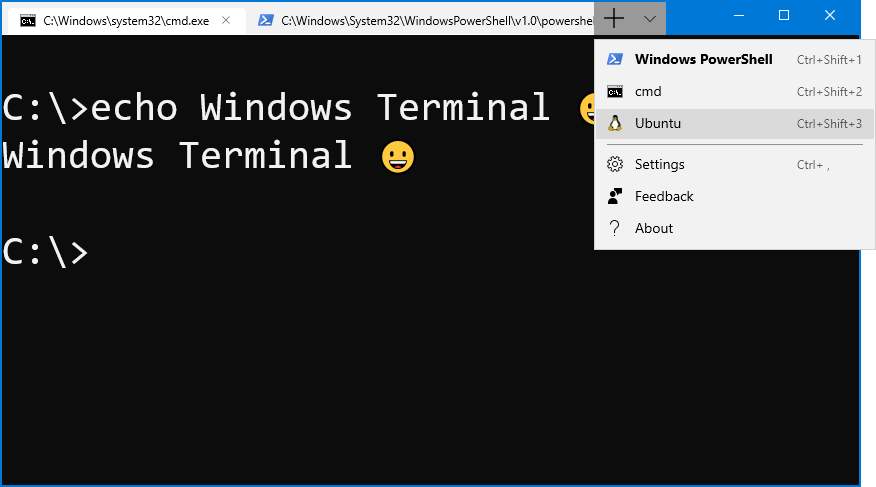
Before we install Claude Code itself, we need to ensure your computer has the necessary foundational software. This involves working with your system's terminal. On macOS and Linux, this is simply called Terminal. On Windows, you'll use PowerShell. These tools are pre-installed on their respective operating systems.
Installing the Foundations
The first dependency is Node.js, a runtime environment that executes JavaScript code outside of a web browser. Claude Code is built using Node.js, so you need it to run the application. We recommend installing the latest (Long-Term Support) version, which should be version 18 or higher. The LTS version provides stability and is maintained with security updates for an extended period.
You can download Node.js from its official website. The installer will also include npm (Node Package Manager), which is used to install and manage software packages like Claude Code.
A Quick Stop for Windows Users
If you are using Windows, there is one extra step. Claude Code relies on some functionalities provided by , a widely-used version control system. While macOS and Linux systems typically have the necessary tools built-in, Windows users need to install 'Git for Windows'.
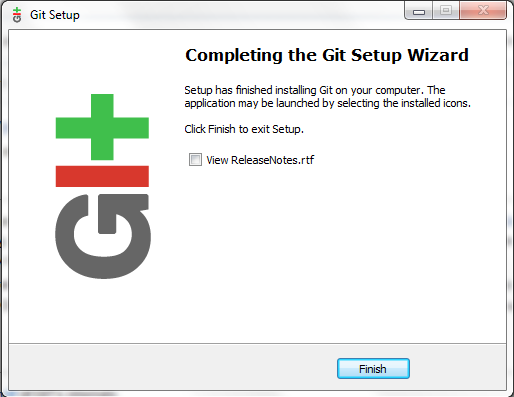
You can download it from the official Git website. During installation, you can accept the default settings, as they are suitable for our purposes.
Verify Your Setup
Once you have installed Node.js (and Git, if you're on Windows), you should verify that everything is set up correctly. Open your Terminal or PowerShell and run the following commands. Each one should return a version number.
# Check the installed version of Node.js
node --version

# Check the installed version of npm
npm --version
If you are on Windows, you can also check your Git installation.
# Check the installed version of Git
git --version
If these commands run without errors and display version numbers (e.g., v20.11.0 for Node.js), your system is ready. You've built a solid foundation to support your new AI coding assistant.