Automate Outlook Calendar Holds from Emails
Outlook Calendar Basics
Finding Your Way Around the Calendar
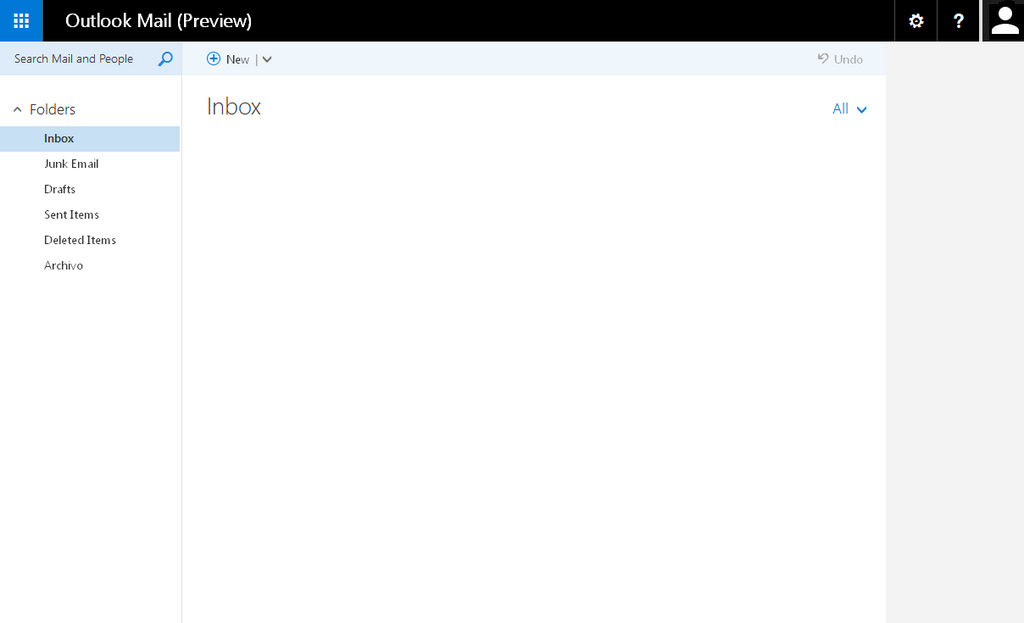
Your Outlook calendar is your central hub for managing your time. To get to it from your inbox, look for the small calendar icon, usually in the bottom-left corner of the window. Clicking it will switch you from your email to the calendar view.
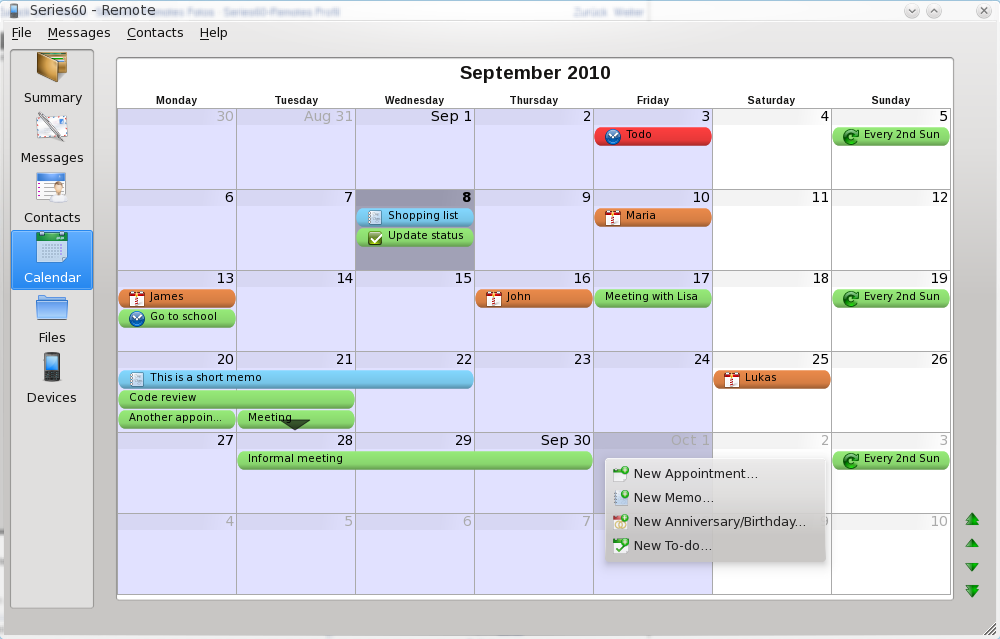
Once you're in the calendar, you'll see a grid representing time. You can change how this grid is displayed to suit your needs. Look for options like Day, Work Week, Week, and Month in the toolbar at the top. The Month view is great for seeing the big picture, while the Day or Work Week views are better for managing the details of your daily schedule.
Creating Your First Event
Adding an event to your calendar is straightforward. The quickest way is to simply click on the date and time slot where you want to add something. A small window will pop up asking for the basics.
Alternatively, you can click the New Appointment or New Event button, usually found in the top-left of the toolbar. This opens a more detailed window where you can add all the necessary information.
Give your events clear and specific titles. Instead of "Meeting," try "Project Alpha Kick-off." This helps you understand your schedule at a glance.
When you create an event, you'll see several fields to fill out:
- Title: What the event is called.
- Location: Where it will take place. This can be a physical address or a link for an online meeting.
- Start time / End time: The date and time the event begins and concludes. You can also mark it as an "All day" event if it doesn't have a specific time.
Fill these in, click Save, and the event will appear on your calendar.
Editing Events and Setting Reminders
Plans change, and your calendar needs to keep up. To edit an event, just double-click it. This will open the same detailed window you used to create it, allowing you to change the title, time, location, or any other detail.
If you need to get rid of an event completely, right-click on it and select Delete. You can also click it once to select it and then press the Delete key on your keyboard.
One of the most useful features of a digital calendar is the ability to set reminders. A reminder is a notification that pops up before an event is scheduled to start, ensuring you don't forget.
When creating or editing an event, look for the Reminder option. It's usually a dropdown menu that lets you choose how far in advance you want to be notified, from a few minutes to several days. The default is often 15 minutes, which is a good starting point for most appointments.
Digital calendars and task management systems like Google Calendar, Outlook Calendar and Notion are great options.
Time to practice what you've learned.
How do you typically switch from your Outlook email inbox to the calendar view?
Which calendar view is best suited for seeing the big picture and planning long-term?
With these basics, you can start organizing your schedule effectively in Outlook. Keeping your calendar up to date is a simple habit that makes a big difference in managing your time and commitments.