AutoCAD Keyboard Shortcuts and Efficiency
Speed Core Commands
Beyond the Ribbon
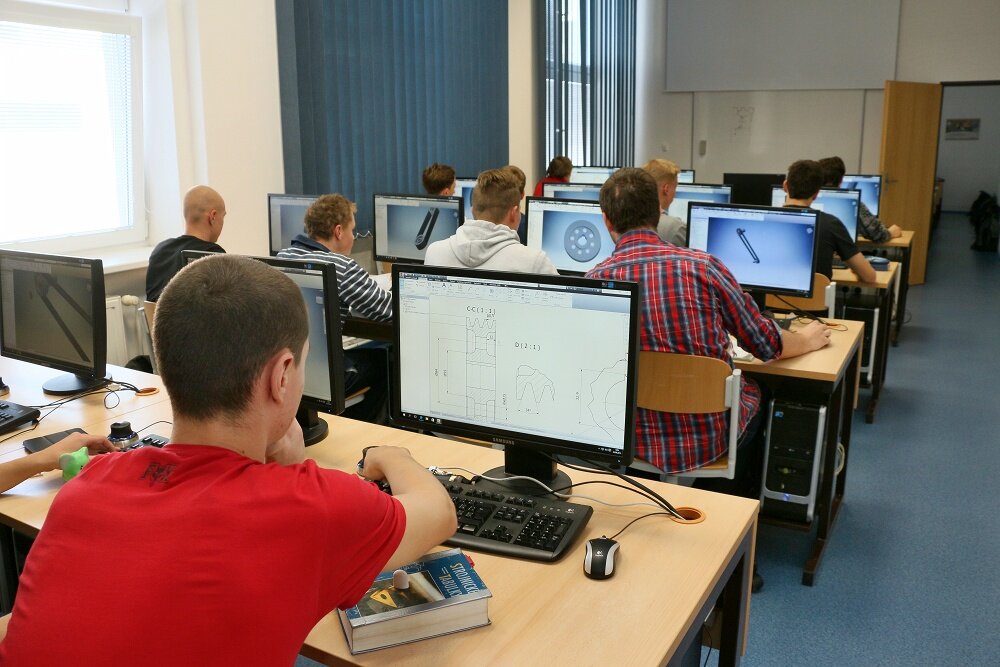
Navigating AutoCAD's interface with a mouse is intuitive, but it isn't fast. Clicking icons on the Ribbon requires you to take your eyes off your drawing, hunt for the right button, and click. For professional drafters, every second counts. The key to true speed is adopting a 'left-hand on the keyboard, right-hand on the mouse' posture. Your mouse hand points and clicks, while your keyboard hand issues commands.
This method centers on using command aliases, which are short keyboard shortcuts that trigger tools. Instead of finding the Line icon, you simply type L and press Enter. This might seem like a small change, but when repeated hundreds or thousands of time a day, the time savings are enormous. Your focus stays on the canvas, not on the user interface.
Core Drawing Commands
The foundation of any drawing is creating basic geometry. Committing the aliases for the most common drawing tools to memory is the first step toward a faster workflow. These commands are so frequent that most have single-letter aliases.
| Command | Alias | Action |
|---|---|---|
| LINE | L | Creates a single straight line segment. |
| POLYLINE | PL | Creates a connected sequence of lines or arcs treated as a single object. |
| CIRCLE | C | Creates a circle from a center point and radius/diameter. |
| RECTANGLE | REC | Creates a rectangular polyline from two corner points. |
Notice that LINE and CIRCLE get the prized single-letter shortcuts. This is because they are arguably the most frequently used commands in all of drafting. Polyline gets a two-letter alias, PL, because it's also a primary tool, but P is reserved for the PAN command, which allows you to move your view around the drawing. The logic is simple: the most common commands get the shortest aliases.
Essential Modification Hotkeys
Creating geometry is only half the battle. Arranging, duplicating, and adjusting those objects is where a design truly takes shape. The core modification commands are just as critical as the drawing commands.
| Command | Alias | Action |
|---|---|---|
| MOVE | M | Moves selected objects to a new location. |
| COPY | CO or CP | Duplicates selected objects. |
| ROTATE | RO | Rotates objects around a base point. |
| SCALE | SC | Resizes objects from a base point. |
| TRIM | TR | Trims objects to meet the edges of other objects. |
| EXTEND | EX | Extends objects to meet the edges of other objects. |
Again, the most common command, MOVE, gets the M key. A notable point is the COPY command, which has two aliases: CO and CP. Both work identically. This is a historical feature designed for convenience. Some users find CO more comfortable to type with the left hand, while others prefer CP. AutoCAD accommodates both. There is no difference in function, so you can use whichever feels more natural.
One of the quickest ways to enhance your Computer-Aided Design (CAD) skills is by actively learning and using keyboard shortcuts.
Working with Selections
Before you can modify an object, you must select it. Clicking on overlapping or tightly packed objects can be tricky. This is where selection cycling comes in handy. If you try to click on an area with multiple objects stacked on top of each other, a small badge will appear next to your cursor. Clicking then brings up a menu listing all the objects under the cursor, allowing you to pick the exact one you need.
You can also control this feature from the Command Line or your status bar. Mastering selection techniques in combination with keyboard aliases is the path to true drafting efficiency. Your hands remain in their optimal positions, and your workflow is never interrupted by a hunt for a specific button or a clumsy click on the wrong line.
What is the primary advantage of using keyboard command aliases over clicking icons on the Ribbon in AutoCAD?
Which command alias is used to start the Polyline tool?
By replacing mouse clicks with these quick keyboard commands, you'll find your drafting speed and overall productivity improve dramatically.