Android TV Universal Remote App Development
Android Development Basics
The Android Ecosystem
At its core, Android is a layered stack of software. Each layer builds upon the one below it, from the hardware drivers up to the apps you use every day. Understanding this structure helps you see where your code fits into the bigger picture.
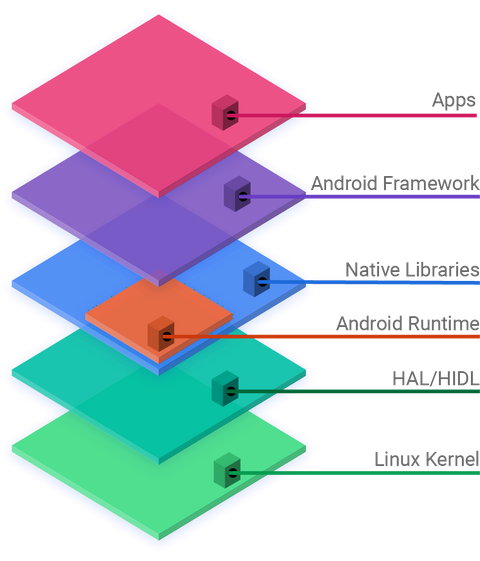
Here's a quick tour from the bottom up:
- Linux Kernel: This is the foundation. Android uses a modified version of the Linux kernel to manage core system services like memory, power, and device drivers.
- Hardware Abstraction Layer (HAL): The HAL provides a standard interface that exposes device hardware capabilities to the higher-level Java API framework. It allows Android to be agnostic about lower-level driver implementations.
- Android Runtime (ART): This is where your app's code is executed. When you build your app, its code is compiled into a format that ART can understand and run efficiently.
- Native C/C++ Libraries: Many core Android system components and services, such as ART and HAL, are built from native code that requires native libraries written in C and C++.
- Java API Framework: This layer is where you'll spend most of your time as a developer. It provides the building blocks for your apps, such as UI elements, notification managers, and resource management.
- System Apps: Android comes with a set of core apps for email, SMS messaging, calendars, internet browsing, contacts, and more. The apps you write install alongside these.
To build apps that run on this stack, you use the Android Software Development Kit, or SDK. The SDK isn't just one thing; it's a collection of tools. It includes libraries to access the Java API framework, a debugger to find issues in your code, an emulator to test your app on virtual devices, and documentation to guide you.
Your Development Toolkit
Grab your laptop, download Android Studio, and prepare to dive deep.
The official integrated development environment (IDE) for Android is Android Studio. It’s a specialized version of IntelliJ IDEA built specifically for Android development. It bundles the Android SDK and provides a powerful code editor, debugging tools, performance profilers, and an emulator manager all in one place.
Android apps are written primarily in Kotlin or Java. Google now recommends Kotlin for new app development. It's a modern, concise, and safe programming language that is fully interoperable with Java. Its syntax is clean and expressive.
For example, declaring a variable in Kotlin is straightforward. You use
valfor a read-only variable andvarfor a mutable one.
// A read-only variable for a welcome message.
val welcomeMessage: String = "Hello, Android!"

// A mutable variable to keep track of a score.
var playerScore: Int = 0
You don't need to be a Kotlin expert to start, but understanding the basics of variables, functions, and classes is essential. Android Studio helps a lot, offering code completion and error checking as you type.
Building Your First App
Let's create a classic "Hello, World!" app. When you create a new project in Android Studio, it generates a basic structure with all the files you need to get started.
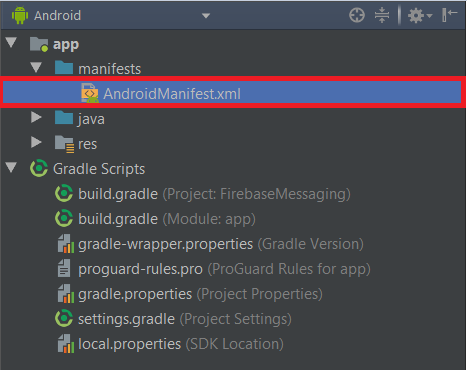
The project view is organized into several key folders:
java: This folder contains your Kotlin or Java source code. You'll find your app's main starting point, usually calledMainActivity.kt, here.res: This is for all your app's resources. It has subfolders for layouts (layout), images (drawable), user-facing strings (values), and more.manifests: This contains theAndroidManifest.xmlfile. Think of it as your app's identity card. It declares essential information like the app's name, icon, and its components (like activities and services) to the Android system.
The main screen of your app is called an Activity. For our "Hello, World!" app, the code in MainActivity.kt connects a layout file to the screen.
package com.example.helloworld

import androidx.appcompat.app.AppCompatActivity
import android.os.Bundle

class MainActivity : AppCompatActivity() {
    override fun onCreate(savedInstanceState: Bundle?) {
        super.onCreate(savedInstanceState)
        // This line links the activity to its layout file,
        // which is located at res/layout/activity_main.xml
        setContentView(R.layout.activity_main)
    }
}
The onCreate() method is the first thing called when the activity starts. Here, setContentView() tells the system to display the user interface defined in the activity_main.xml file. Inside that XML file, you'd typically have a TextView element with the text "Hello, World!".
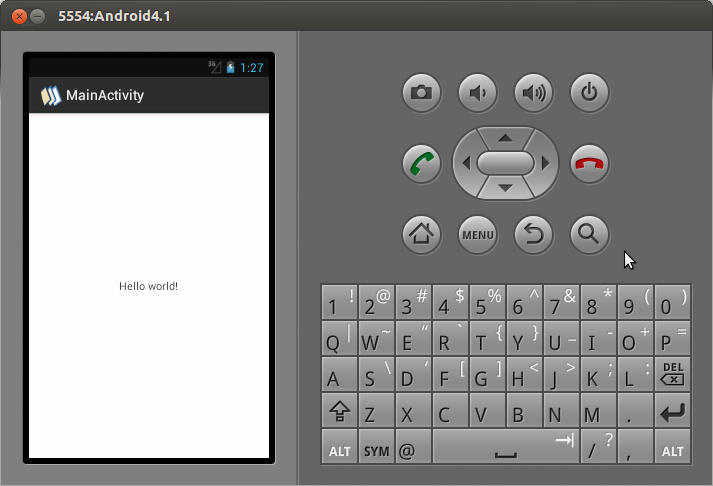
To see your app in action, you can run it on a physical Android device or on the Android Emulator that comes with Android Studio. Just click the green 'Run' button.
Now, let's test what you've learned.
Which layer of the Android software stack provides a standard interface to device hardware, allowing the system to work with different hardware without changing higher-level code?
What is the purpose of the AndroidManifest.xml file in an Android project?
You've just taken your first steps into Android development. You've seen the architecture, set up your tools, and run a basic app. From here, you can start exploring how to build user interfaces, handle user input, and create powerful applications.