Android App Development with Ionic
Introduction to Android Development
Your Android Development Toolkit
Welcome to Android development. Your main tool for building apps is Android Studio, the official Integrated Development Environment (IDE) from Google. Think of an IDE as a supercharged workshop that bundles everything you need: a text editor for writing code, tools for designing user interfaces, an emulator to test your app on a virtual phone, and much more.
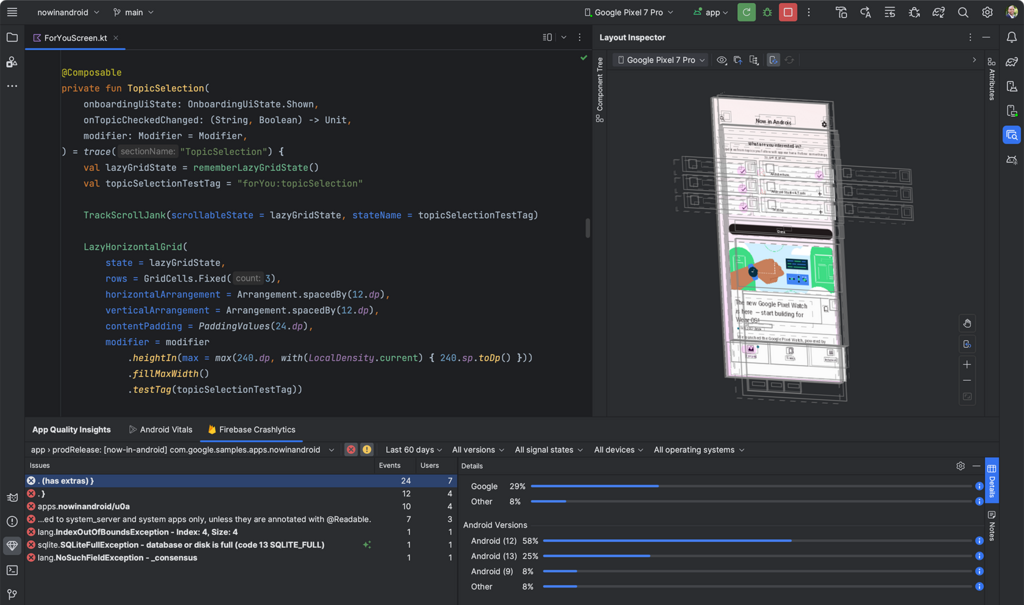
To get started, you'll need to download and install Android Studio from the official Android developer website. The installer will guide you through the process. It's a large download because it includes not just the IDE but also the Android SDK, or Software Development Kit.
SDK
noun
A collection of software development tools in one installable package. The Android SDK includes libraries, a debugger, an emulator, and other utilities needed to build, test, and debug Android applications.
During the setup, you'll be prompted to install the latest SDK platform. It’s best to stick with the recommended settings for now. The installation process handles everything, so you won't have to manually configure paths or install individual components.
Exploring a Project
Once installed, the best way to get familiar with Android Studio is to create a new project. You'll see a wizard that asks you to pick a project template, like "Empty Activity." This gives you a basic, runnable app right out of the box. After you name your app and choose a programming language (we'll focus on Kotlin, the modern choice), Android Studio will build your project.
This first build can take a few minutes. Behind the scenes, a tool called Gradle is working to assemble everything your app needs. We'll touch on Gradle in a bit.
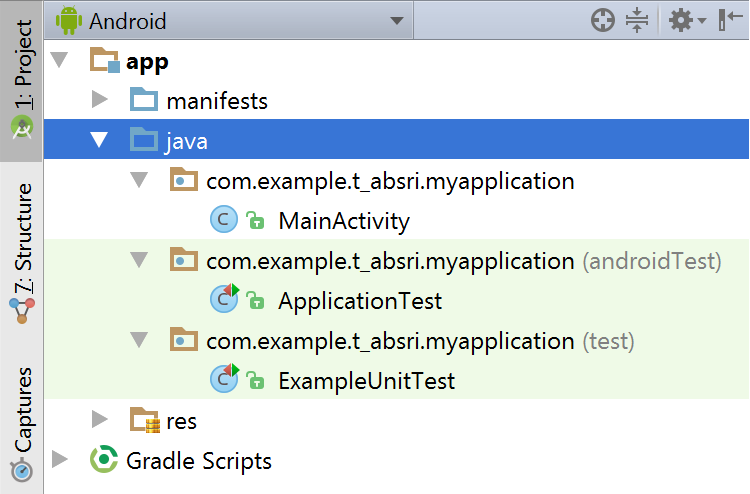
When the project opens, you’ll see a file tree on the left. This is your project structure. It might look complex, but you’ll spend most of your time in just a few key places inside the app folder.
| Folder/File | Purpose |
|---|---|
java or kotlin | Contains your source code files, like MainActivity.kt. This is where your app's logic lives. |
res | Holds all your application resources. This includes layouts (layout), images (drawable), app icons (mipmap), and text strings (values). |
AndroidManifest.xml | The app's manifest file. It's like a passport, declaring the app's components and permissions. |
build.gradle | Configuration files for the Gradle build system. They specify dependencies and build settings. |
Think of the res folder as your app's resource library. Separating resources like images and text from your code makes the app easier to manage and adapt. For instance, you can provide different layouts for different screen sizes or translate the text in the values/strings.xml file without touching your Kotlin code.
The Build System
Every Android project is powered by Gradle. Gradle is a build automation tool that takes your source code and resources and packages them into an Android Application Package (APK) or Android App Bundle (AAB) file that can be installed on a device.
You don't need to be a Gradle expert to start, but it's good to know what it does. It manages your app's dependencies, which are external libraries or modules your project relies on.
You'll interact with Gradle through the build.gradle files. There are two of them: one for the entire project and one for the app module. The module-level build.gradle file is where you'll add dependencies. For example, if you wanted to use a special library for loading images from the internet, you would add a line in the dependencies block of this file.
Gradle then automatically downloads and integrates that library into your project. This system makes it simple to incorporate powerful features built by other developers into your own app.
What is Android Studio's primary role in Android development?
The Android SDK (Software Development Kit) is a separate download that you must install after setting up Android Studio.
That's a quick tour of the basic setup. You now have the tools and a foundational understanding of where everything lives in an Android project.