Android App Development Fundamentals
Introduction to Android Development
What is Android?
Android is the most popular mobile operating system in the world, powering billions of devices from phones and tablets to TVs and watches. It's built on top of the Linux kernel, a stable and secure foundation that manages the device's hardware like the processor, memory, and drivers.
The operating system is organized into layers, like a cake. Each layer has a specific job and builds upon the one below it. This structure helps keep everything organized and allows developers to focus on building apps without worrying about the low-level hardware details.
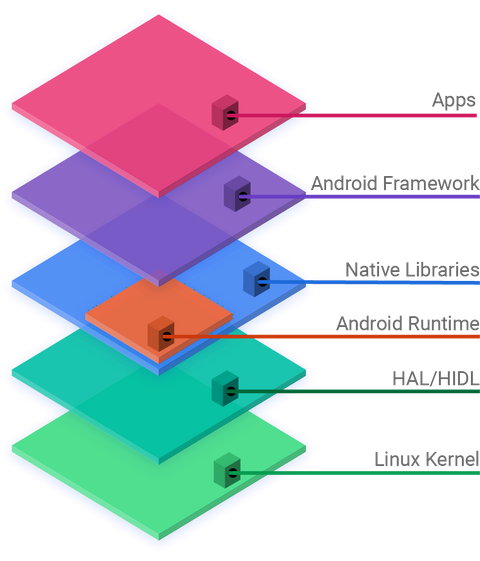
Here's a quick look at the layers from bottom to top:
- Linux Kernel: The core of the system. It manages the device's hardware and handles essential tasks like memory management and security.
- Hardware Abstraction Layer (HAL): A bridge that allows the higher-level parts of Android to communicate with hardware drivers, like the camera or Bluetooth radio.
- Android Runtime (ART): This is where your app's code is executed. ART translates your app's code into instructions the device can understand.
- Native C/C++ Libraries: Android includes a set of libraries for common tasks, such as drawing graphics to the screen or handling databases.
- Java API Framework: This layer provides the building blocks for creating apps. It includes components for the user interface (like buttons and lists), managing notifications, and much more.
- System Apps: These are the pre-installed applications you see on your device, such as the phone dialer, email client, and calendar.
Your Developer Toolkit
To build an Android app, you need a set of specialized tools. The most important of these is the Android Software Development Kit, or SDK.
SDK
noun
A collection of software development tools in one installable package. It provides the necessary libraries, debugger, and emulator to build and test applications for a specific platform.
The SDK is your toolbox. It contains all the essential pieces you need, but working with them individually would be complicated. That's where Android Studio comes in.
Android Studio is the official Integrated Development Environment (IDE) for Android app development. Think of it as your workshop. It brings together the SDK's tools, a powerful code editor, and a system for building and testing your app, all in one convenient place.
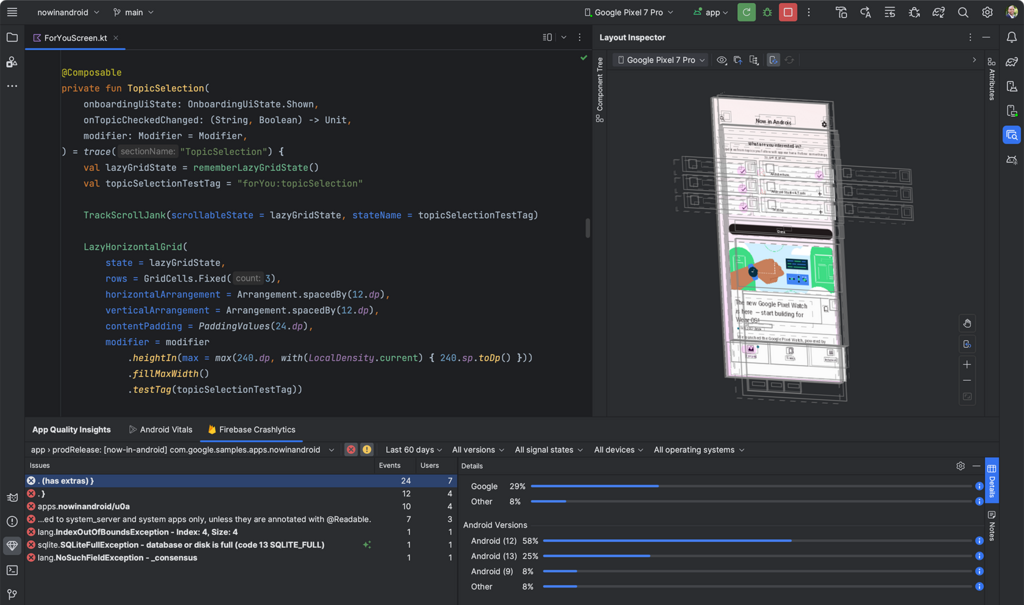
Android Studio bundles the Android SDK with a user-friendly interface, making it the primary tool for nearly all Android developers.
Creating Your First Project
Getting started involves downloading Android Studio from the official Android developer website. The installation process is straightforward and will also set up the latest Android SDK for you.
Once installed, you can create a new project. Android Studio provides templates to get you started quickly. For your first app, you'll select a simple template like 'Empty Activity'.
Begin with a simple "Hello, World" app to understand project creation and running your app.
When you create a project, Android Studio generates a collection of files and folders. It might look intimidating at first, but you'll mostly work within a few key areas.
Here's what the most important files and folders are for:
- java: This folder contains your app's logic, written in the Kotlin or Java programming language.
MainActivity.java(or.kt) is the main screen of your app. - res: Short for resources. This is where you put everything that isn't code. This includes layouts (
layoutfolder), images (drawable), and text strings (values). - AndroidManifest.xml: This is the control file for your app. It tells the Android operating system essential information, like the app's name, icon, and what components it includes.
Running Your First App
After creating a new project from a template, you can run it without writing any code. Android Studio makes it easy to test your app on either a virtual device (an emulator) or a physical Android phone or tablet.
The emulator simulates an Android device on your computer. You can create virtual devices that mimic different screen sizes and Android versions, which is incredibly useful for testing.
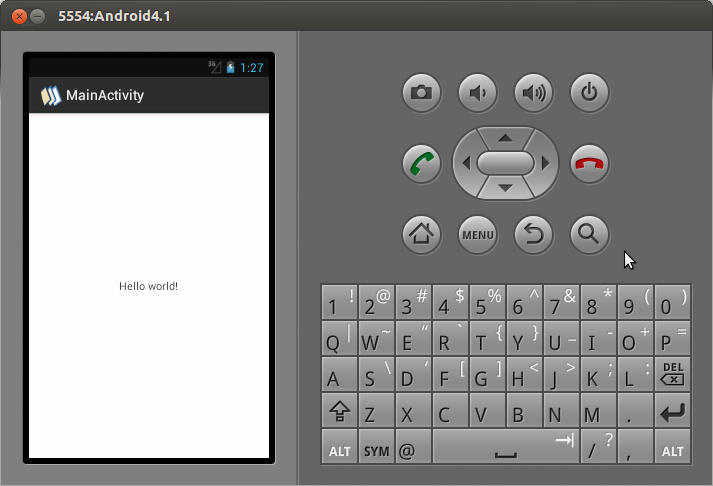
To run your app, you simply select a device from the dropdown menu in the toolbar and click the green 'Run' button. Android Studio will build your project, install it on the selected device, and launch it. The default template will display a screen with the text "Hello World!"
Congratulations! You've just built and run your first Android application. This is the starting point for creating more complex and interesting apps.
What is the core foundation upon which the Android operating system is built?
Which part of the Android OS architecture is responsible for translating an app's code into instructions the device can execute?