Airtable Application Building
Introduction to Airtable
What is Airtable?
Airtable looks like a spreadsheet, but it’s much more powerful. Think of it as a user-friendly database that gives you the best of both worlds: the simplicity of a spreadsheet with the structure and power of a database. Instead of just storing information in a grid of cells, Airtable helps you organize and connect it in meaningful ways.
This structure is what sets it apart. While a traditional spreadsheet gives you a blank canvas of cells, Airtable asks you to be more deliberate about the kind of information you're storing. This prevents messy data and opens up new ways to view and work with your information, from project timelines to client directories.
The Building Blocks
Every Airtable project is built from a few core components. Once you understand them, you can build almost anything.
First, you have a Base (short for database). A base contains all the information for a single project. You might have a base for a marketing campaign, another for a personal budget, and a third for an event plan.
Inside each base are Tables. A table holds a list of a specific type of item, like Tasks, Clients, or Team Members. This is similar to a tab in a spreadsheet, but each table is dedicated to organizing one specific thing.
Each table is made up of Records and Fields.
- Records are the individual items in your list, represented as rows. If you have a table for Clients, each record would be a single client.
- Fields are the properties of those items, represented as columns. For your Clients table, you might have fields for Name, Email, Phone Number, and Status.
Unlike a spreadsheet where every cell is a free-for-all, Airtable fields have specific types. This is the secret to keeping your data clean and organized.
| Field Type | What It Does |
|---|---|
| Single line text | For short text like names or titles. |
| Long text | For longer notes and descriptions. |
| Attachment | Lets you upload files, like images or PDFs. |
| Checkbox | A simple box you can check or uncheck. |
| Single select | A dropdown menu where you can only pick one option. |
| Date | A calendar picker for dates. |
How It's Different
The main difference between Airtable and a spreadsheet is this focus on structured data. By defining your field types, you ensure consistency. A 'Date' field will always contain a valid date, and a 'Single select' field for project status can only be To Do, In Progress, or Done. This prevents typos and makes your data reliable.
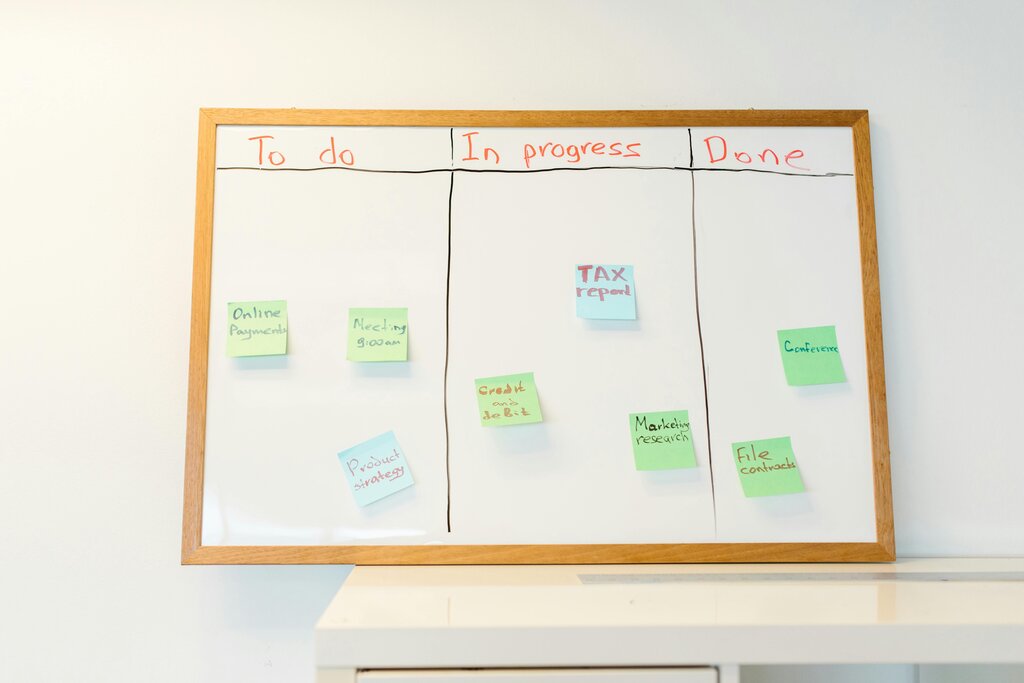
This structure also allows Airtable to display your information in different ways called Views. The same list of tasks can be viewed as a standard grid, a Kanban board to track progress, a calendar to see deadlines, or a gallery of images. The underlying data doesn't change, just the way you look at it.
Because Airtable is a relational database at its core, you can also link records between tables. For example, you could link tasks from your 'Tasks' table to specific projects in your 'Projects' table. This creates connections in your data that are impossible to manage in a standard spreadsheet.
Common Use Cases
Airtable's flexibility makes it useful for a huge range of applications. People use it for everything from personal hobbies to running entire businesses. Some popular uses include:
- Project Management: Tracking tasks, deadlines, and deliverables across a team.
- Content Calendar: Planning and scheduling blog posts, social media updates, and newsletters.
- Simple CRM: Managing customer relationships, tracking sales leads, and logging interactions.
- Inventory Tracking: Keeping a record of product stock, suppliers, and orders.
- Event Planning: Organizing guest lists, managing vendor contracts, and creating schedules.
What is the primary advantage of Airtable's structure over a traditional spreadsheet?
In Airtable, what is the term for a container that holds all the information for a single project?
Airtable offers a structured way to organize information, making it a powerful step up from a simple spreadsheet. By understanding its core components, you're ready to start building your own custom workflows.