AI Readiness Document Capture on Mobile
Smartphone Basics
What's in Your Hand?
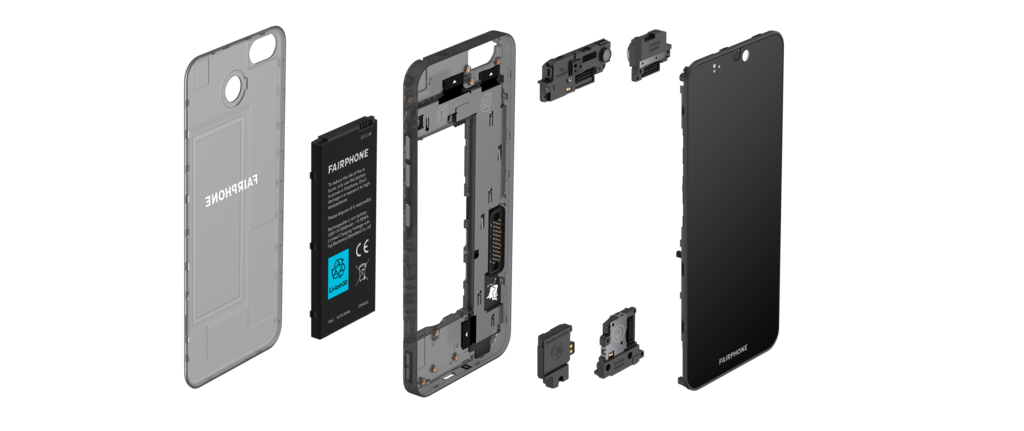
A smartphone is a powerful little computer. Like any computer, it has two main parts that work together: hardware and software. The hardware is all the physical stuff you can touch, while the software is the set of instructions that tells the hardware what to do.
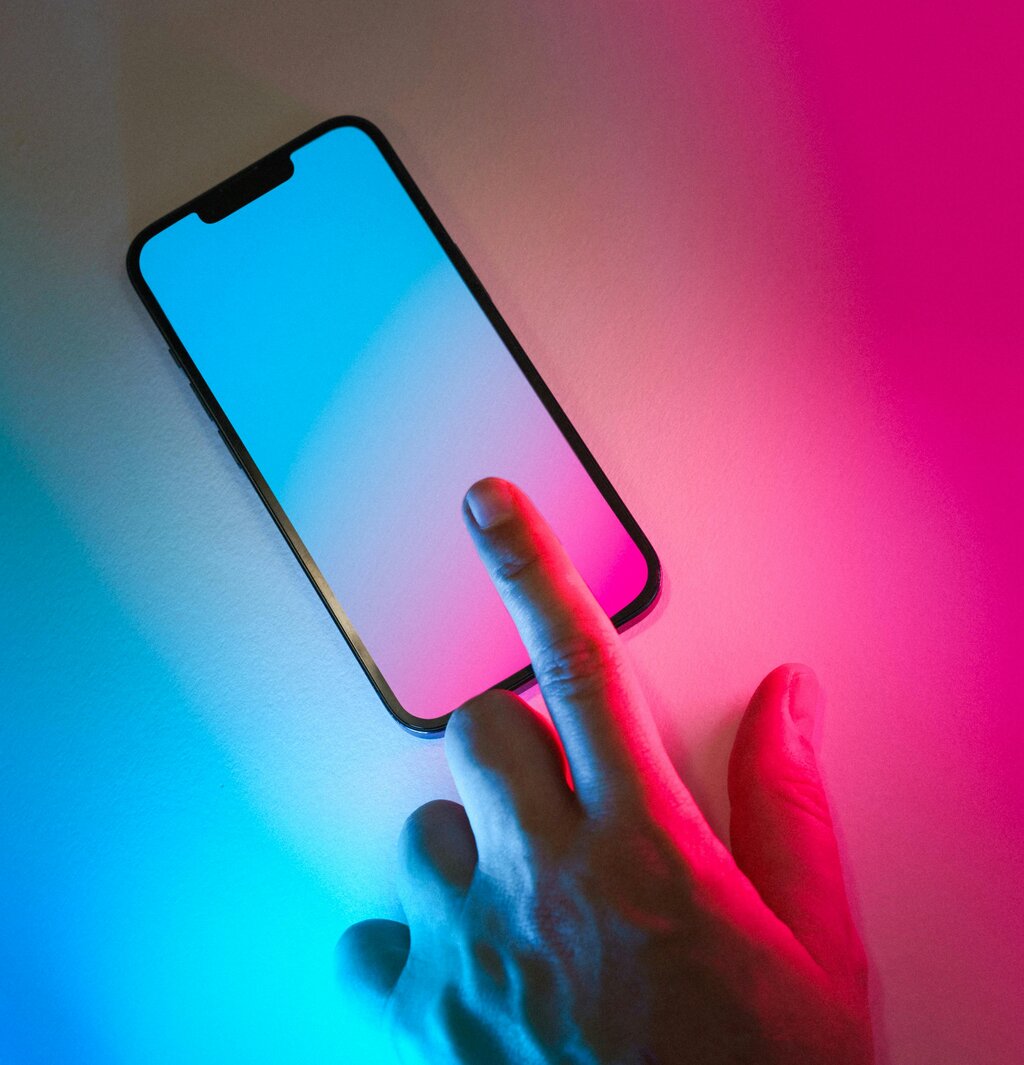
The biggest piece of hardware is the touchscreen. It's your window into the device and the primary way you'll interact with it. Instead of a mouse and keyboard, you use your fingers to tap, swipe, and type directly on the screen.
You'll also find a few physical buttons on the sides. Typically, there's a power button to turn the screen on and off or to power the device down completely. There are also volume buttons to make sounds louder or quieter. On the bottom edge, you'll find a port for charging the battery and transferring data. Your phone also has a small tray that holds your SIM card, which connects you to your mobile network.
The Brains of the Operation
If the hardware is the body, the operating system (OS) is the brain. It's the core software that manages all the phone's functions, from making calls to running apps. It's the bridge between you and the physical hardware inside.
The two most common operating systems for smartphones are Android (made by Google) and iOS (made by Apple for their iPhones). They have different visual styles, but both are designed to be intuitive and perform the same fundamental tasks.
What you see and interact with on the screen—the icons, menus, and keyboard—is called the user interface, or UI. This is the visual part of the operating system that lets you give it commands.
Finding Your Way Around
Navigating a smartphone is all about using simple movements called gestures on the touchscreen. A few basic gestures will get you almost anywhere you need to go.
| Gesture | Action |
|---|---|
| Tap | To open an app or select an item. |
| Swipe | To scroll through a list or move between screens. |
| Pinch | To zoom in or out on a photo or map. |
The main screen you see when you unlock your phone is the Home Screen. It's where you can place your most-used apps for quick access. Swiping up or sideways from the home screen usually reveals a full list of all your apps, sometimes called the App Library or App Drawer.
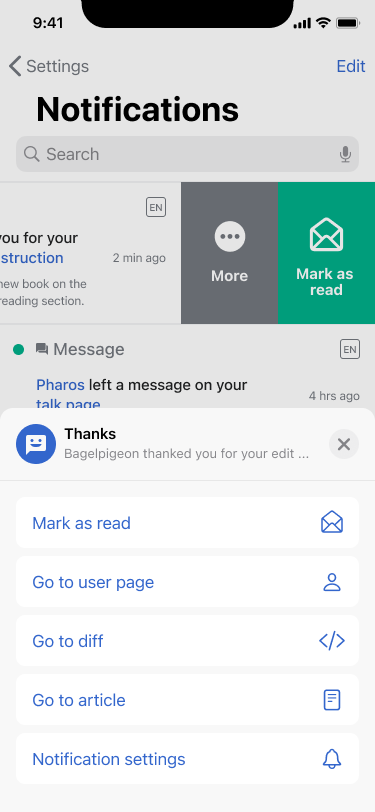
Swiping down from the top of the screen opens the Notification Panel, where you can see alerts from your apps, like new messages or calendar reminders. This area often includes a Control Center or Quick Settings panel with shortcuts to turn things like Wi-Fi, Bluetooth, and the flashlight on or off.
Basic Settings
Every smartphone has a Settings app, usually represented by a gear icon. This is your command center for customizing your device. Inside, you can manage core functions to make the phone work just right for you.
Exploring the Settings app is the best way to get familiar with what your phone can do.
Here are a few of the most important settings to know:
- Wi-Fi: Connect to wireless internet networks at home, work, or in public places.
- Bluetooth: Connect wirelessly to other devices like headphones, speakers, or your car.
- Display: Adjust screen brightness, text size, and your wallpaper.
- Sounds & Vibration: Choose ringtones, set notification sounds, and control whether your phone vibrates.
Getting comfortable with these hardware and software basics is the first step to mastering your smartphone. It gives you the foundation to explore everything else your device has to offer.
The core software that manages all of a smartphone's functions, acting as a bridge between you and the physical components, is called the:
If you wanted to connect your phone to wireless headphones, which setting would you use?