AI-Powered Data Entry and Excel Automation
Introduction to AI in Excel
AI Meets Your Spreadsheet
Artificial intelligence is no longer just a concept for developers; it's a practical tool integrated directly into Microsoft Excel. Think of it less as a robot taking over and more as a smart assistant ready to handle the most tedious parts of your data work. This integration transforms Excel from a powerful manual tool into a dynamic workspace where you can automate and accelerate your tasks using simple, conversational language.
Why Use AI in Excel?
The primary benefit of using AI in Excel is efficiency. Many data entry and processing tasks are repetitive and prone to human error. Manually cleaning up a column of names, formatting dates, or extracting information from blocks of text takes time and meticulous attention to detail.
AI excels at these kinds of jobs. It can recognize patterns, understand context, and execute formatting rules consistently across thousands of rows in seconds. This automation frees you from mundane work, reduces the chance of costly mistakes, and allows you to focus on the more analytical aspects of your job, like interpreting the data rather than just preparing it.
AI in Excel doesn't replace the analyst. It empowers the analyst by handling the repetitive tasks, allowing more time for critical thinking and strategy.
Meet Your New Assistants
Two key features lead the charge in Excel's AI integration: Copilot and a concept often referred to as Agent Mode. While related, they serve different functions.
Copilot
noun
An AI-powered assistant embedded within Microsoft applications. In Excel, it functions as a conversational partner that can perform tasks, generate formulas, and analyze data based on natural language prompts.
You can instruct Copilot with commands like, "Create a bar chart from the Q3 sales data" or "What are the top five products by revenue?" It executes specific, immediate requests.
Agent Mode represents a more autonomous way of working. Instead of giving a single command, you provide a broader goal, and the AI agent works through multiple steps to achieve it. For example, you might ask it to "Clean the new sales lead data, identify any duplicates, format the phone numbers correctly, and then create a summary report."
Think of it this way: Copilot is like asking a colleague to perform one specific task for you. An AI agent is like handing that colleague a project and trusting them to complete all the necessary steps independently.
AI's Data Processing Skills
One of the most powerful AI capabilities in Excel is its ability to process and structure messy, unstructured data. Spreadsheets are often filled with data pasted from emails or other sources, combining multiple pieces of information into a single cell. An AI can parse this text, identify the distinct elements, and organize them into clean, usable columns.
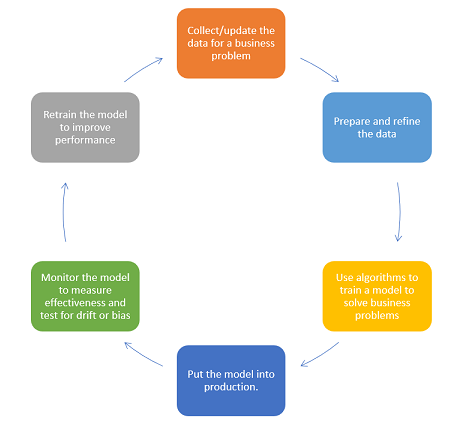
For instance, imagine you have a list of contacts in a single column. The AI can read each entry, extract the name, email, and company, and then place each piece of information into its own dedicated column automatically. This ability is based on Large Language Models (LLMs) that have been trained to recognize patterns in text, much like a human would.
| Raw Data Input | AI-Processed: Name | AI-Processed: Title | AI-Processed: Company |
|---|---|---|---|
| 'Meet with Jane Smith (Director) from Innovate Corp' | Jane Smith | Director | Innovate Corp |
| 'Email from Tom Allen, CEO at Data Solutions' | Tom Allen | CEO | Data Solutions |
| 'Follow up with Priya Patel - Project Manager at TechGen' | Priya Patel | Project Manager | TechGen |
This foundational understanding of text and patterns is what allows AI to revolutionize data entry, transforming it from a manual chore into an automated workflow.
Now, let's test your understanding of these core concepts.
What is the primary benefit of integrating AI into Microsoft Excel?
Which of the following commands is a better example of using Copilot, as opposed to an AI agent?
With this foundation, you're ready to start exploring how to apply these powerful tools to real-world data challenges in Excel.