AI-Powered Coding Workflows Second Brain
Introduction to Cursor
Meet Your AI Coding Partner
Cursor is a code editor designed from the ground up to work with artificial intelligence. Developed by Anysphere, it aims to make writing software faster and more intuitive. Think of it as a familiar tool, like Visual Studio Code, but with a brilliant AI assistant built directly into every part of it.
Cursor is an AI-first code editor designed to make developers extraordinarily productive through advanced artificial intelligence features.
The goal isn't just to add AI features on top of an existing editor. Cursor reimagines the coding experience with AI at its core. It can understand your entire project, from the most complex logic to the smallest configuration file. This allows it to give you incredibly relevant help, whether you're building a new feature or hunting down a tricky bug.
Getting Started
Installing Cursor is simple. You can download the application for your operating system—Windows, macOS, or Linux—directly from the Cursor website. The installation process is just like any other desktop app.
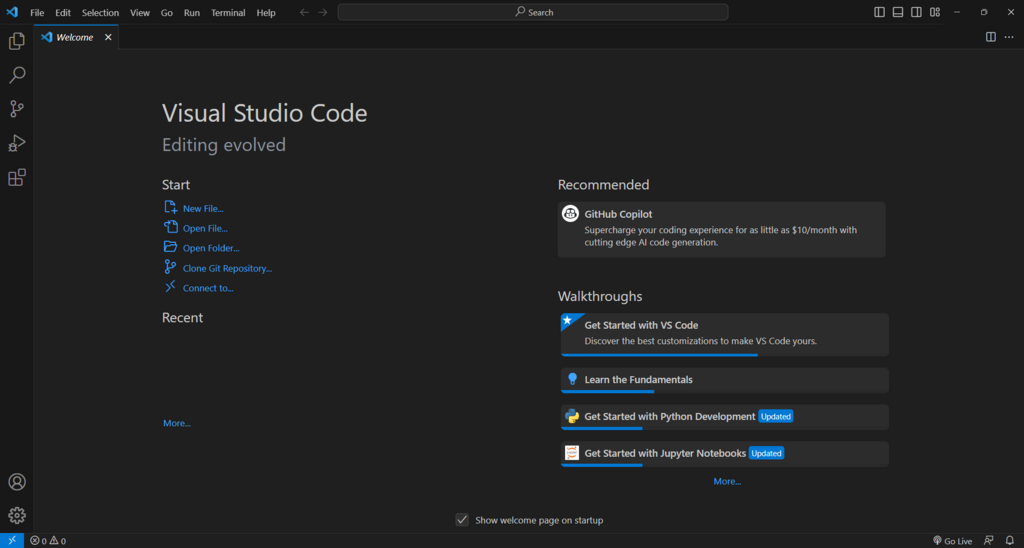
One of the best parts about getting started is that Cursor is built on the same foundation as Visual Studio Code. This means all your favorite themes, keyboard shortcuts, and extensions will work right out of the box. You get a powerful new AI tool without having to leave your comfortable setup behind.
Core AI Features
Cursor's power comes from a few key features that work together. When you open a project, Cursor immediately gets to work scanning your files to build an understanding of how everything connects. This context is what allows its AI to provide such accurate and helpful suggestions.
The Tab model is for quick, in-line code completion. The Agent is for bigger tasks and conversations about your code.
First is the autocomplete, powered by what Cursor calls the Tab model. As you type, it intelligently suggests the next few lines of code. It's much more advanced than typical autocomplete because it considers the broader context of your file and project to predict what you need next.
For more complex tasks, there's the Agent. This is where you can have a conversation with the AI. You can select a block of code and ask for an explanation, tell it to fix a bug, or even write a brand new function from scratch based on a simple description in plain English.
# Prompt the AI using Ctrl+K (or Cmd+K on Mac)
# Example: "Refactor this function to be more efficient."

# Or, open the chat panel with Ctrl+L (or Cmd+L)
# Example prompt in chat:
# "@main.py Can you add error handling to the database connection?"
Connecting Your Tools
A code editor is most powerful when it works with the other tools you use. Cursor includes integrations to streamline your workflow. For example, you can connect your GitHub account to easily manage your code repositories. It can also sync with Slack, allowing for smoother collaboration with your team.
These integrations help keep you in the editor, minimizing the context switching that can slow down development.
Now that you have an overview of Cursor, it's time to try it out for yourself. Let's check your understanding of the key concepts.
What is the core philosophy behind the Cursor code editor?
If you are migrating from Visual Studio Code to Cursor, what can you expect regarding your existing setup?
By combining a familiar editing environment with deeply integrated AI, Cursor provides a powerful platform for modern software development.