AI Agents with GitHub Copilot
Introduction to GitHub Copilot
Meet Your AI Pair Programmer
GitHub Copilot is an AI assistant that helps you write code. Think of it as a partner who sits with you, suggesting lines of code, entire functions, and solutions to problems right inside your editor. It was developed by GitHub and OpenAI and trained on billions of lines of public code, so it has seen a lot of programming problems and their solutions.
GitHub Copilot is designed to be your AI pair programmer.
This tool doesn't just autocomplete a single word. It analyzes the context of your file, including the code you've already written and the comments you've added, to generate surprisingly relevant suggestions. It can help you speed through repetitive tasks, write boilerplate code in seconds, and even learn a new programming language or framework by showing you common patterns.
Getting Started in VS Code
Copilot integrates directly into your coding environment as an extension. While it supports several editors, its most common home is Visual Studio Code. Setting it up is straightforward.
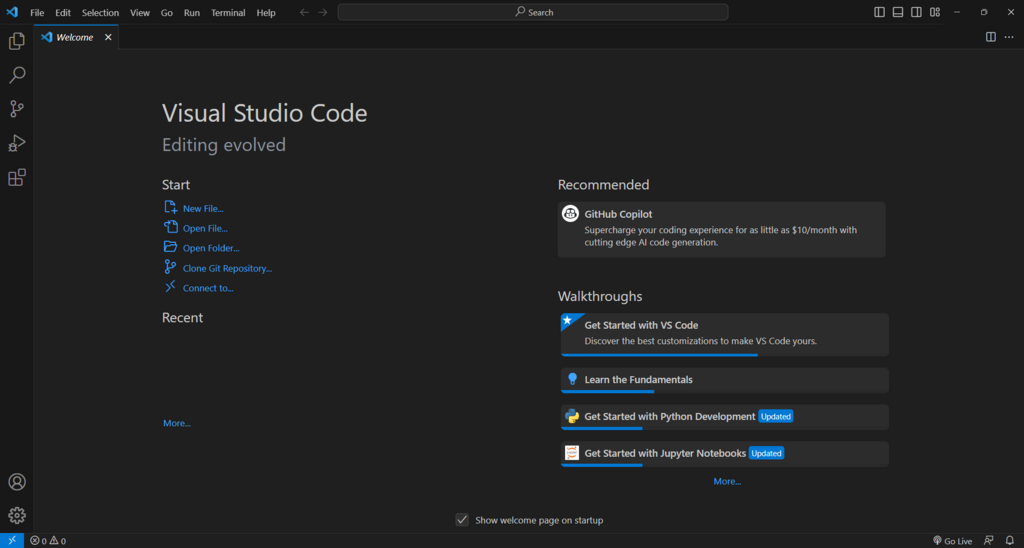
First, open VS Code. Look for the Extensions icon in the Activity Bar on the side of the window. In the search bar, type GitHub Copilot and press Enter. The official extension should be the top result. Click the "Install" button.
Once installed, you'll be prompted to sign in with your GitHub account to authorize the extension. Copilot will then be active and ready to help.
Keep in mind that GitHub Copilot is a subscription-based service. You may need to sign up for a free trial or a paid plan through your GitHub account to use it.
Putting Copilot to Work
Using Copilot feels natural. As you start typing code or write a comment describing what you want to do, Copilot will automatically offer a suggestion. This suggestion appears as grayed-out "ghost text" right where your cursor is.
To accept the suggestion, just press the Tab key. If you don't like it, simply keep typing, and the suggestion will disappear. You can also press Esc to dismiss it.
// Create a function that fetches user data from an API
// and returns it as a JSON object

async function getUserData(userId) {
  const response = await fetch(`https://api.example.com/users/${userId}`);
  const data = await response.json();
  return data;
}
In the example above, a developer might only type the first comment. Copilot can generate the entire async function based on that description. This ability to understand natural language comments and turn them into code is one of its most powerful features.
Context and Limitations
Copilot's real strength is its awareness of your code's context. It doesn't just look at the line you're currently writing. It considers the entire file, including other functions, variables, and imported libraries, to provide suggestions that fit your specific project. If you've defined a variable named customerList, Copilot will likely use that exact name in its suggestions.
Using GitHub Copilot effectively isn’t about turning off your brain, it’s about understanding its limits, guiding its output, and correcting its mistakes.
However, it's important to remember that Copilot is a tool, not a replacement for a developer. Its suggestions are not always perfect, optimal, or secure. The code it generates is based on patterns from public repositories, which can sometimes contain bugs or outdated practices.
Always review and understand the code Copilot suggests before accepting it. Use it to accelerate your work, not to bypass the process of thinking through a problem. With that in mind, it can become an invaluable part of your development workflow.
What is the primary function of GitHub Copilot?
How do you accept a code suggestion provided by GitHub Copilot in your editor?