Advanced WordPress Web Design No Code
WordPress Basics
What is WordPress?
At its heart, WordPress is a tool for building and managing websites. It's known as a Content Management System, or CMS. A CMS lets you create, edit, and publish content—like text, images, and videos—without needing to write a single line of code. Think of it as the operating system for your website.
A CMS separates the content you create from the design and structure of your site. This means you can change your site's look and feel without messing up your blog posts or pages.
Originally built for blogging, WordPress has evolved into a powerful platform capable of running almost any type of website. People use it for everything from personal portfolios and small business sites to large e-commerce stores and complex online magazines. Its popularity comes from its flexibility and a massive community that creates tools to extend its capabilities.
WordPress.org vs WordPress.com
One of the first points of confusion for newcomers is the difference between WordPress.org and WordPress.com. They are two different ways to use the same software, and choosing the right one depends on your needs.
WordPress.org is the self-hosted version. You download the WordPress software for free and install it on your own web hosting account. This gives you complete control over your site. It's like owning a house: you can paint the walls, knock down a wall, or build an extension. You're also responsible for all the maintenance and security.
WordPress.com is a for-profit service that hosts a version of the WordPress software for you. It's easier to get started, as they handle all the technical setup and maintenance. It's more like renting an apartment: you can't make major structural changes, but you also don't have to worry about fixing a leaky roof. They offer free plans with limitations and paid plans that unlock more features.
| Feature | WordPress.org (Self-hosted) | WordPress.com (Hosted) |
|---|---|---|
| Cost | Software is free, but you pay for hosting and a domain name. | Free plan available with ads and limitations. Paid plans vary. |
| Control | Full control over themes, plugins, and code. | Limited by the plan you choose. Cannot install custom plugins on lower-tier plans. |
| Monetization | Run any ads you want. | Restricted. Ads are controlled by WordPress.com on free plans. |
| Maintenance | You are responsible for updates, backups, and security. | Handled for you by the service. |
For this course, we'll focus on the principles that apply to both, but most examples will assume a self-hosted (WordPress.org) environment, which offers the most creative freedom.
The WordPress Dashboard
After installing WordPress or signing up, the first thing you'll see is the Dashboard. This is your website's command center. From here, you can control everything about your site, from creating content to changing its appearance and managing users.
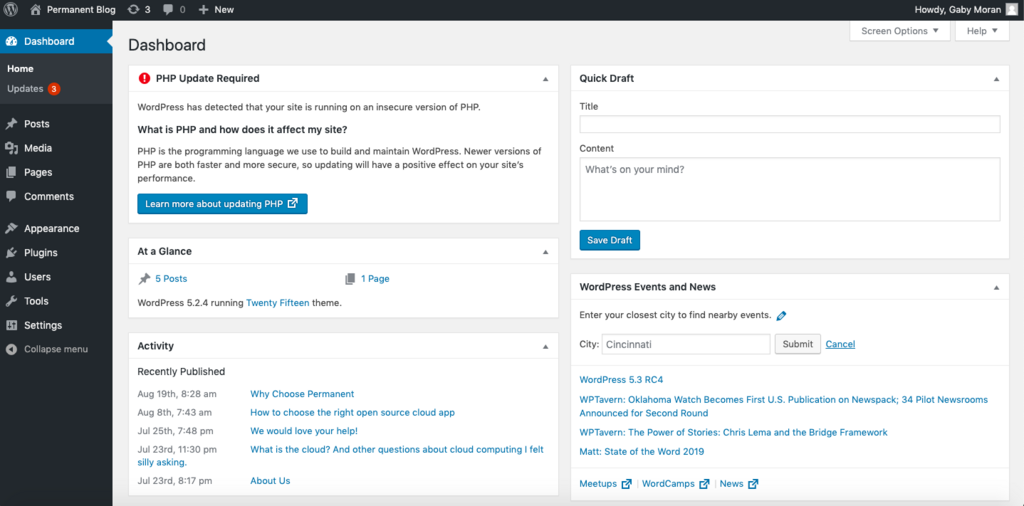
The interface is divided into a few key areas.
On the left, you have the main navigation menu. This is where you'll find links to all the important sections:
- Posts: Where you write and manage blog articles.
- Media: Your library of uploaded images, videos, and other files.
- Pages: For creating static content like an "About Us" or "Contact" page.
- Appearance: This is where you can change your site's theme, customize the design, and manage menus and widgets.
- Plugins: Add new functionality to your site, like contact forms or e-commerce features.
- Settings: Configure your site's title, URL structure, and other general options.
The main area in the center of the screen is where you'll do your work, whether it's writing a post or adjusting a setting. The top bar provides quick-access shortcuts, like adding a new post or viewing your live site.
Getting comfortable with the dashboard is the first step to mastering WordPress. Spend some time clicking through the different menu items to see what they do. You can't break anything just by looking!