Advanced Ren'Py Visual Novel Development
Advanced Scripting Techniques
Unlocking Python in Ren'Py
You already know how to set variables and branch your story based on simple choices. But what if you want to build something more complex, like an inventory system or relationship stats that change based on dozens of small interactions? This is where Ren'Py's secret weapon comes into play: full Python integration.
Any time you need to perform complex logic that goes beyond setting a simple variable, you can drop into a Python block. This gives you access to Python's powerful features like lists, dictionaries, functions, and classes, right inside your Ren'Py script.
To use Python, you simply start a line with a dollar sign
$for a single statement, or use apython:block for multiple lines.
Let's set up a basic inventory system. We can use a Python dictionary to store items. A dictionary is a collection of key-value pairs, perfect for tracking what the player has and how many of each item.
We'll initialize this in an init python: block. Code inside this block runs once when the game starts, making it ideal for setting up the initial state of your game.
init python:
    # Initialize an empty inventory dictionary.
    # The key will be the item's name (a string).
    # The value will be the quantity (an integer).
    inventory = {}
Now, we can add items to this inventory during the game. Here’s how you could give the player a key:
label start:
    "You find an old, rusty key on the floor."

    $ inventory['rusty_key'] = 1

    "You picked up the rusty key."
The dollar sign tells Ren'Py that inventory['rusty_key'] = 1 is a single line of Python code. It adds an entry to our inventory dictionary. Later, we can check if the player has this key to unlock a door.
if 'rusty_key' in inventory:
    "You use the rusty key to open the door."
    jump old_cellar
else:
    "The door is locked. You need a key."
    jump keep_searching
Animating with ATL
Static images can tell a story, but movement brings it to life. Ren'Py's Animation and Translation Language (ATL) is a powerful tool for creating complex animations directly in your script. You can move sprites, change their opacity, zoom in and out, and chain these effects together to create sophisticated scenes.
ATL works by defining a series of states for an image over time. Let's make a character sprite slide onto the screen instead of just appearing.
image eileen happy animated:
    # This defines an image with an ATL transform
    "eileen_happy.png"
    xalign 0.0 # Start off-screen to the left
    linear 0.5 xalign 0.5 # In 0.5 seconds, move to the center
In this example, we define a new image tag, eileen happy animated. The ATL block underneath specifies the animation. It starts with the character positioned off-screen to the left (xalign 0.0). Then, over half a second (linear 0.5), it moves her to the horizontal center of the screen (xalign 0.5).
To use it, you just show the image like any other:
show eileen happy animated
e "Hi there! Bet you didn't see me coming."
You can create much more complex effects by combining properties. For instance, you could make a ghostly apparition fade in and float up the screen.
image ghost appear:
    "ghost.png"
    alpha 0.0 # Start completely transparent
    yalign 1.0 # Start at the bottom of the screen
    linear 2.0 alpha 0.7 yalign 0.2 # Over 2 seconds, fade in and rise
Here, alpha controls the image's opacity (0.0 is transparent, 1.0 is fully opaque). By animating alpha and yalign (vertical alignment) at the same time, we create a smooth, spooky entrance.
Combining Logic and Animation
The real power of advanced scripting comes from combining Python logic with ATL animations. You can create dynamic scenes that react to the player's status or choices.
Imagine a character whose expression changes based on a 'relationship score'. First, let's define a variable for this score.
default relationship_score = 0
Next, we can create a dynamic image that chooses a sprite based on the value of that score. This is done with a ConditionSwitch.
image eileen dynamic:
    ConditionSwitch(
        "relationship_score >= 5", "eileen_happy.png",
        "relationship_score <= -5", "eileen_annoyed.png",
        "True", "eileen_neutral.png"
    )
This ConditionSwitch checks the conditions in order. If relationship_score is 5 or more, it shows the happy sprite. If it's -5 or less, it shows the annoyed one. The True condition acts as a default, showing the neutral sprite if neither of the other conditions is met.
Now, whenever you show eileen dynamic, Ren'Py will automatically display the correct sprite based on the current relationship_score. You can change the score throughout your game, and Eileen's expression will update automatically the next time she appears, making the world feel much more responsive to the player's actions.
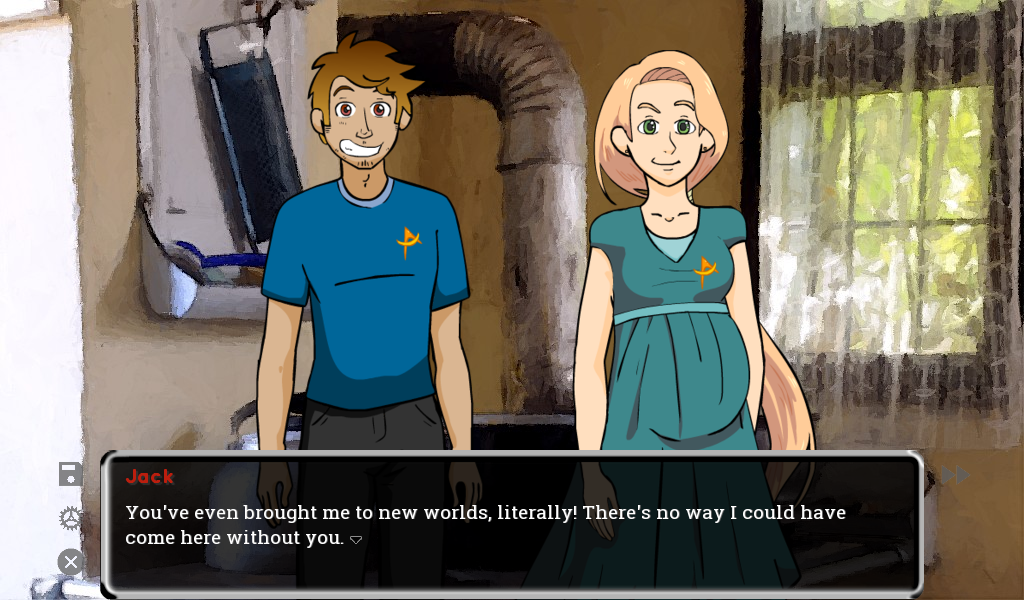
Now you've seen how to go beyond simple storytelling. Let's test your knowledge of these advanced techniques.
In Ren'Py, what is the primary purpose of an init python: block?
Which character is used to tell Ren'Py that a single line in your script should be executed as Python code?
By integrating Python for complex logic and using ATL for dynamic animations, you can build visual novels that are rich, interactive, and deeply engaging.