Advanced Procreate Illustration Techniques
Advanced Brush Customization
Welcome to the Brush Studio
Every artist has a favorite set of tools. In the digital world, your brushes are paramount. While Procreate comes with a fantastic library of default brushes, the real magic happens when you start creating your own. The Brush Studio is your workshop, a place where you can tweak, modify, and build brushes from the ground up to perfectly match your style.
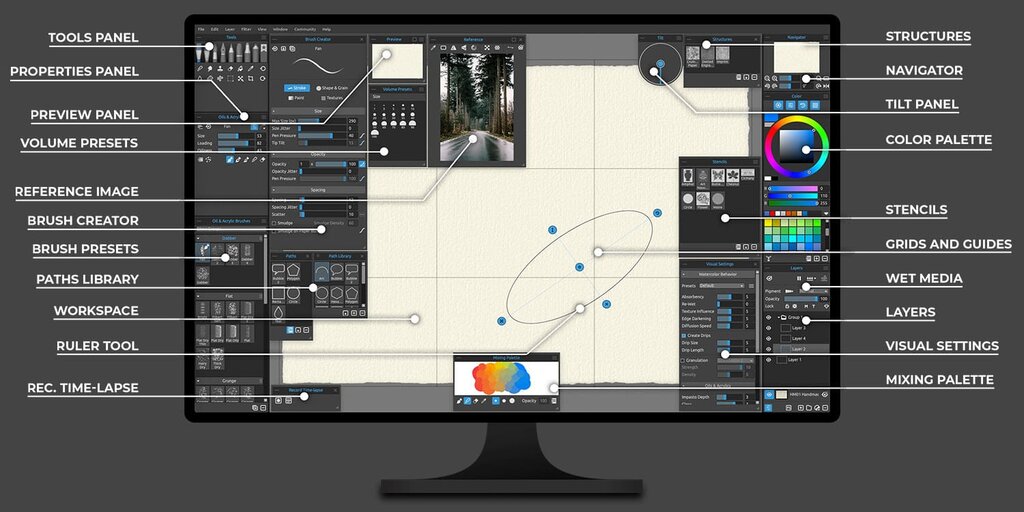
Tapping on any brush twice opens the Brush Studio. Here, you'll find a wealth of settings that control every aspect of how a brush behaves. It might seem intimidating, but all these options boil down to a few core concepts. Understanding them is the key to unlocking unlimited creative potential.
Shape and Grain
At the heart of every Procreate brush are two fundamental images: the Shape Source and the Grain Source. Think of them as the DNA of your brush.
The Shape Source is the container for your texture. It’s like the tip of a physical paintbrush or the nib of a pen. It gets stamped repeatedly along the path you draw. A simple round shape will create a smooth, consistent line. An irregular, splotchy shape will produce a more textured, unpredictable stroke.
The Grain Source is the texture that fills the shape. Imagine it as the canvas you're painting on. A smooth, uniform grain results in a clean, flat color. A rough, textured grain, like charcoal on heavy paper, will give your stroke a gritty, realistic feel. The grain can be set to move with the brush or remain static, like a fixed paper texture.
By swapping out these two source images—which can be anything from Procreate's library or images you import—you can create an infinite variety of brushes.
Modifying the Stroke Path
How your brush stamps are laid down is controlled by the Stroke Path settings. This is where you define the rhythm and flow of your line.
Spacing determines the distance between each stamp of the shape source. If the spacing is low, the stamps overlap closely, creating a solid, continuous line. As you increase the spacing, the individual stamps become visible, turning your brush into a pattern tool.
Jitter adds a controlled chaos to your stroke. It scatters the stamps randomly to the sides of your path. A small amount of jitter can make a line feel more natural and organic. A large amount can create a spray-paint effect, perfect for textures or abstract backgrounds.
Fall off controls how quickly your stroke fades away. This setting makes the brush behave as if it's running out of ink, which is useful for creating tapered lines or shading effects without lifting your stylus.
| Setting | Effect | Common Use Case |
|---|---|---|
| Spacing | Adjusts distance between brush stamps | Creating smooth lines or stamped patterns |
| Jitter | Randomly scatters stamps off the stroke path | Natural media simulation, foliage |
| Fall off | Causes the stroke to fade over distance | Simulating a pen running out of ink |
Adding Dynamics
Dynamics are what make a digital brush feel responsive and alive. These settings connect the brush's behavior to how you use the Apple Pencil, primarily its pressure and tilt.
Under the Apple Pencil tab in the Brush Studio, you can link dozens of attributes to these inputs. For example, you can make the brush's size increase with pressure, mimicking a flexible brush pen. You could also link opacity to pressure, allowing for delicate, buildable shading just by varying how hard you press.
Tilt sensitivity adds another layer of realism. You can set the brush to become wider or more textured as you tilt the Apple Pencil, just like using the side of a charcoal stick for broad shading. Experimenting with these settings is crucial for creating brushes that feel like a natural extension of your hand.
Link size to pressure for dynamic line weight. Link opacity to pressure for smooth shading. Link grain scale to tilt for realistic texture effects.
By mastering the interplay between shape, grain, stroke, and dynamics, you move from simply using Procreate to commanding it. You can build a custom toolkit that not only speeds up your workflow but also helps define your unique artistic voice.
Ready to test your knowledge of the Brush Studio?
What are the two fundamental images that form the core of every Procreate brush?
An artist wants their brush to create a spray-paint effect, with marks scattering randomly to the sides of the path. Which Brush Studio setting should they increase?
Now you have the foundational knowledge to create any brush you can imagine.