Advanced MeshLab for 3D Coin Modeling
MeshLab Basics
Getting Started with MeshLab
MeshLab is a powerful, open-source tool for working with 3D models. Think of it as a digital workshop for cleaning up, editing, and inspecting 3D scans or models before you use them for things like 3D printing or animation. It specializes in processing triangular meshes.
A mesh is the structural build of a 3D model. It's a collection of vertices (points), edges (lines connecting points), and faces (the flat surfaces that fill in the space between edges).
Most 3D objects you'll encounter are represented as meshes, often composed of thousands or even millions of tiny triangles. MeshLab gives you the tools to manage all that complexity.
The User Interface
When you first open MeshLab, the interface might seem a bit busy, but it’s organized logically. Let's break down the main areas you'll be using.
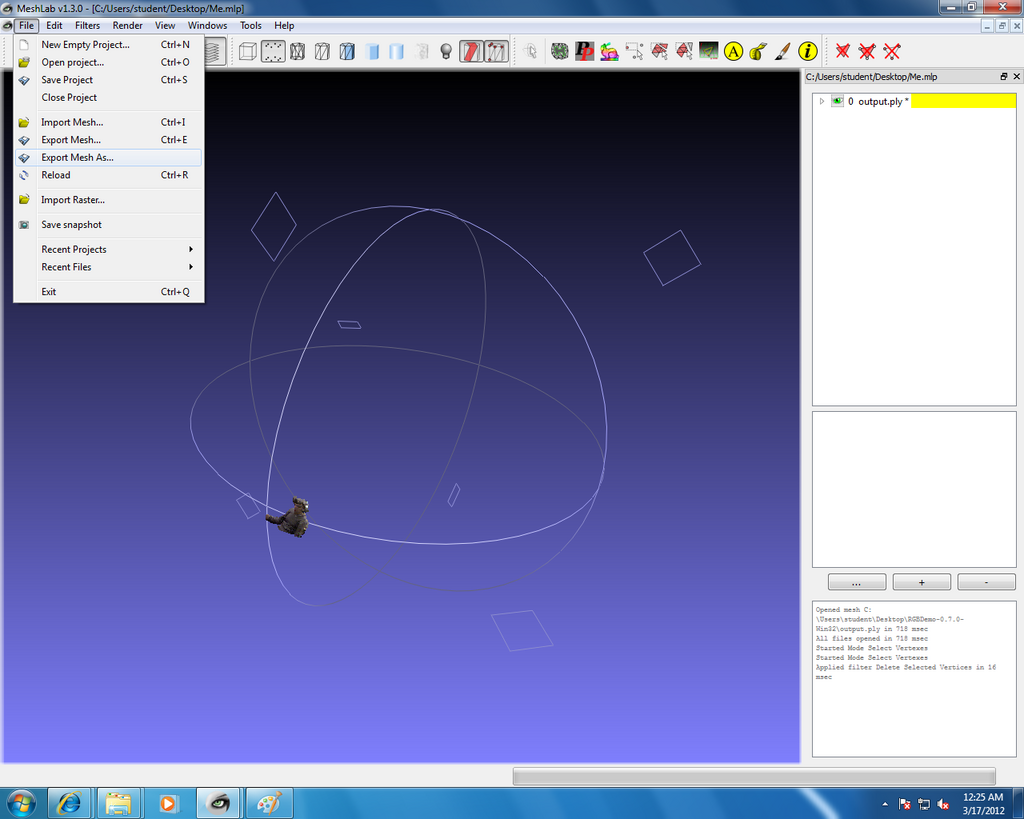
The largest part of the screen is the 3D Viewer, where your model appears. Around it, you'll find several key components:
- Main Menu Bar (Top): This is where you'll find standard options like
File(for opening and saving),Edit, andFilters(where most of MeshLab's powerful tools live). - Toolbar (Top): A row of icons for quick access to common actions like saving, undoing, and changing view modes.
- Layer Dialog (Right): This panel shows all the different meshes or layers you have loaded in your project. You can select, hide, or delete layers from here.
Don't worry about memorizing every button. For now, just get familiar with where these main sections are located.
Navigating 3D Space
Moving around your 3D model is the first skill to master. Think of it like holding an object in your hand: you can rotate it, move it closer or further away, and slide it from side to side. MeshLab uses mouse and keyboard combinations for this.
| Action | Control |
|---|---|
| Rotate | Left-click and drag |
| Pan (Move side-to-side) | Ctrl + Left-click and drag |
| Zoom | Scroll the mouse wheel up or down |
Try loading a sample model (File > Open sample project...) and practice these controls. Getting a feel for navigation is essential for everything you'll do next.
Basic Mesh Operations
The two most fundamental operations are getting a model into MeshLab and getting it out again.
Importing a Mesh
To open a model, go to File > Import Mesh... and select your 3D file. MeshLab supports many common formats, like .obj, .stl, and .ply.
Exporting a Mesh
Once you've made changes, you can save your work by going to File > Export Mesh As.... This allows you to save the model, often in a different file format if needed. For example, you might clean up a complex .obj file and export it as an .stl for 3D printing.
Ready to check your understanding of these basics?
What is the primary type of 3D data that MeshLab is specialized in processing?
In which part of the MeshLab interface would you find the majority of the powerful tools for cleaning, healing, and modifying a 3D model?
With these fundamentals, you're ready to start exploring the powerful editing capabilities of MeshLab.