Advanced LLM Development Accelerator CLI
CLI Basics
What is a CLI?
Before graphical interfaces with windows, icons, and mouse pointers, there was the command line. A Command-Line Interface, or CLI, is a text-based way to interact with your computer. You type commands, press Enter, and the computer responds.
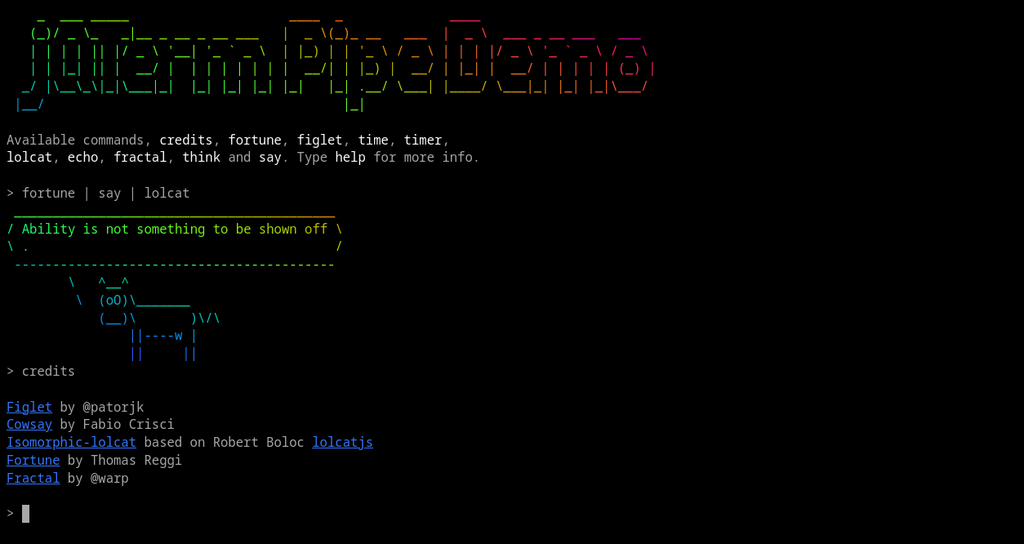
Instead of clicking buttons, you tell the program exactly what to do using specific text commands. It might seem old-fashioned, but for developers, it’s an incredibly powerful and efficient way to work.
Command-Line Interface
noun
A text-based user interface (UI) used to view and manage computer files. Command-line interfaces are also called command-line user interfaces, console user interfaces and character user interfaces.
Why Bother with Text?
Graphical User Interfaces (GUIs) are great for discovery and ease of use. But once you know what you want to do, a CLI is often much faster. Imagine you need to rename 100 files in a specific way. Clicking, renaming, and saving each one individually would take forever. With a CLI, you could write a single command to do it all in seconds.
This leads to the two main advantages of CLIs for developers: speed and automation.
CLIs allow you to chain commands together, creating powerful scripts that automate repetitive tasks. This saves time and reduces the chance of human error.
Many development tools, like the version control system Git or the container platform Docker, are built to be used primarily through a CLI. It gives developers direct, granular control over these powerful systems.
Anatomy of a Command
Commands follow a predictable structure. Understanding this structure is key to using any CLI effectively. Let's break down a common example from Git, a tool for tracking changes in code.
git commit -m "Update user authentication"
This command has three distinct parts.
| Component | Example | Purpose |
|---|---|---|
| Command | git | The name of the program you want to run. |
| Sub-command/Argument | commit | A specific action you want the program to take. |
| Option (or Flag) | -m | Modifies the behavior of the command. Here, it means "message". |
| Option Argument | "Update user..." | The value associated with the option. In this case, the commit message. |
The main command is the program itself. Arguments tell the program what to do, and options tell it how to do it. Not every command has all of these parts, but this basic structure is very common.
Building Your Own CLIs in Python
You can also build your own CLI tools to automate your personal workflows. Python has several excellent libraries that make this process straightforward. They handle the tricky parts, like parsing arguments and options, and automatically generating help messages for users.
| Library | Description | Best For |
|---|---|---|
| Argparse | Included in Python's standard library. | Simple scripts and tools without complex sub-commands. |
| Click | A popular third-party library that uses decorators. | Composable, more complex CLIs with nested commands. |
| Typer | Built on top of Click, using modern Python type hints. | Beginners who want clean, easy-to-read code with auto-completion. |
Here’s a quick example of a simple CLI using Typer. This script creates a hello command that takes a name as an argument.
import typer

# Create a Typer application
app = typer.Typer()

# Define a command
@app.command()
def hello(name: str):
    """Say hello to NAME"""
    print(f"Hello {name}")

# Run the application
if __name__ == "__main__":
    app()
If you save this as my_cli.py, you can run it from your terminal like this:
python my_cli.py "Alice"
The output would simply be Hello Alice. Libraries like Typer make it easy to build powerful and user-friendly tools right from your command line.
What is a Command-Line Interface (CLI)?
What are the two primary advantages of a CLI for developers mentioned in the text?
Understanding these basics is the first step toward mastering the command line and building powerful development accelerators.