Advanced Linux Command Line for Cloud Engineers
File System Navigation
Finding Your Way Around
Working in a Linux environment means constantly moving through directories and handling files. Three commands form the foundation of this navigation: pwd, ls, and cd. Think of them as your map, your eyes, and your feet.
This core loop of
pwd,ls, andcdis the foundation for everything that comes next.
First, to find out where you are, use pwd (print working directory). It tells you your current location in the file system's hierarchy, showing the absolute path from the root (/).
$ pwd
/home/user/documents
Once you know where you are, you'll want to see what's in that directory. The ls (list) command shows you the files and folders in your current location.
$ ls
project_alpha  notes.txt  report.pdf
Plain ls is useful, but it hides details. For a more informative view, add the -l flag for a long listing. This shows permissions, owner, size, and modification date. To see all files, including hidden ones that start with a dot, add the -a flag. You can combine them as ls -la.
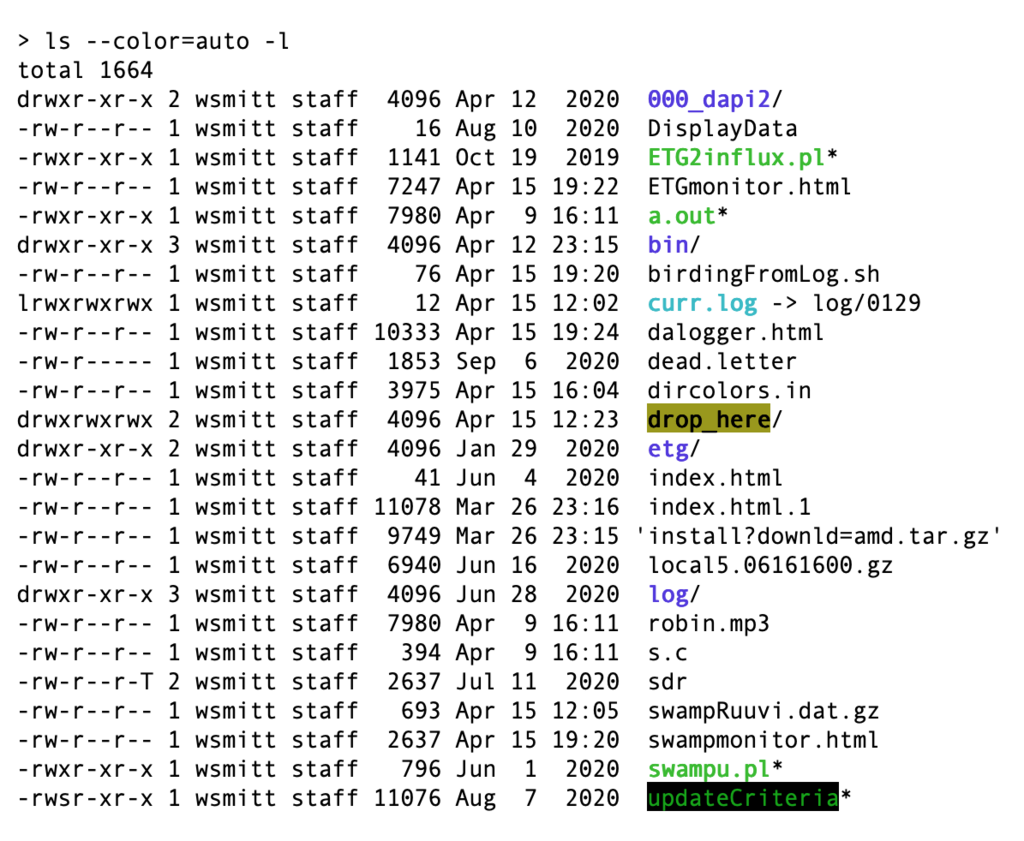
To move around, use cd (change directory). You can provide an absolute path, which starts from the root (/), or a relative path, which starts from your current location.
# Move to project_alpha using a relative path
$ cd project_alpha

# Move to the /var/log directory using an absolute path
$ cd /var/log
There are also a few handy shortcuts for cd:
cd ..moves you up to the parent directory.cd ~or justcdtakes you to your home directory.cd -takes you to the previous directory you were in.
Searching and Visualizing
Navigating one directory at a time is fine, but sometimes you need a broader view or need to find a specific file hidden somewhere in the system. For this, we use tree and find.
The tree command gives you a bird's-eye view of a directory's structure, showing all its subdirectories and files in a nested list. It's incredibly helpful for understanding the layout of a project.
$ tree project_alpha
project_alpha
├── data
│   └── raw_data.csv
├── reports
│   └── quarterly_report.pdf
└── src
    └── main.py

3 directories, 3 files
When you know a file exists but can't remember where, find is your tool. It searches for files and directories that match certain criteria. The most common use is searching by name.
# Search for a file named quarterly_report.pdf
# starting from the current directory (.)
$ find . -name "quarterly_report.pdf"
./project_alpha/reports/quarterly_report.pdf
Creating Shortcuts with Links
Sometimes you need a file or directory to appear in multiple places without creating copies. Linux handles this with links. There are two types: symbolic (or soft) links and hard links.
Symbolic link
noun
A file that acts as a pointer or shortcut to another file or directory. If the original file is deleted, the link becomes broken.
A symbolic link is like a desktop shortcut. It points to the path of another file. You create one with ln -s. They're very flexible and can point to files or directories, even across different file systems.
# Create a symbolic link to a file
$ ln -s /home/user/documents/report.pdf latest_report.pdf
A hard link, on the other hand, is a direct reference to the file's data on the disk (its inode). It's like having two different names for the exact same file. Deleting the original file doesn't affect the hard link, because it points to the data, not the path. You create a hard link by omitting the -s.
# Create a hard link to a file
$ ln /home/user/documents/report.pdf report_copy.pdf
Controlling File Access
In a multi-user system like Linux, controlling who can read, change, and run files is critical. This is managed through file permissions.
Every file and directory has three sets of permissions for three types of users:
- User (u): The owner of the file.
- Group (g): The group that owns the file.
- Others (o): Everyone else.
For each of these user types, there are three basic permissions:
- Read (r): View the contents of a file or list the contents of a directory.
- Write (w): Modify a file or create/delete files within a directory.
- Execute (x): Run a file as a program or enter a directory (with
cd).
When you run ls -l, the first 10 characters show the file type and permissions. For example, -rwxr-xr-- breaks down like this:
-: It's a regular file (adwould mean a directory).rwx: The owner (user) can read, write, and execute.r-x: Members of the group can read and execute, but not write.r--: Others can only read.
You can change these permissions using the chmod (change mode) command. There are two common ways to use it: symbolic and octal notation.
With symbolic notation, you specify which user (
u,g,o,afor all) to modify, whether to add (+), remove (-), or set (=) a permission, and which permission (r,w,x) to change.
# Add execute permission for the user
$ chmod u+x script.sh

# Remove write permission for the group and others
$ chmod go-w sensitive_data.txt

# Give everyone read access
$ chmod a+r public_file.txt
Octal notation is faster once you get the hang of it. Each permission is assigned a number: read (4), write (2), and execute (1). You add them up for each user type (user, group, other). For example, rwx is $4+2+1=7$, and r-x is $4+0+1=5$.
| Number | Permissions | Meaning |
|---|---|---|
| 7 | rwx | Read, write, execute |
| 6 | rw- | Read, write |
| 5 | r-x | Read, execute |
| 4 | r-- | Read only |
| 3 | -wx | Write, execute |
| 2 | -w- | Write only |
| 1 | --x | Execute only |
| 0 | --- | No permissions |
# Set permissions to rwxr-xr-x (755)
$ chmod 755 script.sh

# Set permissions to rw-r--r-- (644)
$ chmod 644 config.txt