Advanced IT Technical Support and Systems Management
Advanced Diagnostic Tools
Beyond the Reboot Button
You've tried restarting, and the problem persists. Basic troubleshooting has hit its limit. To solve complex, recurring issues, you need to stop guessing and start investigating. This means digging into the detailed records that operating systems keep on themselves: the system logs.
Both Windows and Linux maintain comprehensive logs of everything that happens, from a user logging in to an application crashing or a piece of hardware failing. Learning to read these logs is the difference between simply fixing a symptom and finding the root cause of the problem.
Windows Event Viewer
On Windows systems, your primary diagnostic tool is the Event Viewer. It organises a torrent of information into manageable categories. For day-to-day troubleshooting, you'll focus on three main logs under the 'Windows Logs' folder.
Application Log: Records events from software installed on the system. If an app is crashing or misbehaving, this is the first place to look for error messages from the program itself.
Security Log: Tracks access and permissions. It records every successful and failed login attempt, file access, and change in security policies. It's crucial for investigating potential security breaches.
System Log: Contains events logged by the Windows operating system itself. This includes startup and shutdown events, driver failures, and issues with core system services. If the entire system is unstable, start here.
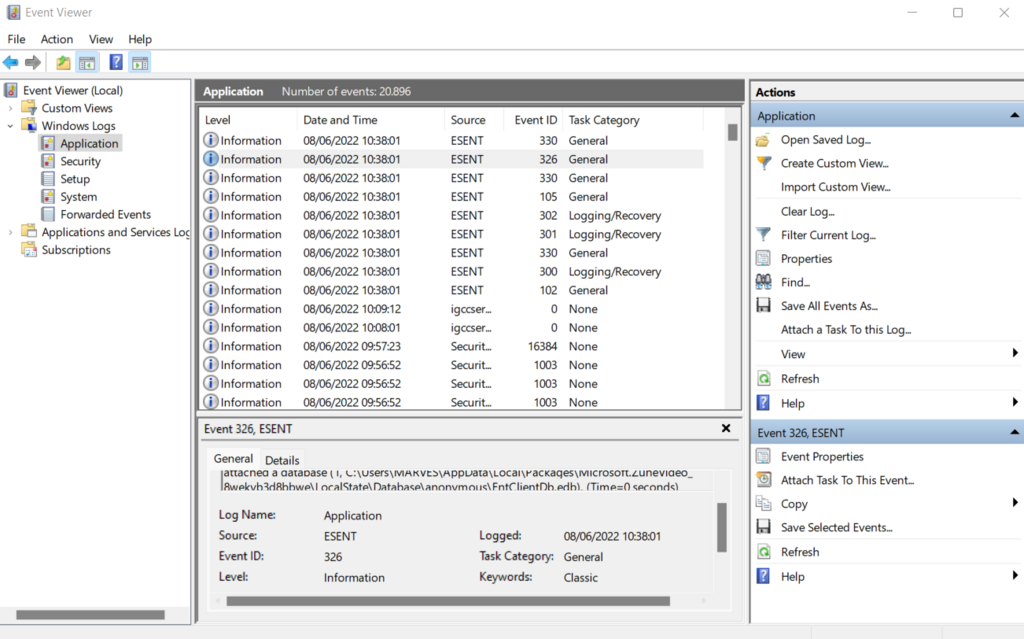
Each event in the log has a level (like Information, Warning, or Error) and an Event ID, which is a unique code for a specific type of occurrence. Instead of searching for vague descriptions, you can filter for specific IDs. For instance, a critical in the System log indicates that the system rebooted without cleanly shutting down first, pointing towards a power outage, system crash, or a Blue Screen of Death (BSoD). In the Security log, Event ID 4625 flags a failed user logon attempt.
While the GUI is useful, you can query these logs powerfuly from the command line using wevtutil (Windows Event Utility). This is essential for scripting and remote administration.
# Query the System log for all 'Critical' level events from the last 24 hours
wevtutil qe System /q:"*[System[Level=1 and TimeCreated[timediff(@SystemTime) <= 86400000]]]" /rd:true /f:text

# /q: is the query
# Level=1 corresponds to 'Critical'
# timediff is in milliseconds (24 * 60 * 60 * 1000)
# /rd:true sorts by newest first
# /f:text formats the output as readable text
Linux Logging with Syslog and journalctl
In the Linux world, logging has traditionally been handled by a protocol called syslog. It collects messages from different programs and writes them to plain text files, usually in the /var/log directory. You might see files like /var/log/syslog, /var/log/auth.log, or /var/log/kern.log.
Modern Linux distributions, however, typically use as their init system, which includes its own powerful, centralised logging tool: journalctl. It captures the same information as syslog but stores it in a structured, indexed binary format, making it much faster and more flexible to search.
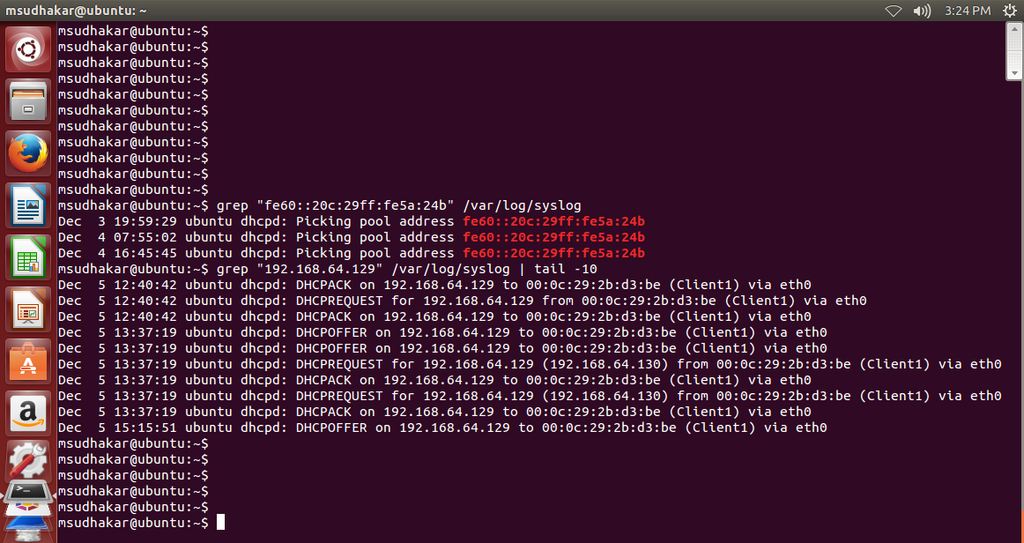
The journalctl command is your interface to the journal. You don't need to know specific filenames; you can ask journalctl for exactly what you need.
# View all logs from the current boot
journalctl -b

# Follow new logs in real-time (like tail -f)
journalctl -f

# Show logs for a specific service, e.g., the SSH server
journalctl -u sshd.service

# Filter for messages with a priority of 'error' or higher
journalctl -p err
The Art of Root Cause Analysis
Having the tools is one thing; using them effectively is another. The goal is (RCA), a methodical process to dig past the obvious symptoms and find the underlying fault. A single error message is rarely the whole story.
A good RCA process involves correlating information across time and across different logs. Did a specific application error (in the Application log) appear right before a critical driver failure (in the System log)? Did a spike in failed login attempts (Security log) coincide with a service becoming unresponsive (journalctl)? By piecing together the timeline of events, you can build a narrative of what went wrong and why.
Mastering these diagnostic tools transforms you from a technician who fixes breaks to an engineer who prevents them. It requires patience and a detective's mindset, but it's the most reliable way to ensure system stability.
What is the primary graphical user interface (GUI) tool used for viewing system logs on Windows?
A Windows system has unexpectedly rebooted. In the System log, which Event ID is the most direct indicator that the system restarted without shutting down cleanly?