Advanced Figma Workflows and UI3 Mastery
Mastering UI3 Navigation
The New Workspace
Figma's UI3 redesign declutters your workspace by moving the primary toolbar from the top to the bottom of the screen. This change frees up vertical space, giving you an unobstructed view of your canvas. It’s a subtle shift that makes a big difference, especially on smaller screens.
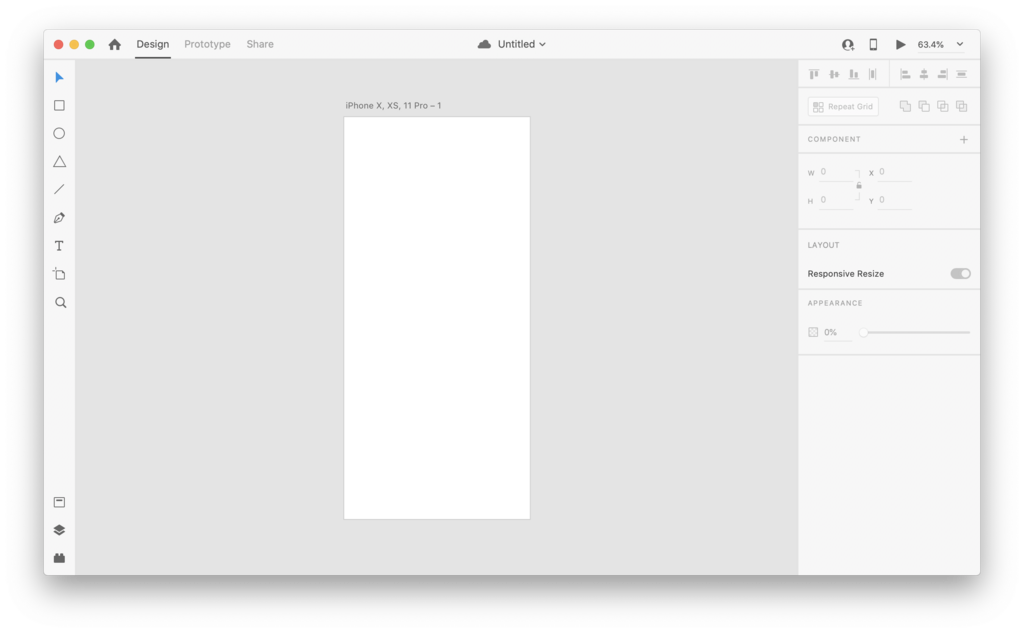
The new bottom-anchored toolbar contains all the core design tools you're familiar with: the Frame and Slice tools, shape tools, the Pen and Pencil, and the Text tool. You'll also find the Comments and Hand tools here. Placing these essential items at the bottom keeps them accessible without crowding your main design area.
The Action Menu
One of the most powerful additions to the UI is the Action Menu. You can open it by pressing Cmd+/ on Mac or Ctrl+/ on Windows. This menu is a central hub for finding and running commands, which helps you work faster without navigating through multiple menus.
Think of the Action Menu as your universal search bar for everything you can do in Figma.
The menu is organized into a few key tabs. The 'Actions' tab lets you find any command, like 'Flip Horizontal' or 'Create Component.' The 'Plugins' tab gives you quick access to your installed plugins, while the tab houses generative features that can speed up your workflow. You can search across all categories or select a specific one.
Flexible Panels
Your workspace needs to adapt to your task. In UI3, the left (Layers, Assets) and right (Design, Prototype, Inspect) side panels are fully resizable. Just drag the edge of a panel to give yourself more room for complex layer structures or detailed design properties.
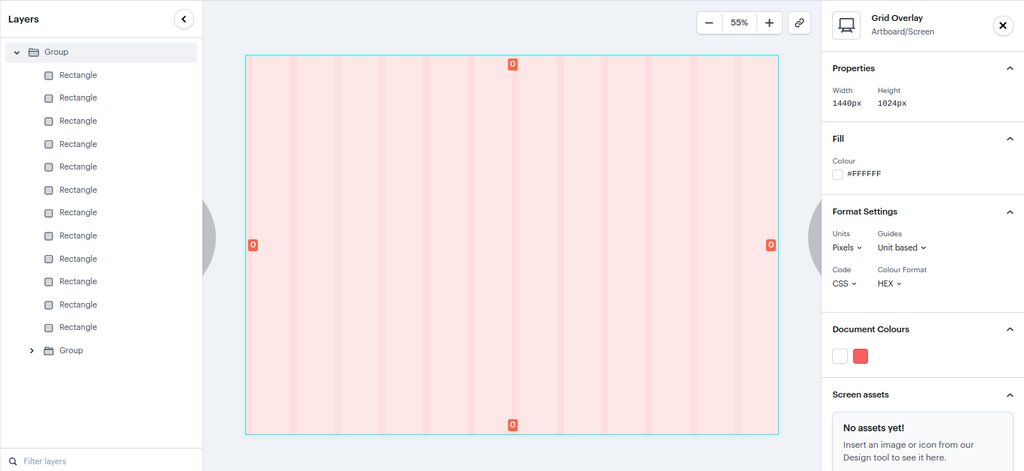
For maximum focus, you can collapse the side panels entirely by clicking the panel icons or using the shortcut Cmd+\ (Ctrl+\). This 'Minimized UI Mode' hides everything except the canvas and the bottom toolbar, creating a distraction-free environment. The top navigation bar has also been simplified, consolidating file-level actions like renaming and sharing into a cleaner layout.
At the top right, you'll find the integrated toggle. This makes switching between design and developer handoff seamless, as it's no longer a separate view but an integrated part of your workflow.
Now let's test your knowledge of the new layout.
What is the most significant change to the primary toolbar's location in Figma's UI3 redesign?
How do you open the central Action Menu in Figma UI3?
Mastering this updated interface is the first step to working more efficiently in Figma. The changes are designed to keep your focus on the canvas, where your ideas come to life.