Advanced Bash for SREs
Bash Scripting Fundamentals
What is Bash?
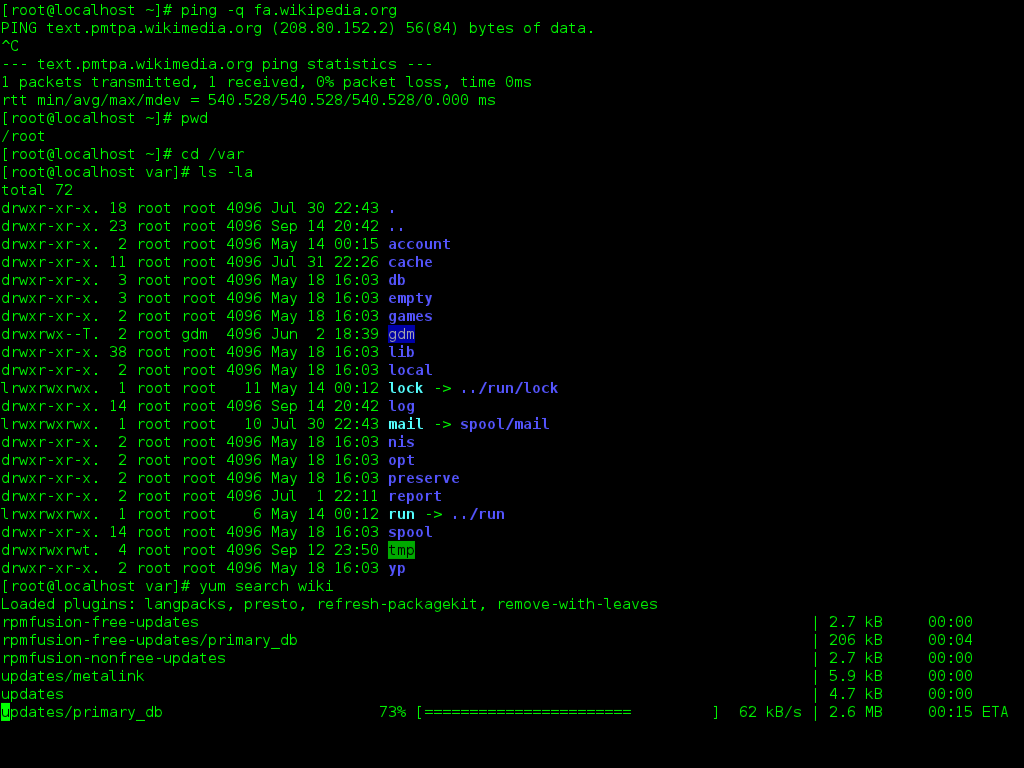
Bash, short for Bourne Again SHell, is a command-line interpreter. It’s the program that takes the commands you type into a terminal and tells the computer's operating system what to do. Think of it as a translator between you and the core of the system.
But Bash is more than just a command interpreter; it's also a powerful scripting language. This means you can write a series of commands into a file, called a script, and then execute that file to perform a task automatically. For anyone in a role like Site Reliability Engineering (SRE), this is fundamental. Automating repetitive tasks saves time and reduces human error.
Your First Script
Let's write a simple script. A Bash script is just a plain text file containing commands. By convention, these files end with a .sh extension.
The very first line of a Bash script is almost always #!/bin/bash. This is called a "shebang." It tells the system which interpreter to use to run the commands in the file—in this case, Bash.
Below the shebang, you can list any commands you would run in the terminal. We'll start with echo, which simply prints text to the screen.
#!/bin/bash

# This is a comment. The script will ignore it.
echo "Hello, SRE world!"
Save this content in a file named hello.sh.
Before you can run the script, you need to give the file permission to be executed. The chmod command changes file permissions, and +x makes it executable.
chmod +x hello.sh
Now, you can run your script. The ./ before the filename tells the shell to look for the file in the current directory.
./hello.sh
When you run it, the terminal should display: Hello, SRE world!
Using Variables and Parameters
Scripts become much more powerful when you can work with data. Variables are used to store information. To create a variable, you just assign a value to a name. The syntax is important: no spaces around the equals sign.
#!/bin/bash

# Assign a string to a variable
SERVICE_NAME="database-alpha"

# Use the variable by putting a $ in front of its name
echo "Checking status of $SERVICE_NAME..."
You can also pass data into a script when you run it. These pieces of data are called parameters or arguments. Inside the script, you can access them using special variables: $1 for the first parameter, $2 for the second, and so on. $0 holds the name of the script itself.
#!/bin/bash
# File: greet.sh

# This script expects one argument: a name.
echo "Hello, $1! Welcome to the team."
If you save that as greet.sh, make it executable, and run it with a name, you'll see how it works.
./greet.sh Alice
# Output: Hello, Alice! Welcome to the team.
Making Decisions and Repeating Actions
Real automation requires logic. You'll often need your script to make a decision or perform an action multiple times. This is handled with control structures.
The if statement allows your script to execute code only if a certain condition is true. The basic structure starts with if, includes the condition in square brackets, follows with then, and ends with fi (if spelled backward).
#!/bin/bash

# Check if the first argument is "start"
if [ "$1" == "start" ]; then
  echo "Starting the service..."
else
  echo "Usage: $0 start"
fi
To repeat an action, you can use a for loop. A for loop iterates over a list of items and executes a block of code for each item in the list.
#!/bin/bash

# A list of servers to check
SERVERS="web-01 web-02 db-01"

for server in $SERVERS
do
  echo "Pinging $server..."
  # In a real script, you'd put a ping command here
done
This script will loop three times. In each loop, the server variable will hold the next name from the SERVERS list, allowing you to perform an action on each one.
These building blocks—variables, parameters, if statements, and for loops—are the foundation of almost every automation script you'll write.
Let's check your understanding of these core concepts.
What is the primary role of Bash in a Unix-like operating system?
What is the purpose of the #!/bin/bash line at the beginning of a script?
With these fundamentals, you can start building simple scripts to automate your daily tasks.