Advanced Adobe Illustrator Graphics Creation
Advanced Path Manipulation
Refining Your Paths
You've already got the hang of creating basic vector shapes and laying down simple paths. Now it's time to move beyond the fundamentals. We'll explore the advanced techniques that give you precise control over your artwork, allowing you to create the complex, flowing, and professional-grade graphics you've envisioned.
Advanced Pen Tool Control
The Pen Tool is more than just a point-and-click device; it's an instrument for drawing with precision. Mastering its advanced capabilities means understanding how to create any curve or corner with intention.
One of the most crucial skills is creating a sharp turn immediately after a curve. To do this, you'll need to "break" the direction handles. After dragging to create a curve, hold down the Alt (or Option on Mac) key. This allows you to grab the end of the handle you just created and move it independently, setting a new direction for the next segment of your path without affecting the curve you just made.
Think of it like this: Normally, the handles on a smooth point work like a seesaw. If you pull one side down, the other goes up. Holding
Alt/Optionbreaks that connection, letting you move each side on its own.
This technique is essential for tracing complex objects or creating logos where smooth curves transition into sharp angles.
Intuitive Drawing with Tools
Sometimes the mathematical precision of the Pen Tool can feel rigid. For creating fluid, organic shapes, Illustrator offers more intuitive tools.
The Curvature Tool is a great example. Instead of clicking and dragging to create curves, you simply click to place points. The tool automatically creates a smooth curve that passes through them. To make a corner instead of a curve, just double-click on a point. This approach often feels more like sketching and less like engineering.
Another common task is connecting separate paths. Maybe you drew two lines that you now want to merge into a single, continuous shape. The Join Tool is built for this. Simply select the two paths and use the tool to brush over the ends you want to connect. Illustrator intelligently creates a segment to bridge the gap, merging them into one path.
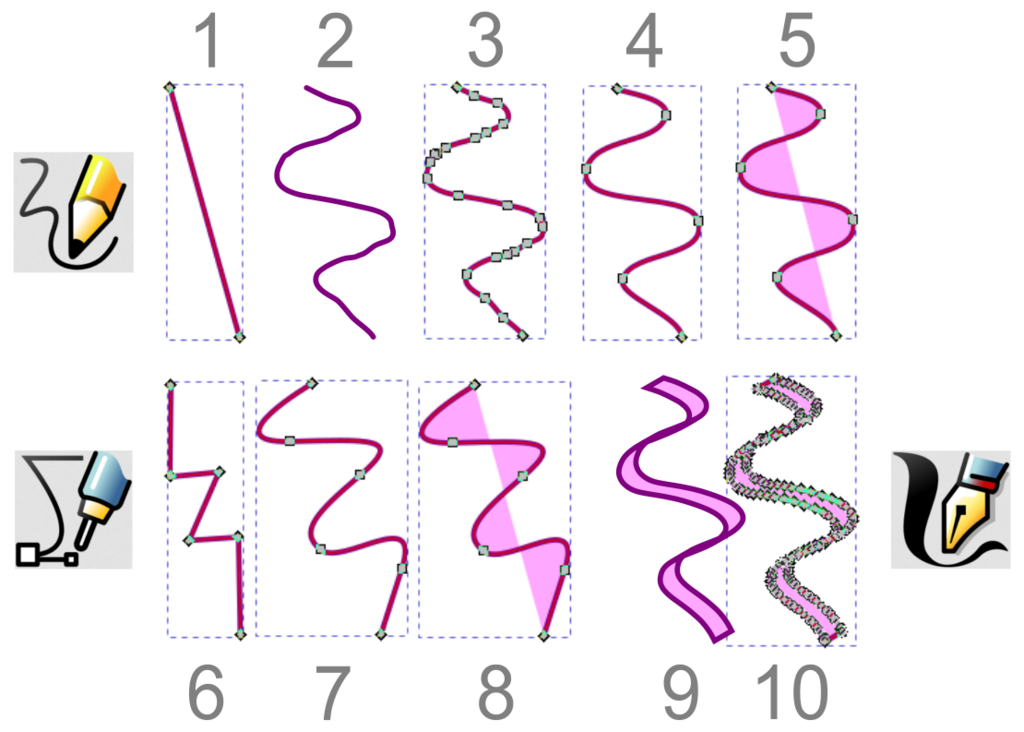
Strokes with Personality
A path is more than just its shape; its stroke can have character, too. By default, a stroke has a uniform weight from beginning to end, which can look flat and mechanical. The Width Tool lets you change that.
Select a path, then grab the Width Tool. You can click and drag anywhere on the stroke to make it thicker or thinner at that specific point. Illustrator automatically creates a smooth transition between the different widths. You can add as many width points as you like, giving you complete control over the line's contour.
This is fantastic for creating a hand-drawn look, emphasizing parts of an illustration, or designing elegant, tapered letterforms.
With these advanced techniques, you have the power to move beyond simple shapes and craft truly intricate and dynamic vector art. Practice combining them to see how they can elevate your designs.
Ready to test your knowledge?
When using the Pen Tool, how do you create a sharp turn immediately after drawing a smooth curve?
Which tool is specifically designed to merge two separate, open paths into a single continuous path?
By mastering these tools, you'll find your workflow becomes faster and your creative possibilities expand significantly.