Adobe XD Essentials
Introduction to Adobe XD
Getting Started with Adobe XD
Adobe XD is a tool for designing and prototyping websites and mobile apps. Think of it as a digital drawing board where you can map out how an app will look, feel, and function before any code is written. It helps designers create user interfaces (UI) and plan the user experience (UX), making sure the final product is both beautiful and easy to use.
XD is focused on two main jobs: designing the screens and prototyping the connections between them.
Your Workspace
When you open Adobe XD, you'll find a clean, straightforward interface. Let's break down the main parts you'll be using.
In the center is the Canvas, a vast grey space where all your design work happens. On the left, you'll find the Toolbar. This holds essential tools for creating shapes, text, and artboards. The panel on the right is the Properties Inspector. It's context-sensitive, meaning it changes to show you options for whatever you have selected. If you select text, you'll see options for font and size. If you select a shape, you'll see options for color and borders.
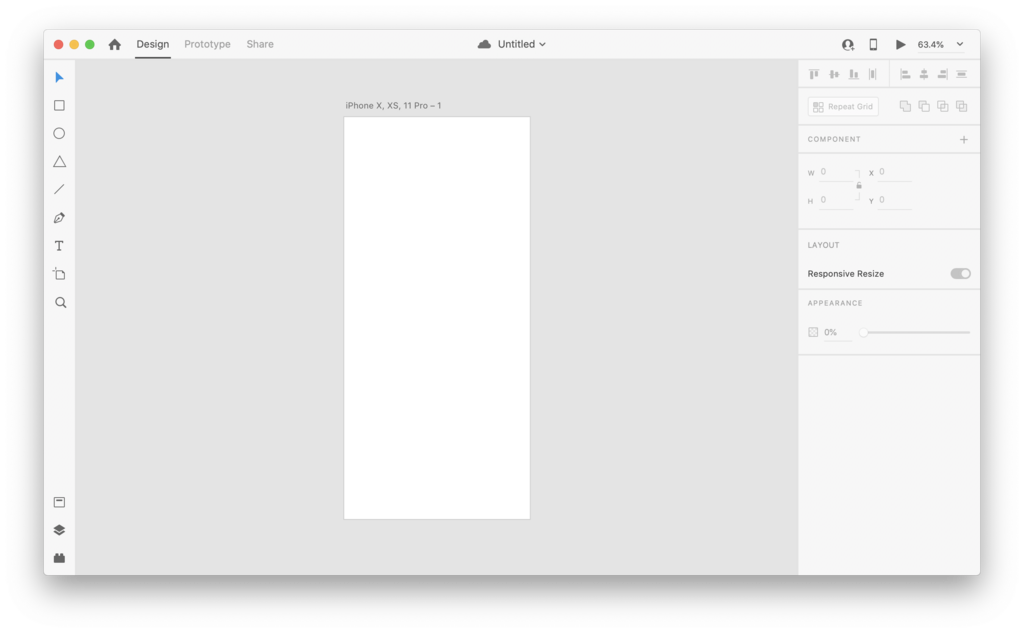
At the top left, you'll see three tabs: Design, Prototype, and Share. For now, we'll stay in the Design tab. This is where you create and edit the visual elements of your project.
Creating Your First Project
Starting a new project is simple. When you first launch the application, you're greeted with a start screen. This screen gives you several preset sizes to choose from, tailored for common devices like iPhones, iPads, and standard web browsers. You can also enter a custom size if you have specific dimensions in mind.
To begin, just click on one of the presets. Let's say you choose the iPhone template. Adobe XD will immediately create your first artboard, which is now ready for your design.
Artboard
noun
A defined area on the canvas that represents a single screen in your app or a single page on your website.
Artboards are fundamental to organizing your work in XD. You can have multiple artboards in one project, allowing you to design an entire app's worth of screens all in one place. You can add more artboards at any time using the Artboard tool (shortcut 'A') from the toolbar on the left.
Each artboard can be named to keep things organized, like 'Home Screen' or 'Login Page'. Just double-click the title above the artboard to rename it. This helps you keep track of your design as your project grows.
What is the primary purpose of Adobe XD?
In the Adobe XD interface, which panel is context-sensitive and changes its options based on the item you have selected?