Adobe Illustrator Fundamentals
Introduction to Adobe Illustrator
What is Adobe Illustrator?
Adobe Illustrator is a professional tool for creating vector graphics. Think of it as a digital drawing board where you can design logos, icons, charts, and complex illustrations. Unlike programs that edit photos, Illustrator is all about creating artwork from scratch using lines, shapes, and colors. Professionals use it to design everything from app icons on your phone to massive billboards.
The key to Illustrator's power lies in a concept called vector graphics. Understanding this is the first step to mastering the software.
The Power of Vectors
Most images you see online, like photos, are raster graphics. They are made of tiny squares called pixels. When you zoom in on a photo, you eventually see those squares, and the image becomes blurry or jagged. This is called pixelation.
Vector graphics are different. Instead of pixels, they are built from mathematical equations that define points, lines, and curves. It’s like giving the computer a recipe for drawing the image. Because it's a recipe, you can scale a vector graphic to any size, from a tiny postage stamp to the side of a building, and it will always remain perfectly sharp and clear.
This scalability is why Illustrator is the industry standard for designs that need to be used in various sizes, like company logos.
Finding Your Way Around
Opening Illustrator for the first time can feel overwhelming, but the interface is organized logically. Let's break down the main areas you'll be working with.
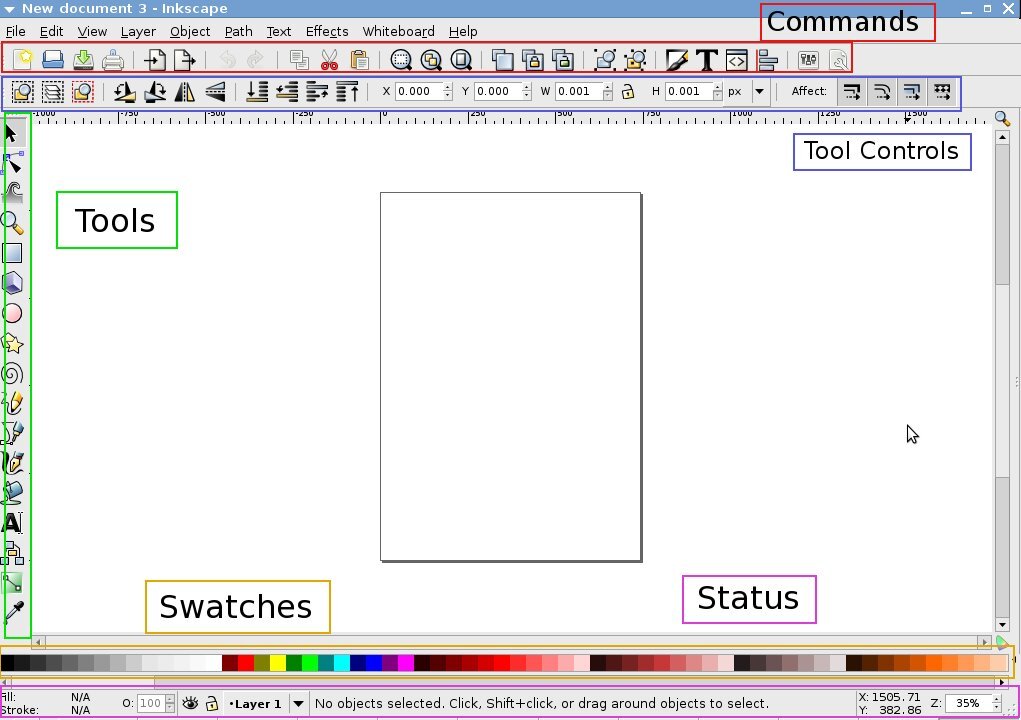
- The Menu Bar (Top): Contains standard application menus like File, Edit, and Object.
- The Tool Controls (Below Menu Bar): This bar changes to show options for the specific tool you have selected.
- The Tools Panel (Left): This is your main toolbox, containing everything you need to draw, select, type, and modify artwork.
- The Artboard (Center): This is your canvas, the area where you create your design.
- Panels (Right): These provide more detailed controls for things like color, layers, and stroke properties. You can open, close, and rearrange these to create a workspace that suits you.
Starting a New Project
To start creating, you first need to set up a document. Go to File > New... to open the New Document window. Here, you'll define the basic parameters for your project.
The most important settings are:
- Artboards: An artboard is like a page. A single document can have multiple artboards, which is useful for designing things like a business card (front and back) or a series of social media posts.
- Size & Units: You can choose a preset size (like for a letter-sized page or an iPhone screen) or enter custom dimensions. It's important to set your units correctly. Use pixels for web design and inches or centimeters for print.
- Orientation: Choose between portrait (taller than it is wide) and landscape (wider than it is tall).
Your First Set of Tools
You don't need to know every tool to get started. Mastering just a few fundamental tools will allow you to create a wide range of designs. Most tools have a keyboard shortcut, which is shown in parentheses. Learning these will dramatically speed up your workflow.
| Tool Name | Icon | Shortcut | What It Does |
|---|---|---|---|
| Selection Tool | Black Arrow | V | Selects, moves, rotates, and scales entire objects or groups. |
| Direct Selection Tool | White Arrow | A | Selects and modifies individual anchor points or path segments to change an object's shape. |
| Pen Tool | Fountain Pen Nib | P | Creates precise straight lines and smooth curves by placing anchor points. |
| Rectangle Tool | Square | M | Draws rectangles and squares. Click and hold this icon to find other shape tools like the Ellipse and Star Tool. |
The Selection Tool (V) is for manipulating whole objects. Think of it as picking up a piece of paper on your desk. The Direct Selection Tool (A) is for changing the shape of that paper by grabbing its corners and edges. The Pen Tool (P) is the most powerful drawing tool in Illustrator, allowing you to create any shape you can imagine point by point. Finally, the Shape Tools (M) are perfect for quickly creating basic geometric forms.
Now, let's test your understanding of these core concepts.
What is the primary advantage of using vector graphics, like those created in Illustrator, compared to raster graphics like photos?
A designer is creating a set of icons for a mobile app. Which unit of measurement should they most likely use when setting up their document?
With these basics, you have a solid foundation for exploring Adobe Illustrator. Practice creating new documents and drawing simple shapes with the tools you've learned.