Workplace Data Organization with MS Office
Excel Basics
Welcome to Excel
Microsoft Excel is a spreadsheet program. At its core, it's a powerful tool for organizing information. Think of it as a digital grid where you can enter data, perform calculations, and create charts. From simple lists to complex financial models, it all starts with the basics of arranging data in rows and columns.
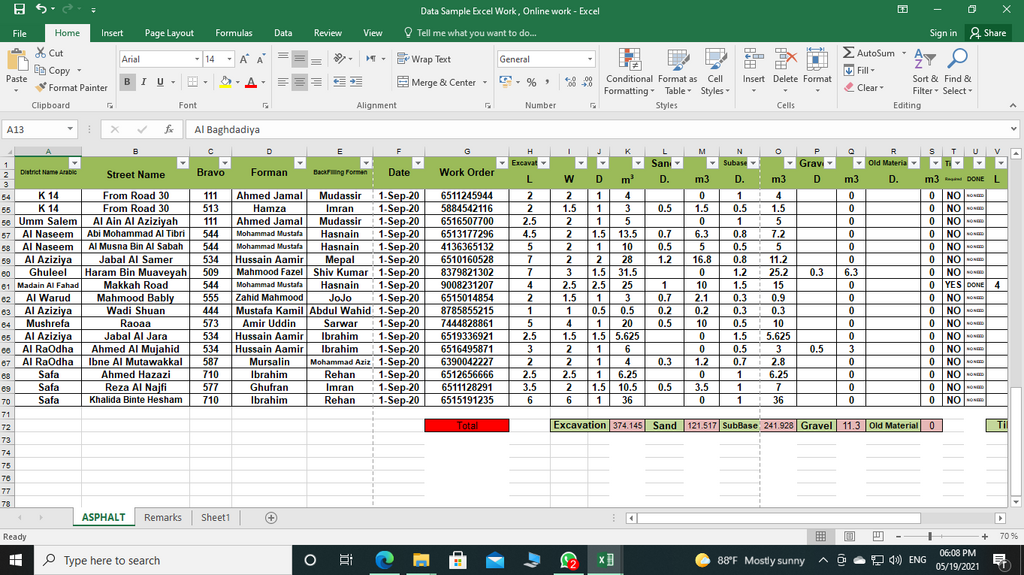
Getting comfortable with the layout is the first step. When you open Excel, you'll see a large grid of boxes. This is your canvas.
Finding Your Way Around
The main parts of the Excel window are the Ribbon, the Formula Bar, and the worksheet grid itself.
The Ribbon is the toolbar at the top of the screen. It's organized into tabs like "Home," "Insert," and "Page Layout." Each tab contains groups of related commands. For now, we'll mostly use the "Home" tab for basic tasks.
Below the Ribbon is the Formula Bar. This bar shows the contents of the currently selected cell and is where you can enter or edit data and formulas.
The main area is the worksheet, which is a grid of cells. This is where you'll do all your work.
Every worksheet is made up of three fundamental building blocks: columns, rows, and cells.
- Columns are vertical and are identified by letters (A, B, C...).
- Rows are horizontal and are identified by numbers (1, 2, 3...).
- Cells are the individual boxes where rows and columns intersect.
Cell
noun
The intersection of a row and a column in a worksheet. Each cell has a unique address, or reference, based on its column letter and row number.
Entering Your Data
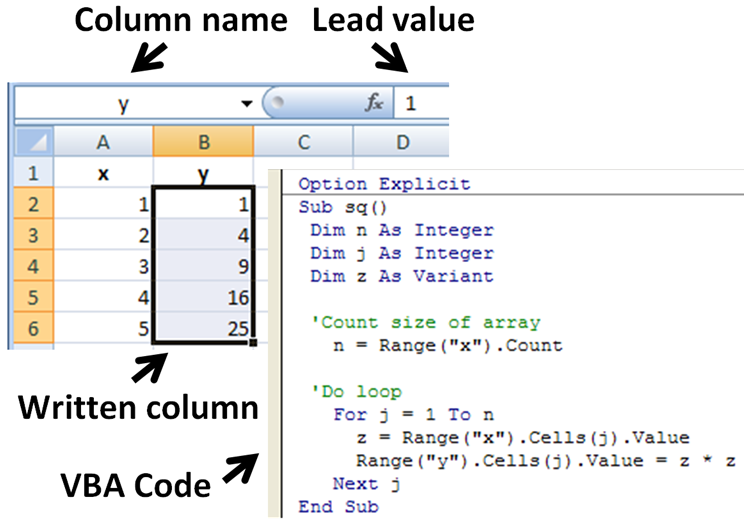
Getting information into Excel is straightforward. You just click on a cell and start typing. When you're done, you can press Enter or Tab to move to the next cell.
You can input different types of data, including:
- Text: Any combination of letters, numbers, and symbols. Excel treats these as labels.
- Numbers: Any numeric value, which can be used in calculations.
- Dates and Times: Excel recognizes standard date and time formats.
Pro tip: Pressing Enter moves the selection one cell down. Pressing Tab moves it one cell to the right. This makes entering rows or columns of data much faster.
Making It Look Good
Raw data can be hard to read. Basic formatting helps your spreadsheet become clearer and more professional. Most of these options are in the "Home" tab of the Ribbon.
You can change the appearance of text by making it bold, italicized, or by changing its size and color. You can also change the background color of a cell, which is called the fill color. This is great for highlighting important information or creating headers.
| Formatting Type | What It Does |
|---|---|
| Font Style | Makes text bold, italic, or underlined. |
| Fill Color | Changes the background color of a cell. |
| Font Color | Changes the color of the text itself. |
| Alignment | Adjusts the position of text within a cell (left, center, right). |
| Number Format | Tells Excel to treat a number as currency, a percentage, etc. |
For example, if you're tracking expenses, you can format the numbers as currency. Excel will automatically add a currency symbol (like $) and the correct number of decimal places. This small step makes your data instantly understandable.
Now that you've got the essentials, let's test your knowledge.
What is the primary function of the Ribbon in Microsoft Excel?
In an Excel worksheet, how are columns and rows identified?
With these fundamentals, you're ready to start organizing your own data in Excel.