WordPress Development Mastery
WordPress Basics
What Makes WordPress Tick?
At its heart, WordPress is a Content Management System (CMS). Think of it as an organized toolbox for building and running a website without needing to write code from scratch. It started as a simple blogging tool but has grown to power a huge portion of the internet, from small personal sites to large corporate hubs.
Its power comes from its architecture, which separates the underlying software from the content you create and the design you apply. This structure makes it flexible and relatively easy to manage.
Let's break down these three key parts:
-
WordPress Core: These are the essential files that make WordPress run. You generally don’t touch these. They handle everything from user accounts to displaying posts.
-
Database: This is where your content lives. Every blog post, page, comment, and setting is stored in a MySQL database. When someone visits your site, WordPress pulls the right information from the database to build the page.
-
Your Files: This is the fun part. It's a folder containing your themes, plugins, and media uploads. These are the pieces you add to customize your site's look and functionality.
By keeping the core software, content, and design separate, WordPress allows you to change your site's appearance (theme) without losing your posts, or add new features (plugins) without altering the core engine.
Themes vs Plugins
Understanding the difference between themes and plugins is fundamental to using WordPress effectively. One controls how your site looks, and the other controls what it can do.
WordPress’s true superpower lies in its ecosystem of themes (design) and plugins (functionality).
A theme dictates the visual design of your website. It's the skin, controlling the layout, colors, fonts, and overall presentation. Changing your theme is like redecorating your house; all your furniture (content) is still there, but the style and arrangement change.
A plugin adds new features or extends existing functionality. If you want to add a contact form, improve your site's security, or create an online store, you’ll use a plugin. Think of them as apps for your website.
| Theme | Plugin | |
|---|---|---|
| Purpose | Controls appearance and layout (the look) | Adds new features (the function) |
| How Many? | Only one can be active at a time | You can use many at once |
| Example | A theme that creates a minimalist, photo-focused portfolio design. | A plugin that adds social media sharing buttons to your posts. |
Your Local Workshop
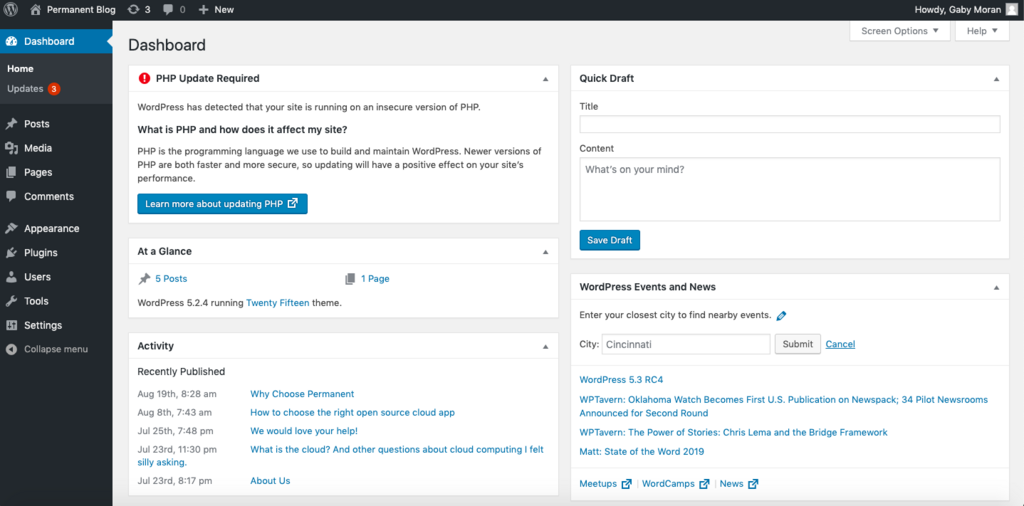
Before you start building a live website, it's wise to set up a private workshop where you can experiment freely. This is called a local development environment. It runs a complete WordPress site on your own computer, invisible to the public internet.
Working locally lets you:
- Build and test a new site without paying for web hosting.
- Try out new themes or plugins without risk of breaking your live site.
- Write and debug code in a safe, controlled setting.
Tools like WordPress Studio make this process simple. With a few clicks, you can create a brand new, fully functional WordPress installation on your machine. You simply download the application, launch it, and follow the on-screen prompts to start a new site. It handles all the technical setup for you, giving you a clean slate to start developing.
At its core, what is WordPress primarily designed to be?
If you want to change the visual design of your website, such as its layout and color scheme, which component would you typically change?
With this foundation, you're ready to explore what WordPress can do. You understand its structure, the roles of themes and plugins, and how to create a safe space for development.