WordPress AI Chatbot Development
Introduction to WordPress
Your Website's Control Center
WordPress is a content management system, or CMS. Think of it as the operating system for your website. It gives you a user-friendly interface to create, edit, and manage your site's content without needing to write code. It’s the most popular CMS in the world for a reason: it’s powerful, flexible, and has a massive community for support.
Before you can do anything, you need to get WordPress set up. This usually involves two things: a domain name (like yourwebsite.com) and a web hosting account. Most hosting companies offer a “one-click” WordPress installation, which handles all the technical steps for you. Once it’s installed, you’ll log in to your site’s control panel, known as the Dashboard.
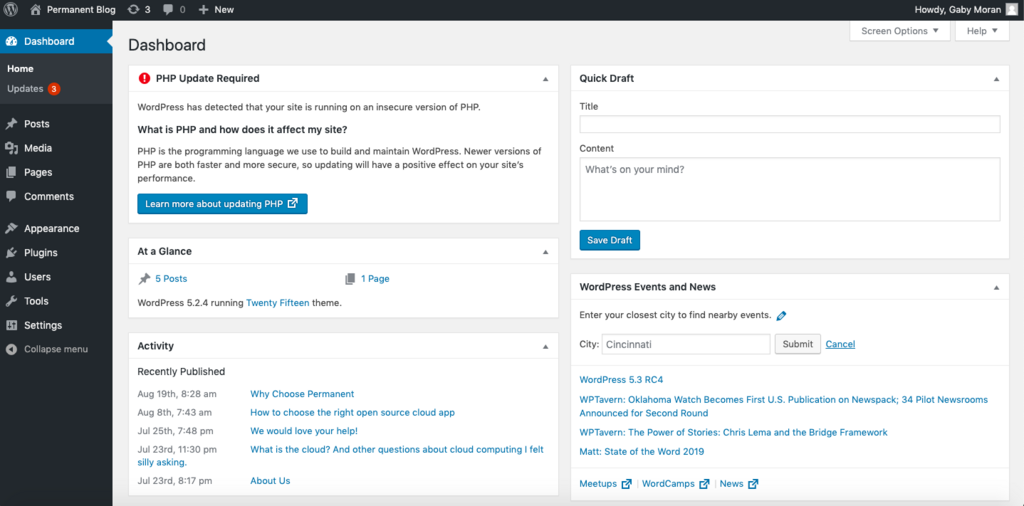
The Dashboard can look a little busy at first, but it’s organized logically. On the left, you’ll find the main navigation menu. This is where you’ll access everything from creating new blog posts and pages to changing your site's appearance and settings. You'll spend most of your time here.
Themes, Plugins, and Widgets
The real power of WordPress comes from its ability to be customized. Three key components work together to control how your site looks and functions: themes, plugins, and widgets.
Theme
noun
A collection of files that controls the visual design and layout of your website. It's like a skin for your site.
Your theme dictates your site's overall appearance, from the color scheme and fonts to the layout of your pages. You can find thousands of free and paid themes in the WordPress theme directory, accessible right from your Dashboard under Appearance > Themes. You can switch themes at any time to give your site a complete makeover without touching your content.
Plugin
noun
A piece of software that adds new features or extends existing functionality on your WordPress site.
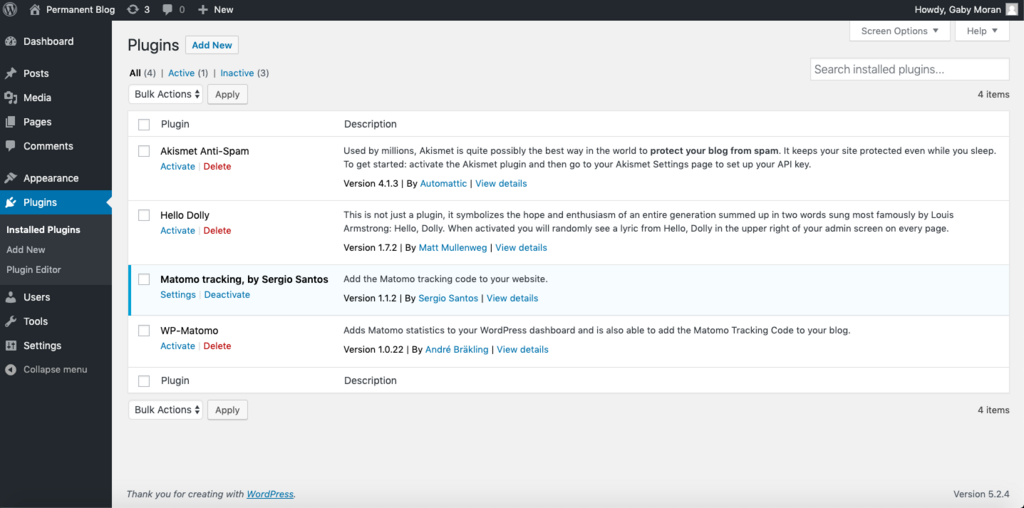
If themes control the look, plugins control the functionality. Want to add an online store, a contact form, improve your SEO, or integrate a chatbot? There's a plugin for that. Just like themes, you can browse and install plugins directly from your Dashboard under the Plugins menu. They are the building blocks that let you create almost any kind of website you can imagine.
Finally, widgets are small, independent blocks of content that you can place in specific areas of your theme, like the sidebar or footer. Common widgets include a search bar, a list of recent posts, or a calendar.
You can manage widgets by going to Appearance > Widgets. Just drag and drop the widgets you want into the designated widget areas.
Understanding these three elements—themes for design, plugins for function, and widgets for content blocks—is the key to mastering WordPress. With this foundation, you have the tools to build a basic site and prepare it for more advanced features, like an AI-powered chatbot.
Ready to check your understanding?
What is WordPress primarily known as?
If you want to change your website's overall visual design, such as its colors and layout, which component would you modify?
Getting comfortable with the WordPress Dashboard is the first step toward creating a powerful and dynamic website. Now you have the foundational knowledge needed to start building.