Visual Studio Code and CSS Essentials
Installing Visual Studio Code
Getting the Right Tools
Before you can write code, you need a place to write it. A code editor is like a word processor for programmers. It helps you write, read, and manage your code. We'll be using Visual Studio Code, or VS Code for short. It's a free, popular, and powerful editor made by Microsoft that works on all major operating systems.
For beginners, VSCode is a great choice due to its simplicity and extensions for Python support.
One of the best things about VS Code is that it doesn't demand much from your computer. If your computer is from the last decade, you're almost certainly good to go. Here are the general requirements:
- Operating System: Windows 10 or 11, macOS 10.15 (Catalina) or newer, or a common Linux distribution like Ubuntu.
- Processor: A reasonably modern processor (1.6 GHz or faster).
- Memory: At least 1 GB of RAM.
Basically, if your computer can run a modern web browser smoothly, it can run VS Code.
Downloading and Installing
First, head over to the official VS Code website. Your browser will usually be detected automatically, and the site will suggest the correct download for your system.
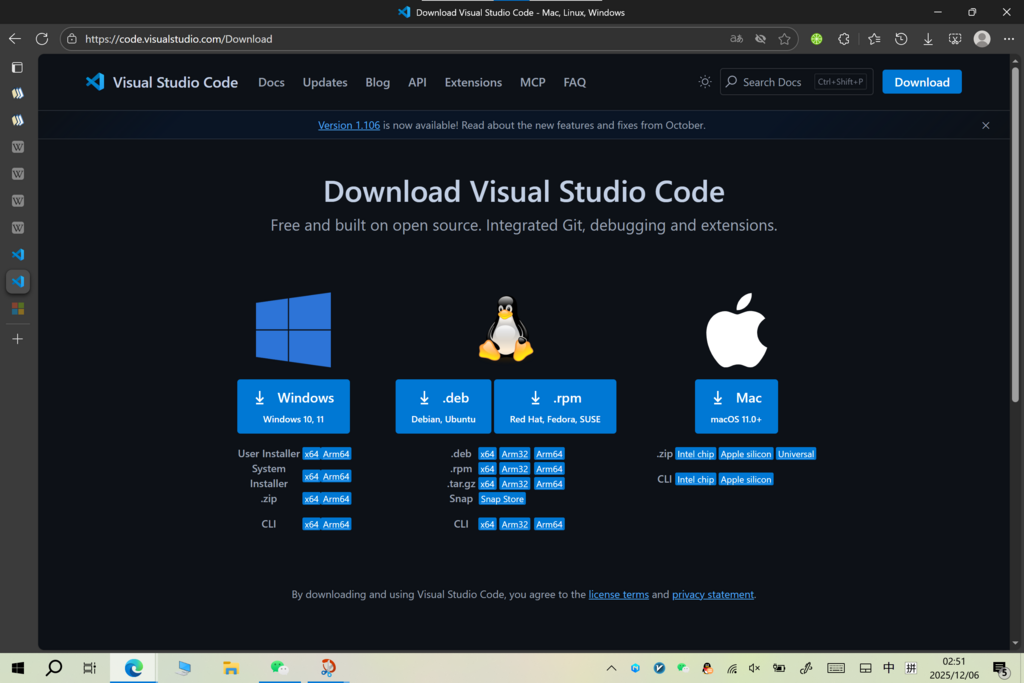
Click the big blue button to download the installer. Once the download is complete, the steps will differ slightly depending on your operating system.
On Windows:
- Find the downloaded file (it will be an
.exefile) and double-click it to run the installer.- Accept the license agreement and click "Next".
- You can leave the installation location as the default. Click "Next".
- On the "Select Additional Tasks" screen, make sure "Add to PATH" is checked. This is important for running VS Code from your computer's terminal. You might also find it helpful to check the boxes for "Add 'Open with Code' action".
- Click "Next" and then "Install". Once it's done, you can launch VS Code.
On macOS:
- The downloaded file will be a
.zipfile. Find it in yourDownloadsfolder and double-click to unzip it. - You'll see a new file called
Visual Studio Code.app. - Drag this file into your
Applicationsfolder. This makes it available alongside your other programs. - You can now open VS Code from your
Applicationsfolder or by using Spotlight search.
On Linux:
You'll download either a .deb file (for Debian-based systems like Ubuntu) or a .rpm file (for Red Hat, Fedora, or SUSE). Open a terminal and use the appropriate command.
For .deb files (like on Ubuntu):
# Replace 'path/to/file.deb' with the actual path to your downloaded file
sudo apt install ./path/to/file.deb
For .rpm files (like on Fedora):
# Replace 'path/to/file.rpm' with the actual path to your downloaded file
sudo rpm -i ./path/to/file.rpm
After the command finishes, you can launch VS Code from your applications menu.
Your First Launch
When you open VS Code for the first time, you’ll be greeted by a Welcome screen. This screen has helpful links for creating new files, opening folders, and customizing your editor.
Take a moment to look around. You'll see a sidebar on the left with several icons for managing files, searching, and installing extensions. For now, you can close the Welcome tab by clicking the 'x' on it. You've successfully installed your code editor and are ready to start building.