Visual Basic Programming Essentials
Introduction to Visual Basic
What is Visual Basic?
Visual Basic, or VB, is a programming language created by Microsoft. Think of it as a user-friendly toolkit for building applications, especially for the Windows operating system. Its roots go back to a language called BASIC, which stood for Beginner's All-purpose Symbolic Instruction Code. The goal was simple: make programming accessible to more people.
Visual Basic took this idea and supercharged it for creating programs with buttons, windows, and menus. Instead of just writing lines of text that run in a black box, you could visually design your application's interface and then write the code to make it work. This made it incredibly popular for developing business applications quickly.
Today, the modern version is known as Visual Basic .NET (VB.NET). It's a key part of Microsoft's .NET framework, a powerful platform where different languages can work together. VB.NET combines the easy-to-read syntax of classic Visual Basic with the full power of the .NET framework.
Setting Up Your Workshop
To start writing Visual Basic code, you need a workshop. In programming, this is called an Integrated Development Environment, or IDE. It's a single application that bundles all the tools you need: a text editor for writing code, a compiler to translate your code into a language the computer understands, and a debugger to help you find and fix mistakes.
The best tool for Visual Basic is Microsoft's own Visual Studio. There's a free version called the Community edition that has everything you need to get started.
To install it, go to the official Visual Studio website and download the Community edition. During installation, you'll be asked to choose workloads. Make sure you select the ‘.NET desktop development’ workload, as this includes Visual Basic.
Once it's installed, you're ready to start building.
Your First Program
Let's create a simple program that just prints a message to the screen. This is a classic tradition in programming called a "Hello, World!" application.
First, open Visual Studio. You'll see a start window with options to open existing projects or create a new one. We want to create a new one.
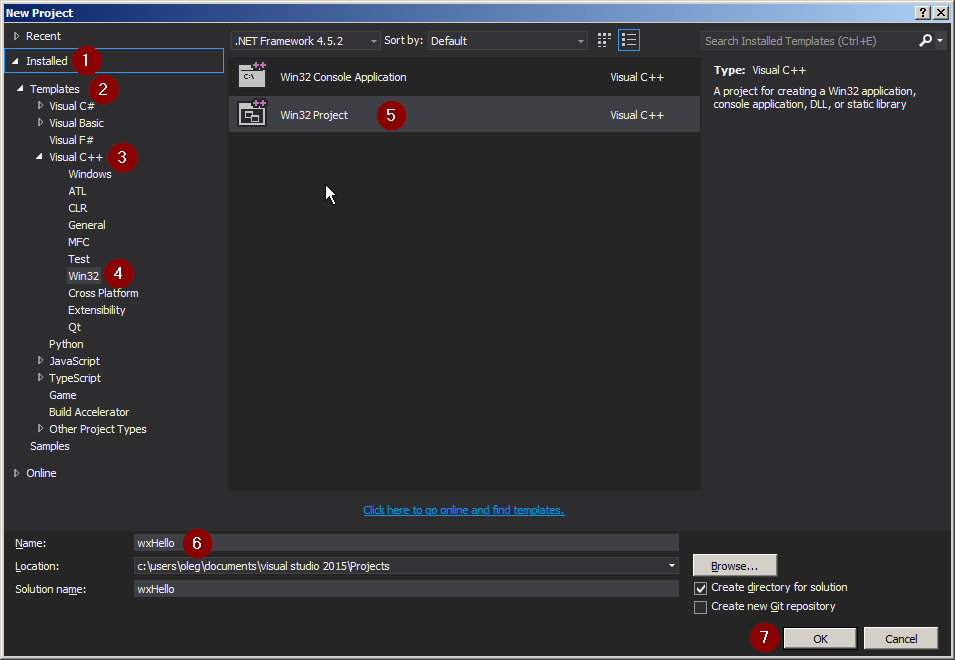
In the 'Create a new project' window, you need to find the right template. Use the search bar or filters to find a Console App template for Visual Basic. A console app is a simple program that runs in a text-based window, without any graphical buttons or menus. It's perfect for learning the basics.
After you select the template, you'll be asked to name your project. Something like HelloWorld is a good choice. Visual Studio will then create a new project for you with some starter code already in place.
Module Module1

    Sub Main()

    End Sub

End Module
This is the basic structure of a VB console application. Your code goes inside the Sub Main() and End Sub lines. Main is the starting point of your program; it's the first thing that runs.
Let's add a line to print our message. We'll use the Console.WriteLine() command, which tells the program to write a line of text to the console window.
Module Module1

    Sub Main()
        Console.WriteLine("Hello, World!")
    End Sub

End Module
That's it! To run your program, you can press the green play button at the top of Visual Studio (it usually says 'Start') or press the F5 key on your keyboard.
A black console window will pop up for a moment, display "Hello, World!", and then disappear. It happens fast, but you've just written and run your first Visual Basic program.