Trello for Course Creation Mastery
Trello Basics
The Anatomy of Trello
Trello is a visual tool that helps you organize any project, from developing a new course to planning a vacation. It's built around a simple system of three core components: boards, lists, and cards. Think of it like a digital whiteboard covered in sticky notes, where you can track tasks and collaborate with others.
Boards Your Project's Home
Everything in Trello starts with a board. A board represents your project or workflow. You might create one board for an entire course you're developing, or a separate board for each module. It’s your main workspace.
To create a new board, just find the “Create” button in your Trello dashboard, select “Create board,” give it a title, and you're ready to go. You can also customize your board by changing its background color or adding a photo to make it visually distinct and easier to identify.
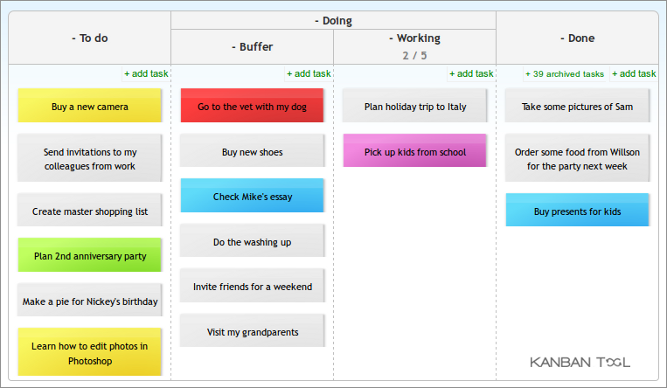
Lists Organizing Your Workflow
Inside each board, you’ll find lists. Lists are the columns that organize your cards, and they typically represent the different stages of your workflow. By moving cards from one list to another, you can track progress at a glance.
A simple and effective setup for any project is to use three basic lists:
- To Do: For tasks you haven't started yet.
- Doing: For tasks that are currently in progress.
- Done: For completed tasks.
You can add as many lists as you need and name them whatever makes sense for your project. To create a list, just click “Add another list” on your board. You can also drag and drop lists to reorder them as your workflow evolves.
Cards The Details of Each Task
Cards are the fundamental units of Trello. Each card represents a single task or idea. You add cards to lists to populate your workflow. For example, in your “To Do” list for a course development project, you might have cards like “Draft Module 1 outline,” “Record introduction video,” and “Create quiz for Module 1.”
To create a card, click “Add a card” at the bottom of any list and give it a name.
Once you create a card, you can click on it to open it up and add more detail. The most useful features for beginners are:
- Description: Add more context, notes, or instructions.
- Checklist: Break down a larger task into smaller, manageable sub-tasks.
- Due Date: Assign a deadline to keep your project on schedule.
Keep your card titles short and actionable. This makes it easy to understand what needs to be done just by scanning your board.
Now that you understand the basic building blocks of Trello, let's check your understanding.
What are the three core components that form Trello's organizational structure?
In Trello, what does a board typically represent?
With boards, lists, and cards, you have a powerful yet simple framework for managing your course development or any other project.