Python Scripting Mastery From Zero
Introduction to Scripting
What is a Script?
Think of a script as a recipe for your computer. Instead of instructions for baking a cake, it's a list of commands for the computer to follow. You write these commands down in a file, and the computer executes them one by one, in order. It's that simple.
The main reason we use scripts is to automate tasks. Imagine you have 100 photos that you need to rename from IMG_1234.jpg to Vacation_1.jpg, Vacation_2.jpg, and so on. Doing this by hand would be tedious and prone to errors. With a script, you can write a few lines of instructions and let the computer do all the work in seconds.
Scripts turn repetitive, manual work into a single, automated step. They save time and ensure tasks are done consistently every time.
The Terminal and Execution
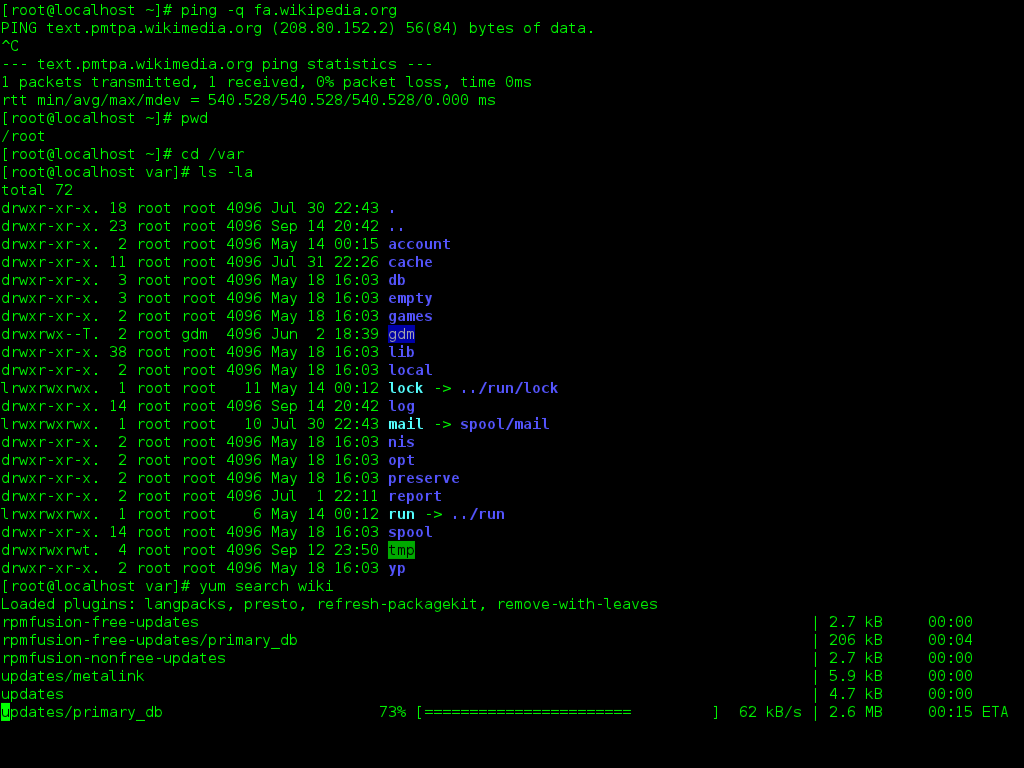
To work with scripts, you'll use a program called the terminal, or command-line interface (CLI). This is a text-based way to interact with your computer's operating system. Instead of clicking icons, you type commands.
Let's create a simple script. First, create a file named hello.sh and put the following text inside it.
#!/bin/bash

# This is a comment. The computer ignores it.
echo "Hello, scripting world!"
The first line, #!/bin/bash, is called a "shebang." It tells the operating system which program (in this case, Bash) should be used to run the commands in the file. The echo command simply prints text to the screen.
Before you can run the script, you need to give it permission to be executed. This is a security feature. In the terminal, you'd type the following command:
chmod +x hello.sh
This command, chmod, modifies the file's permissions. The +x part adds the "execute" permission. Now, you can run your script by typing:
./hello.sh
The computer will read hello.sh, see the echo command, and print "Hello, scripting world!" to your terminal.
Navigating and Permissions
Working in the terminal means you need to know how to move around your computer's file system. Think of it like a tree, with the root at the top and branches of folders (directories) and files. Here are the three most essential commands for navigation:
| Command | Name | Action |
|---|---|---|
pwd | Print Working Directory | Shows the full path of the directory you are in. |
ls | List | Lists the files and directories in your current location. |
cd | Change Directory | Moves you to a different directory. |
We already used chmod +x to make a file executable. File permissions are a core concept. They control who can read, write to, or execute a file. There are three sets of permissions for every file:
- User: The owner of the file.
- Group: A collection of users who share permissions.
- Others: Everyone else on the system.
Each of these sets can have read (r), write (w), and execute (x) permissions. When you run ls -l, you can see these permissions displayed, like -rwxrw-r--.
Inputs, Outputs, and Errors
Scripts are most powerful when they can interact with data. This involves managing input and output streams.
Stream
noun
A sequence of data that a program can read from or write to.
Every command you run has three standard streams:
- Standard Input (stdin): Where the program gets its input. By default, this is your keyboard.
- Standard Output (stdout): Where the program sends its normal output. By default, this is your screen.
- Standard Error (stderr): Where the program sends error messages. This also defaults to your screen.
You can redirect these streams. For example, to save the output of a script to a file instead of showing it on the screen, you use the > operator.
# Runs the script and saves its output to output.txt
./hello.sh > output.txt

# The same, but this appends to the file instead of overwriting it
./hello.sh >> output.txt
Scripts can also accept inputs directly from the command line when they're run. These are called command-line arguments. Inside a script, they are accessible through special variables: $1 for the first argument, $2 for the second, and so on.
What happens when a command finishes? It returns an exit code, which is a number between 0 and 255. A code of 0 means everything ran successfully. Any other number indicates that some kind of error occurred. You can see the exit code of the last command by checking the special $? variable.
# Run a successful command
ls
echo $?  # This will print 0

# Run a command that fails (assuming 'not-a-real-file' doesn't exist)
ls not-a-real-file
echo $?  # This will print a non-zero number
Checking the exit code is the most basic form of error handling in scripts. You can use it to decide whether to continue with the next step or stop and report a problem.
What is the primary purpose of using a script?
What is the purpose of the #!/bin/bash line at the beginning of a script?
This covers the foundational concepts you need to start scripting. You now know what scripts are for, how to run them, and how they interact with the operating system.