Python Programming Fundamentals
Python Installation
Getting Python on Your Machine
Before you can write any Python code, you need to install the Python interpreter on your computer. This program reads your Python code and translates it into instructions the computer can understand. The best place to get it is from the official source, python.org.
The installation process is slightly different depending on your operating system. We'll walk through each one.
For Windows Users
Head to the Python website and download the latest installer. When you run it, you'll see a setup window. The most important step here is to check the box that says "Add python.exe to PATH" at the bottom of the window before you click "Install Now".
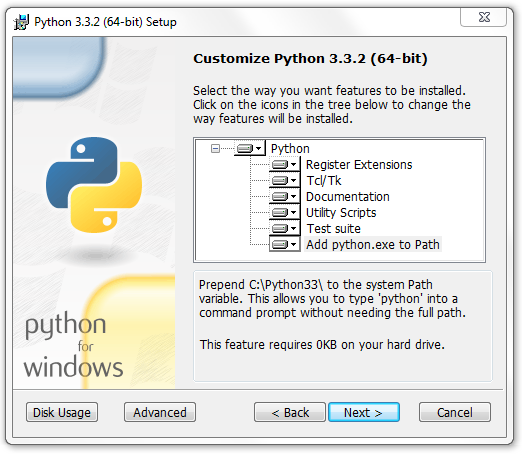
Checking this box lets you run Python from any command prompt, which is very useful. If you forget, you'll have to reinstall.
For macOS Users
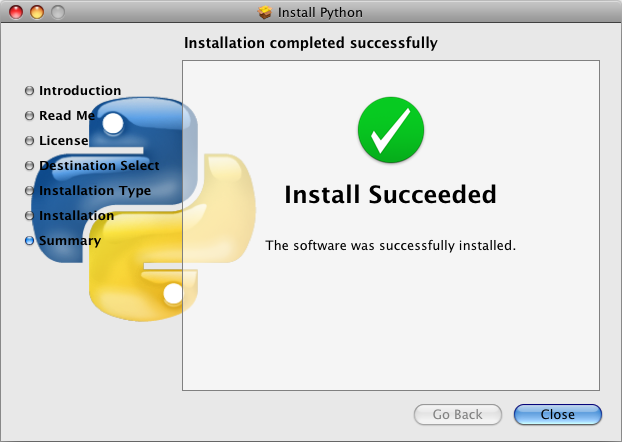
The process is similar. Download the macOS installer from the Python website. Open the downloaded .pkg file and follow the on-screen instructions. It’s a standard Mac installation, so just click through the prompts until it's finished.
For Linux Users
Good news. Most Linux distributions, like Ubuntu, come with Python pre-installed. To check, open your terminal and type this command:
python3 --version
If it’s installed, you'll see a version number like Python 3.11.3. If not, or if you need to update it, you can use your system's package manager. For Debian-based systems like Ubuntu, the command is:
sudo apt update
sudo apt install python3
Your Coding Workspace
Now that Python is installed, you need a place to write your code. You could use a basic text editor like Notepad, but that's like trying to build a house with only a hammer. An Integrated Development Environment, or IDE, gives you all the tools you need in one place.
IDE
noun
An Integrated Development Environment (IDE) is a software application that provides comprehensive facilities to computer programmers for software development. An IDE normally consists of at least a source code editor, build automation tools, and a debugger.
For beginners, a simple IDE is best. Python's installer actually comes with one called IDLE. It’s basic, but it works perfectly for learning.
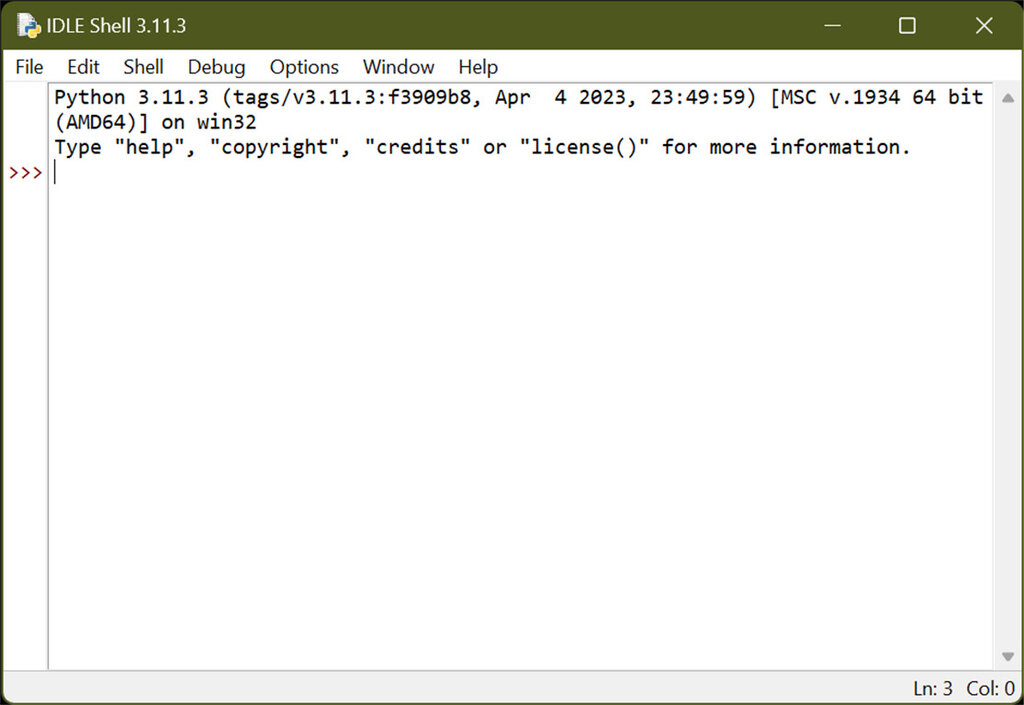
Another excellent choice is Thonny. It's an IDE designed specifically for beginners. It has a very clean interface and helps you see what Python is doing behind the scenes.

Your First Project
Let's set up a place for your first project. This is just a way to keep your files organized.
- Create a new folder on your computer. Call it something like
python_projects. - Inside that folder, create another folder for your first project. Let's call it
hello_world.
That's it! Now, let's write our first line of code. Open your IDE (either IDLE or Thonny).
In your IDE, create a new file. Type the following line of code:
print("Hello, Python!")
Now, save the file. In the save dialog, navigate to your hello_world folder and name the file main.py. The .py extension is important; it tells the computer this is a Python file.
Most IDEs have a "Run" button (it often looks like a green play symbol). Click it. You should see the text
Hello, Python!appear in an output window.
Congratulations! You've just installed Python, set up a simple project, and run your first program.
What is the primary function of the Python interpreter?
When installing Python on Windows, what crucial step ensures you can run Python easily from any command prompt?
You now have a complete setup for learning and writing Python code.